
Flow enables you to create responsive publications for delivery alongside your Flipbooks. Readers can then choose their preferred method of reading for optimal display on the screen or device that they are using.
Flow-enabling a document
When editing your Flipbook, it can be Flow-enabled by selecting ‘Article View’ immediately above the canvas. Once enabled, Flow will begin processing your publication’s pages. Once the first three pages have been processed, they will become editable within Flow. Subsequent pages will become editable as and when they are processed.
Flow documents are edited using an embedded instance of 3D Issue’s Studio application. Once initially processed, your content will be organised into a single-column layout. On the canvas, you can add, edit or remove elements from your Flow publication as required, without affecting the content contained in your Flipbook.
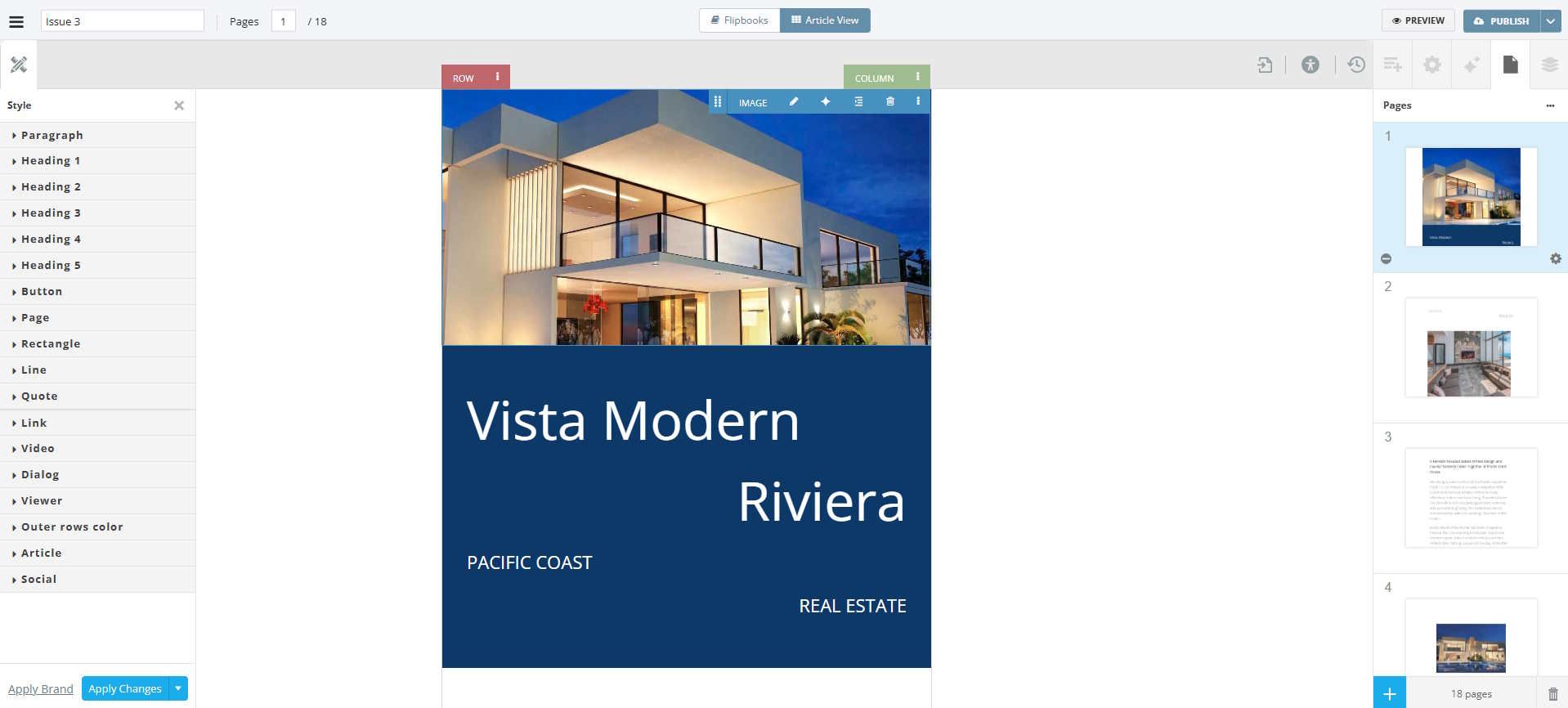
The Flow editor consists of three main sections:
The Canvas
The Canvas contains the visual representation of your publication, as well as options to reimport the specific page visible in the canvas, check that your Flow publication meets accessibility standards, and a history panel for reverting to previous versions of your publication.
The Styles Panel
The Styles Panel can be used to quickly apply your own branding to the document. Brands can be created and saved in our Studio control panel, and applied later using the Styles Panel. This panel can also be used to make document-wide changes to individual element types.
Control Columns
This area of the screen contains the following functionality:
- Add Content
Various content types which can be added to publications. These include individual elements, pre-designed page sections and even entire layouts. - Element Properties
Used to change the appearance, positioning and other settings of elements on the canvas. - AI Assist
Kelda, our AI assistant, can be used to aid you in creating layouts, writing content and generating images. - Pages
Add, remove, duplicate or re-order the pages in your publication. Also provides access to individual page properties. - Structure
A visual representation of the hierarchical structure of your page, beginning with the outermost elements, and displaying nested elements in a tree structure.