
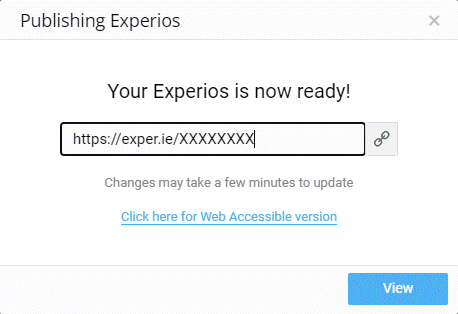
When you’re ready to publish your project, click the Publish button at the top-right of the Studio Editor screen. After a short wait, you will be presented with a dialog containing the URL that points to your project on the web, as well as a link to the accessible version of your publication.
If you subsequently require the link at some point after publication, you can get it by opening your project and clicking on the link icon in the top bar of the Studio Editor. This icon will only appear when a project that has already been published is open on the Canvas.

Publishing Offline
If you would like to download a copy of your Studio publication, in order to self-host, or to make it available locally on a computer that has limited or no Internet access, you have the option of doing this.
In order to publish offline, click on the icon on the right-hand side of the Publish button, and then click ‘Publish Offline’. The process is similar to publishing online, with the difference being that when your publication is ready, you will be given a link to a .zip file that will contain your its component files.
You can now download this file and extract it to wherever you need to make your Studio publication available.
Do bear in mind that any changes made to your publication after publishing offline will not be reflected in offline copies, meaning that you’ll have to re-download the new version and manually replace existing offline copies with the latest version.