
Images can be cropped after uploading to the Studio Media Library and adding to a project. To do so, expand the tab for the image you would like to crop and select the crop icon (third icon from the left).

After clicking the icon, the image will be opened in the Cropping Tool. The drag handles on each side and corner of the image can be used to select an area to crop. Clicking ‘OK’ will crop the image and update the element on the Canvas to reflect the change.
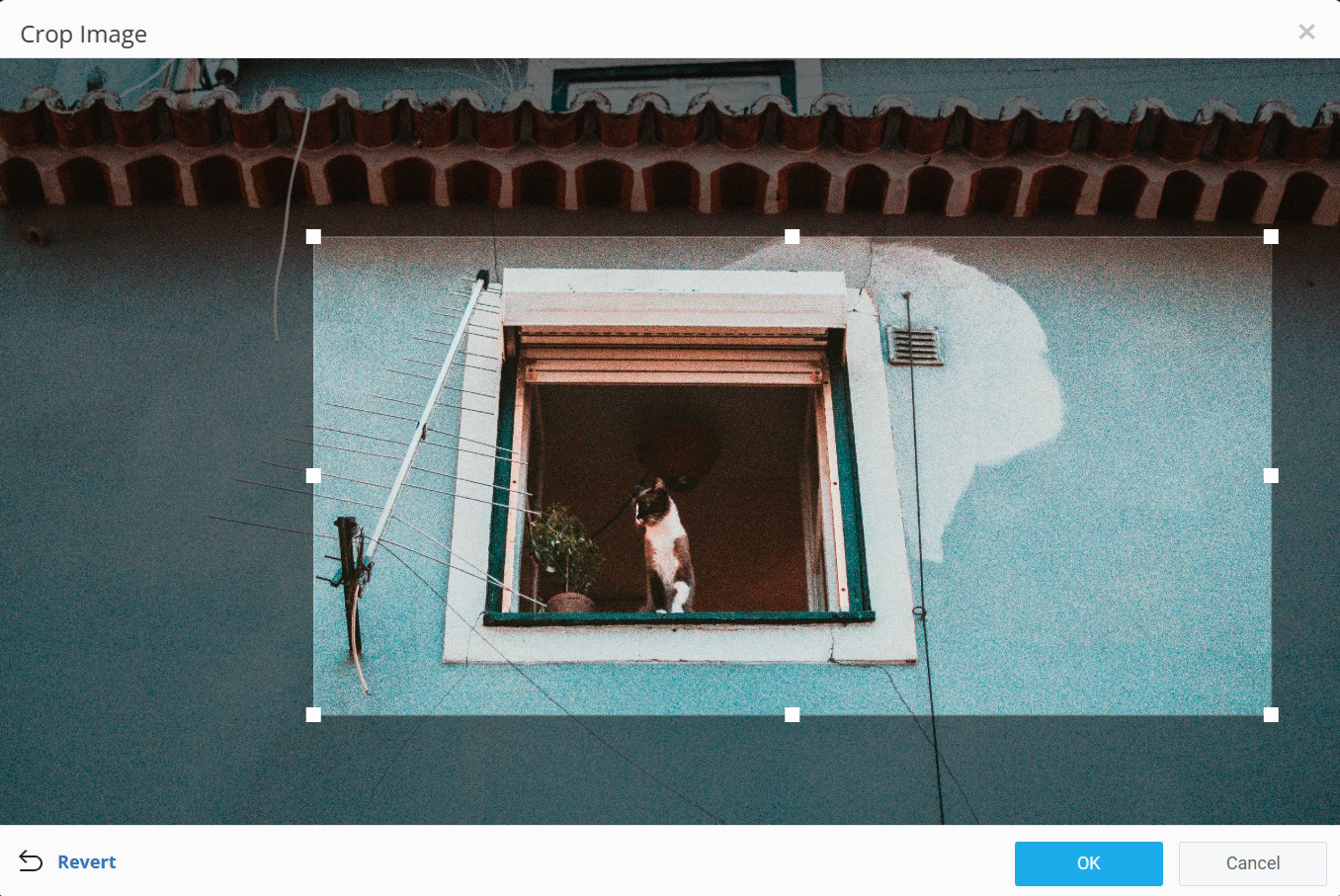
You can revert the image to its original framing by opening the Cropping Tool again and clicking on ‘Revert’. You can then re-crop the image, or click ‘OK’ to have the original image appear on the Canvas.