
Using Studio it is possible to extract text and images form PDF files directly into a project using our Article Importer.
This allows you to easily reformat content from a fixed layout to an accessible and responsive design, suitable for delivery on the web.
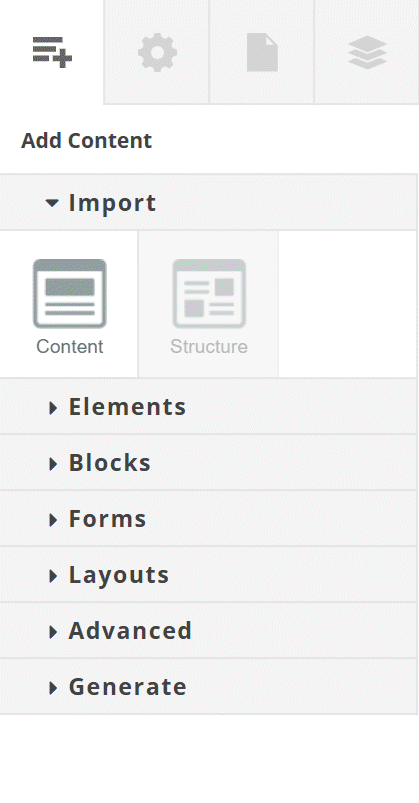
Articles can be imported in two ways: Content and Structure. Using the Content Import will extract text and images from the pdf, and lay them out in a single column of your Studio page. The Structure Import option will import text and images, and will also attempt to recreate the layout of the pdf page as a responsive layout.
Importing Article Content
To begin extracting an article’s content from a PDF, click on the Content icon in the Add Content Control Column. This will open a your system’s file selection dialogue.
Using this, navigate to and select, the desired PDF file. After a few seconds, the pages from the PDF will be displayed, allowing individual pages to be selected for importing to your project.
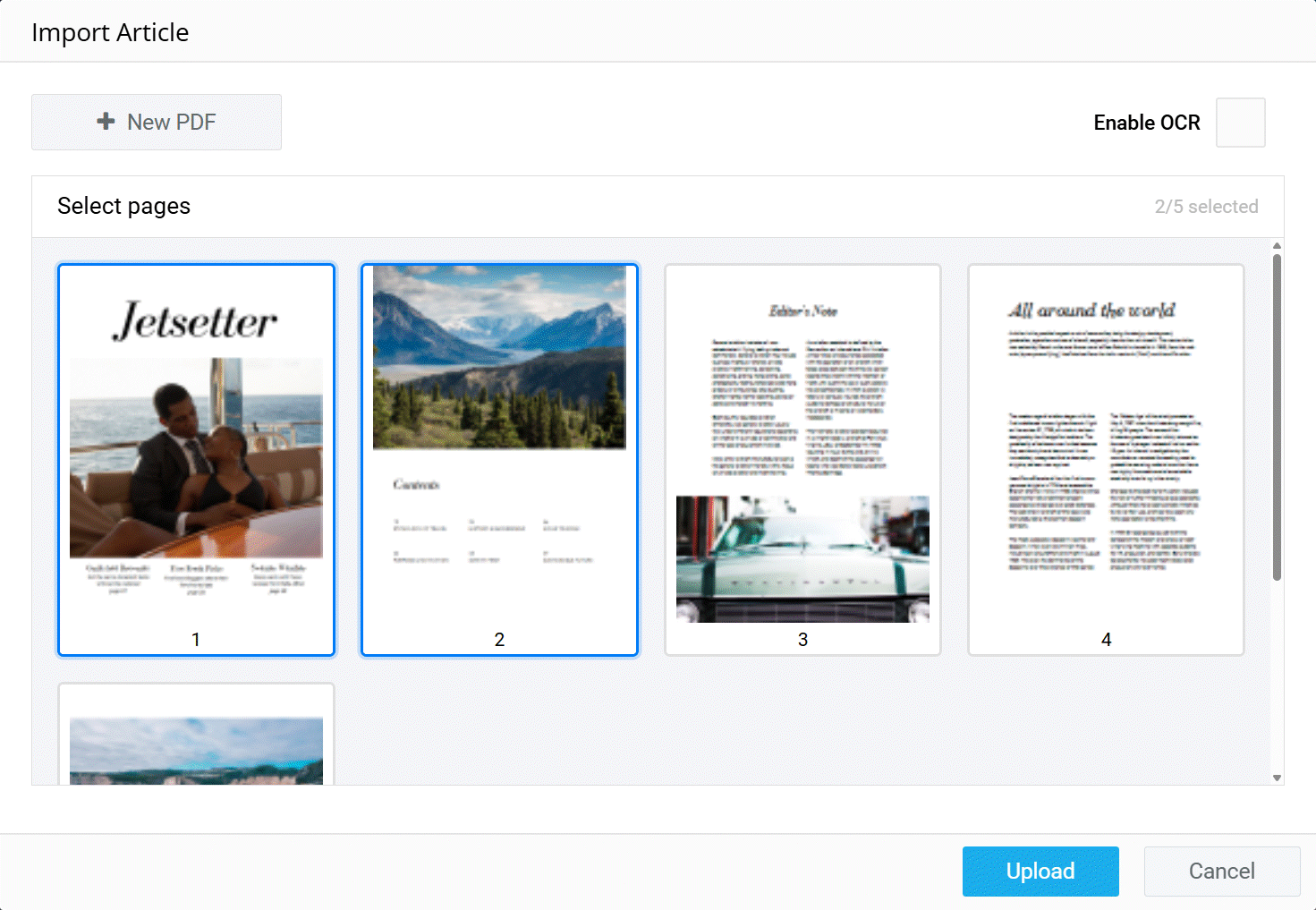
At this point, you can choose to select a different PDF for import. If you are happy with the currently selected PDF, select a page and click on ‘Upload’ to extract the page content to your project. Up to 10 pages can be selected using the Ctrl (Command on Apple Systems) and Shift keys.
By default, the Article Importer only reads text that is present in the PDF as text. If you are importing a rasterized PDF, or a PDF which has text on images that needs to be extracted, check the ‘Enable OCR’ (Optical Character Recognition) checkbox at the top right of the Import Article dialogue. If your imported content is missing sections of text from the original PDF, try enabling OCR.
Once the relevant pages have been selected and uploaded, their contents will be added to the end of the page currently being edited on the Studio Canvas. Studio will arrange elements in a web-friendly single responsive column. This column defaults to 700px wide, but you can change this by editing the Brand associated with the project. When imported, elements will adhere to the Brand Style associated with the current project. You can, from this point, edit both the style and content of the imported elements in the same way as you would any other element in an Studio project.
Due to the sometimes complex layouts of PDF documents, the Article Importer is trained to import the most relevant text and images from pages. As such, you may find that, for example, smaller, less prominent images on a page will not be imported. In these cases, you can manually extract the images from the PDF using our clipping tool.
Clipping Images from an Imported PDF
When importing from a pdf, the extractor tries to select the most important images from the article. This is to prevent the import from being overloaded with small or background images.
On some occasions, the imported content might not import all of the relevant images. In these cases, images can be manually snipped from the source pdf. To do so:
- Locate, on the Canvas, the row representing the page containing the image you want to snip.
- Click on the Area Selector icon for that row. This will open the corresponding page of the pdf.

The Area Selector Icon (third icon from the left) - Click and drag on the page to define the area you want to snip. You can create multiple selections by holding the Shift key. You can remove a selection by clicking on the Trash Can icon at the top-right of the selection.
- Click ‘Submit’ to clip the selections from the page.
This will create an Image Element and place it at the end the page’s row on the Studio Canvas. This new Element will initially occupy 100% of the row width. You can use the Element’s properties to resize and reposition the image, as well as edit it in the same way as any other Image Element.
Importing Article Structure
To extract an article’s content and structure from a PDF, click on the Structure icon in the Add Content Control Column. This will open a your system’s file selection dialogue. After selecting a .pdf file, you will be presented with a dialogue containing all of the pages from your PDF.
You can enable/disable pages for import (maximum 3 at a time) using the checkboxes beside the page thumbnails. Pages can be merged by selecting multiple pages using the Shift or Ctrl (Command on Apple systems) keys. Once you have combined and selected all relevant pages, click on ‘Upload’. The upload process will take some time, as Studio interprets the layout of the pages. Once finished, the imported content and structure will be appended to the current page in your Studio project.
Again, if you need to extract something specific from the imported page, you can do so using the pdf clipping tool.