

There are a few ways to add text to a new or existing page.
You can open the ‘Content’ Control Column to the right of the Canvas and, in the ‘Elements’ section, you will see the text option. You can add text to the end of the page by clicking on thee icon, or by dragging and dropping it onto the Canvas.
Once a Text element has been added to the Canvas, it can be edited directly by clicking on it. Text acts like you would expect from a WYSIWYG – you can type, format using the Text Toolbar, and copy and paste text from other sources. The formatting of copied content will automatically be removed and the text will be reformatted into the page’s predefined style or master-style. We’ll explore this more later.
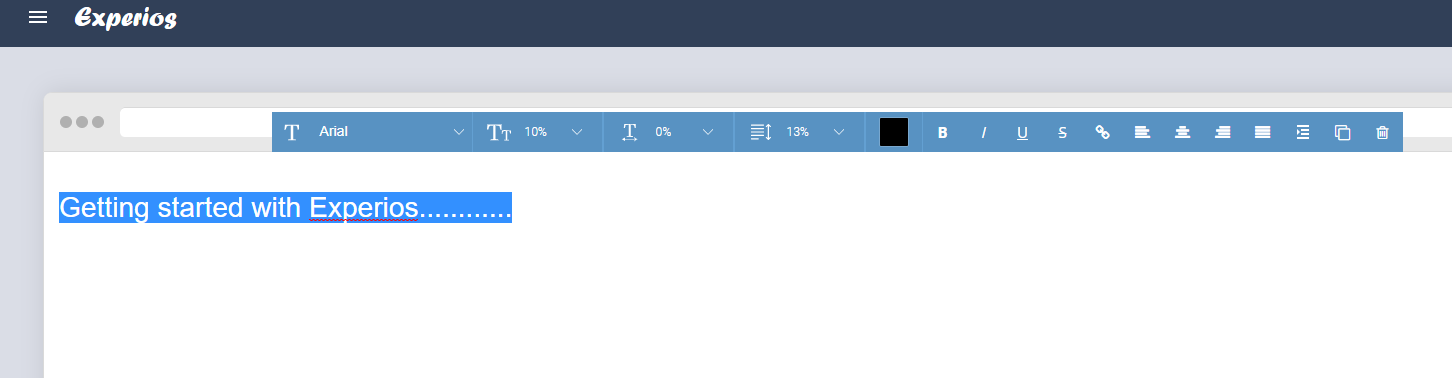
To format, select the text that you’d like to apply changes to, and use the text toolbar to apply styles as required.
Using Google Fonts, Studio can offer more than 800 font options. To access a small selection, select the font dropdown on the text toolbar.
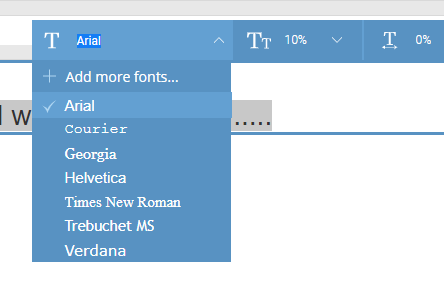
This small selection is called Favourite Fonts. The listing can be customized by clicking on the “Add More Fonts” option and choosing from the many hundreds of font possibilities.
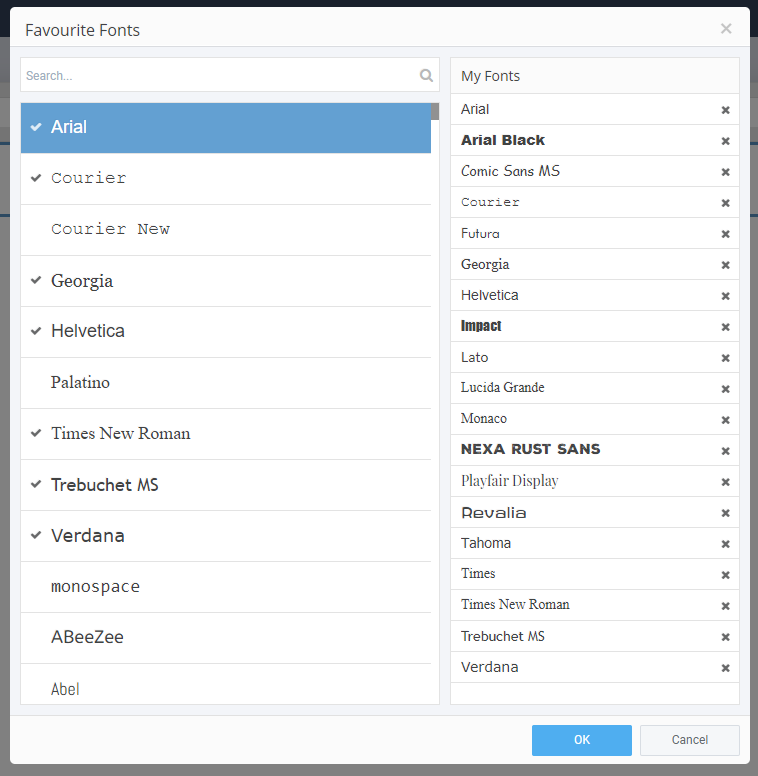
When the Favourite Fonts window appears, you will see 2 columns. The column on the left shows all the fonts that are available. The column on the right shows all the fonts that currently appear in your drop-down list. To add a font, scroll or search for it in the left-hand column and then click it. A tick will appear alongside it and the font will appear on your Favourite Fonts listing. Be sure to click OK to complete the action.
Font Sizes
You might notice that our font sizes are defined in percentages rather than in the traditional pixels.
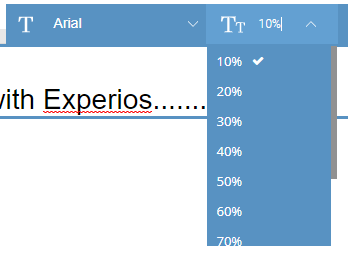
For responsive content to be effective, it needs to be dynamic. Content must reshape to suit the device that the reader chooses to consume it on. This means that the content must increase and decrease in size, accordingly. Adding the font size as a pixel would fix the size of the text, meaning that it would not adjust to suit the reader’s device.
The drop-down list has a number of preset options but you can also manually type in the percentage size that you need. A little experimentation may be needed, to find the font size that works best for you, but it’s easy to change.
Spacing
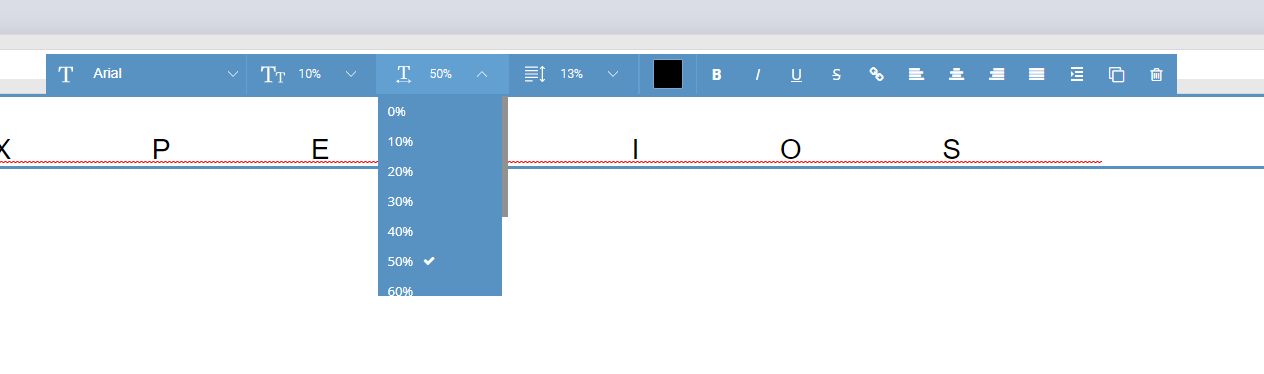
If you want a word to take up a larger percentage of the text field – when creating headlines and so on – letter spacing is a useful tool. Again, rather than using pixels, the measurements are in percentages.
Line Height
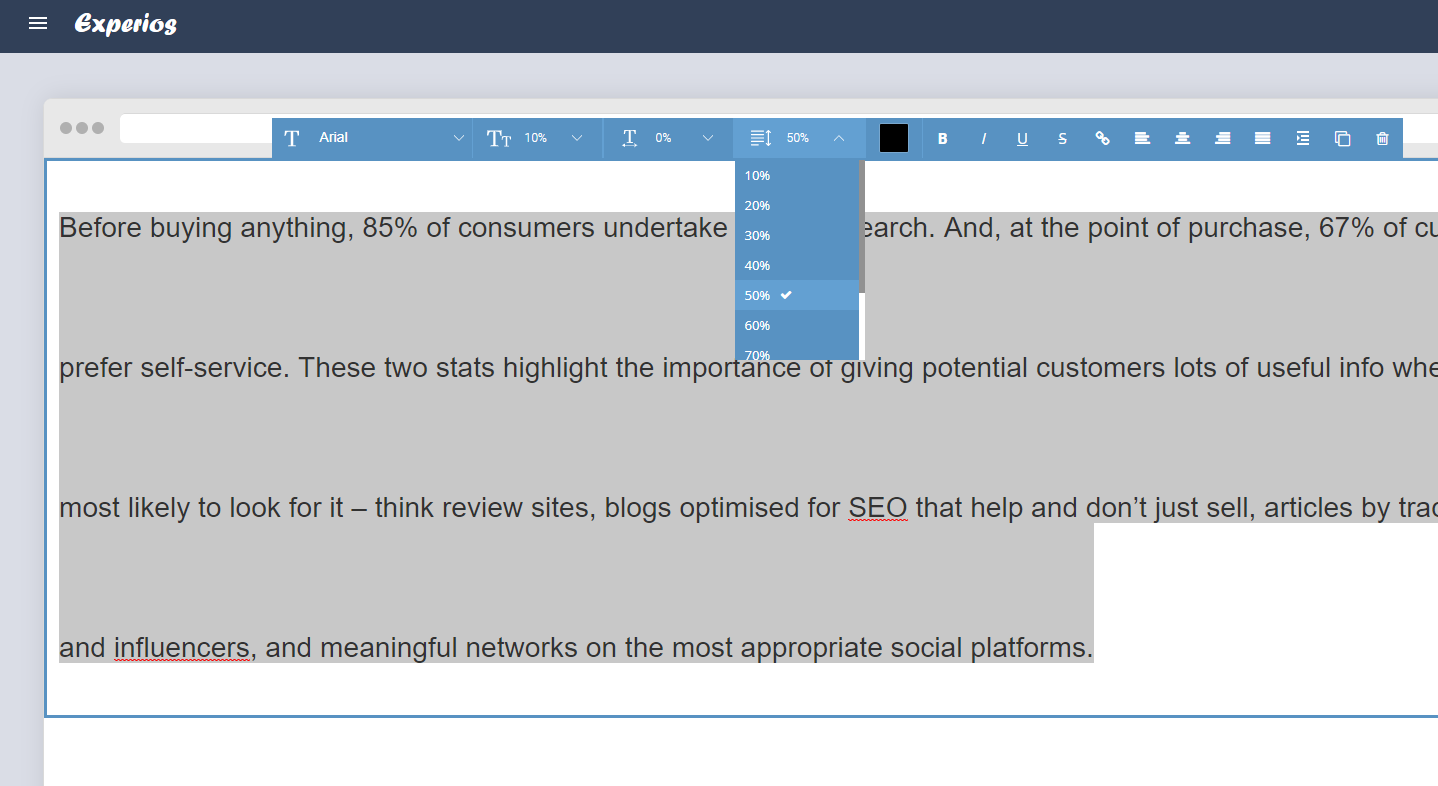
The Line Height tool allows the user to determine the spacing between each line. This is also presented as a percentage. There is a list of preset heights, too, but again this field can be edited by manually entering the desired value.