

You’ll end up with Flipbooks Desktop installed, launched in your chosen language, signed in and ready to build.
You’ll need
- The PC installer, downloaded from the website — Supported Operating Systems is the list of systems that can run it.
- Your login details, and the license key emailed to you if you bought the software.
Before following these instructions you should download the PC installer from the website.
- Once you have downloaded the installer exe file from the website, double-click it.
- Your system will prompt a standard security warning asking Do you want to run this file?. Click Run. The installation process will then begin.
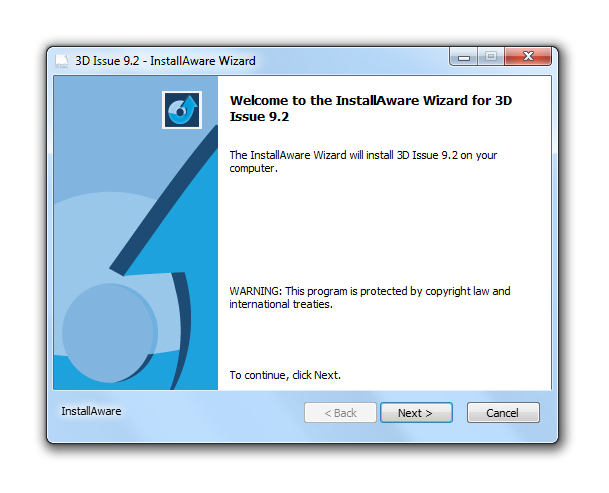
- After the install file is successfully opened you will see a window like the below. Click Next and then check the terms and conditions box. Click next again and you will then see a destination screen. If you are happy with the destination folder, click Next. You will then be shown a suggested name for your program folder. If you are happy with this, click Next.
- Finally you will be asked to configure the software to your computer. Click Next to do so. After the configuration is complete, you will be asked to run the software. Click Finish.
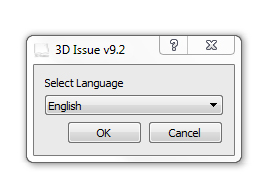
- A small popup will appear asking you to select your language. The default is ‘English’. You can choose between English and Spanish. Once you have selected your language, click OK.
- Upon launching you’ll be prompted to login.
If you are using a trial version of Flipbooks Desktop you can sign in with your credentials and start building your first flipbook.
Otherwise continue to step 7.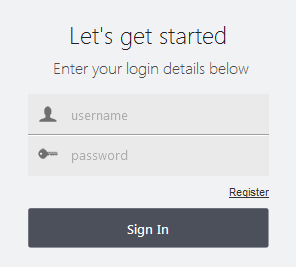
- After logging in you may be prompted for a license key. This key was provided when you purchased the software via Email. Copy this key from the email into the text box.
Your software is now ready to use.


If it doesn’t work
- Windows warns about the file. That is the standard security prompt; choose Run to continue the installation.
- You are on a trial. Sign in and start building — no license key is required.