

You’ll end up with the typeface you want on the text you selected, without changing every other element.
You’ll need
- The text element open in the inline editor, with the font name at the top of its toolbar.
- For a brand font, the licensed file as
.woff2,.woff,.ttfor.otf.
Every text element carries its own font, set from the inline text editor. Studio ships with a catalog of hundreds of typefaces: system fonts, the Google Fonts library, and any fonts you upload yourself. If the list looks shorter than Google’s, Why can’t I see all of the Google Fonts? explains the lazy load.
Choosing a Font
- Double-click a text element (or select it and click Edit in its toolbar) to open the inline editor.
- Click the font name at the top of the toolbar (Open Sans is the default) to open the font picker.
- Browse or search, and click a typeface to apply it to the selected text.
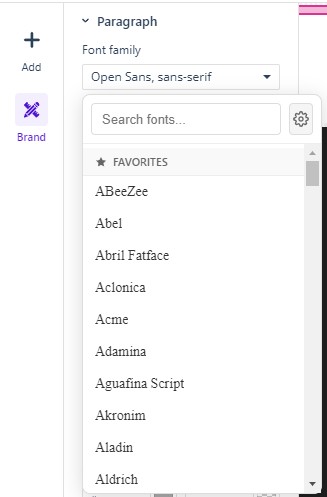
The picker is organized into three sections:
- FAVORITES — the fonts you have starred, so your usual suspects are always at the top.
- MY FONTS lists fonts uploaded to your account, marked Custom.
- ALL FONTS is the full library: common System fonts first (Arial, Georgia, Courier New, and friends, always available because they render with the reader’s device), then the Google Fonts catalog.
The Google Fonts Catalog
The catalog holds hundreds of typefaces and loads progressively; scroll to the bottom of the list and Studio fetches more (“Loading more fonts…”). If a font you know is not visible yet, keep scrolling or use the Search fonts box; it filters as you type. The old question “why can’t I see all of the Google Fonts?” has this answer: the list is intentionally lazy-loaded, not truncated.
Managing Fonts
The font family dropdown carries a settings cog; click it to open the Manage Fonts dialog:
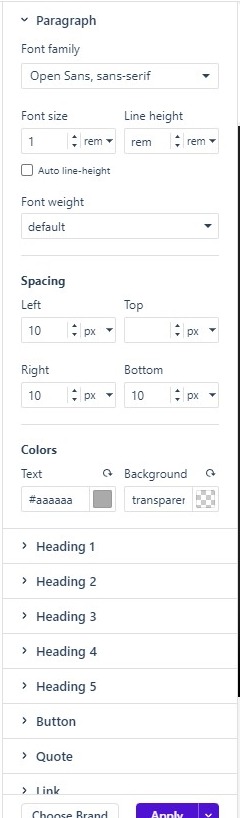
Where it opens from: the font family dropdown in the Brand panel’s typography settings.
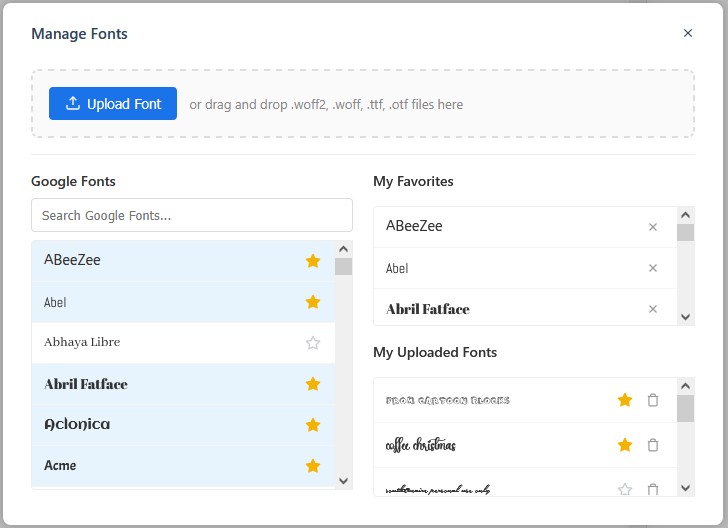
The dialog gives you:
- Upload Font: add your licensed brand fonts as
.woff2,.woff,.ttf, or.otffiles, or drag and drop them onto the drop-zone. Uploaded fonts appear under My Uploaded Fonts and in the My Fonts section of the picker, each with a star (favorite) toggle and a delete control. Fonts added here belong to the account rather than to one project, which is the question Can I use my company’s own fonts? answers. - Google Fonts is a searchable list of the whole catalog. Star a font to add it to your favorites; remove the star when it falls out of use.
- My Favorites lists the fonts you have starred, each removable with its ✕ control.
Font Defaults and Your Brand
Setting a font per element is the exception, not the rule. Your brand’s Typography defaults (Paragraph, Link, Heading 1–5, and Quote fonts) are configured once under Brands (see Managing Brands), and every new text element starts with those. Reach for the font picker when a headline needs a one-off accent typeface.
Choosing Well
- System fonts render identically everywhere with zero download; web fonts (Google and uploaded) are fetched by the reader’s browser when the page loads. Both are safe: web fonts are simply one more network request.
- Stick to two or three typefaces per project: one for headings, one for body text.
- Pair the font choice with the semantic controls described in Setting the Text Type (Heading Levels); headings look like headings and carry the right size and weight.
If it doesn’t work
- A font you know is missing from the list. The catalog loads progressively; scroll to the end of it, or type in Search fonts. The list is lazy-loaded, not truncated.
- An uploaded font is not in the picker. Look under My Uploaded Fonts in Manage Fonts and My Fonts in the picker, where each entry carries a star toggle and a delete control.