

Studio gives you three ways to reuse ready-made designs: Blocks, Layouts, and Templates.
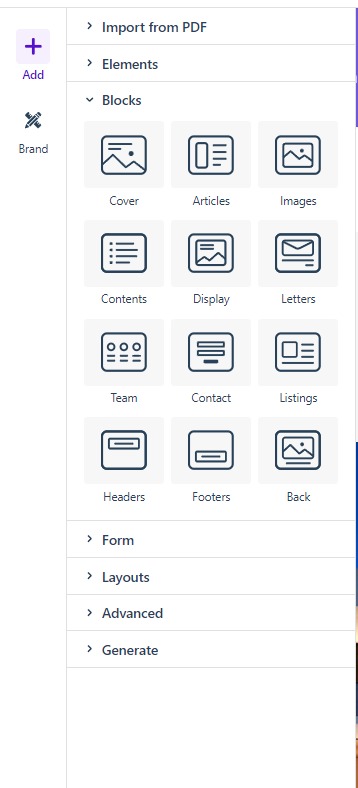
Blocks
The Blocks section of the Add panel holds pre-built composite designs — combinations of rows, columns, and elements that you can drop onto the page and then edit like any other content. To add a block, click one of the block category icons: the popup lists that category’s blocks, with an All Blocks filter, a search field, and a placement selector reading Insert at the end. Choose a block and click Ok.
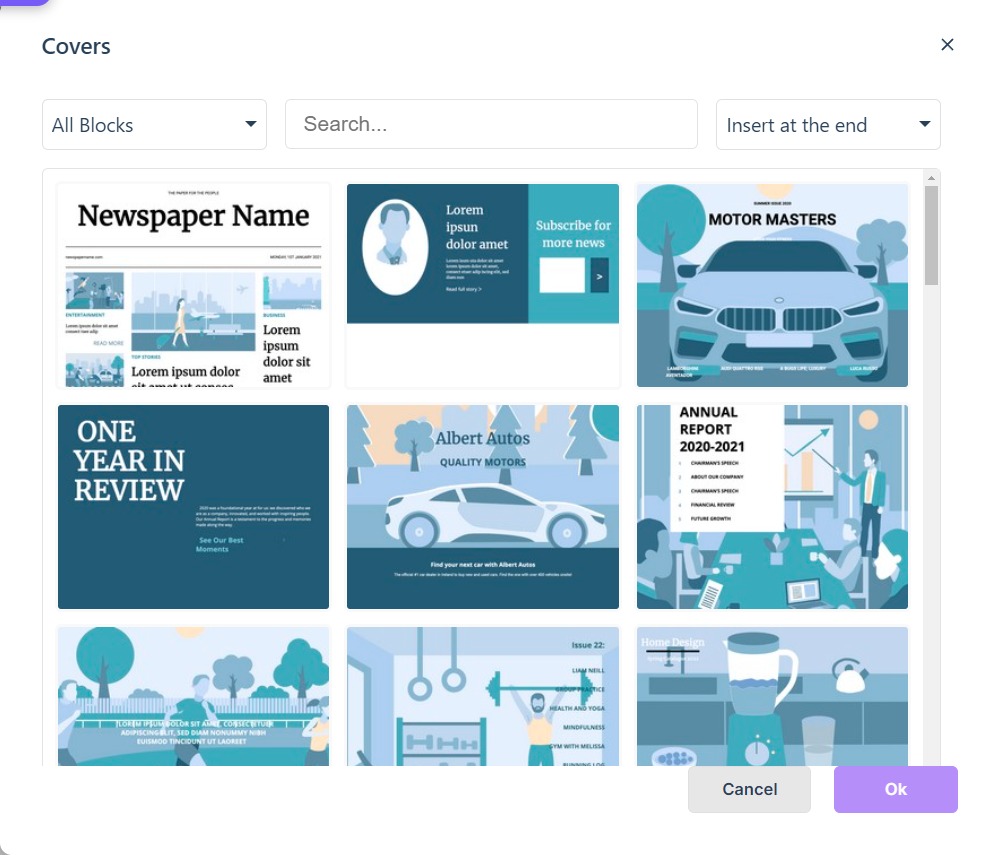
The working method — how blocks are built, designing your own for reuse, and the card/graph/video patterns — is in Getting the most from Blocks (e-163).
Rows and sections you want to reuse can be saved as blocks. Whenever you build an arrangement you like, select the row on the canvas and open its actions toolbar — More actions reveals Save as Block. The saved block is available again from the Add panel, ready to be dropped onto any page — in this project or any other. Once added, blocks can be modified in place.
Layouts
The Layouts section of the Add panel contains fully-built page layouts. To add a layout, select a category from the dropdown menu and select a page layout to use. Layouts replace everything that is on the page when added. The dropdown opens on My Pages, and until a page has been saved as a layout the section reads No layouts found with a pointer to the menu.
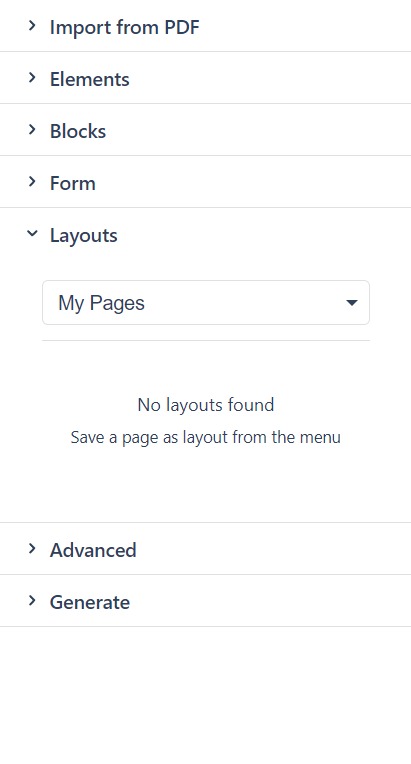
You can also save a page layout from a project for reuse by clicking on the burger menu on the top bar and choosing Save Page as Layout. You’ll be asked to enter a name for your layout and to choose a brand to apply. A saved layout stays as it was saved: the trash can on its thumbnail removes it from the list, and changing one means saving a new layout from a copy of the page (see Changing a saved layout or template (e-350)).
Placeholder content is yours to replace. Double-click the default image in a layout or a pre-built cover to choose a replacement from the media library, a stock image or one you upload, and edit heading and body text from the toolbar or from Properties, which also carries the background colour and image. Images resize as the surrounding text changes, so cutting a paragraph does not leave margins to fix by hand. Check the result at desktop, tablet and mobile sizes with Preview (see Testing your publication on mobile devices) before publishing.
Templates
A template is a complete starting point for a new project. When you create a Studio project you choose to start from scratch, from a PDF, or from a template. The template option gives your project its pages, styles, and content structure up front. To turn an existing project into a template, save it as one and start future projects from it (see Duplicating a project); to change a template you have already saved, save a new one from a copy (see Changing a saved layout or template (e-350)).