


The Video element lets you place a video on the page from YouTube, Vimeo, or an uploaded file.
It is a different element from the Embed element. Use Video for YouTube, Vimeo, and uploaded video files (mp4, webm); use Embed for broader embedded content and whole-page embeds.
Adding a video
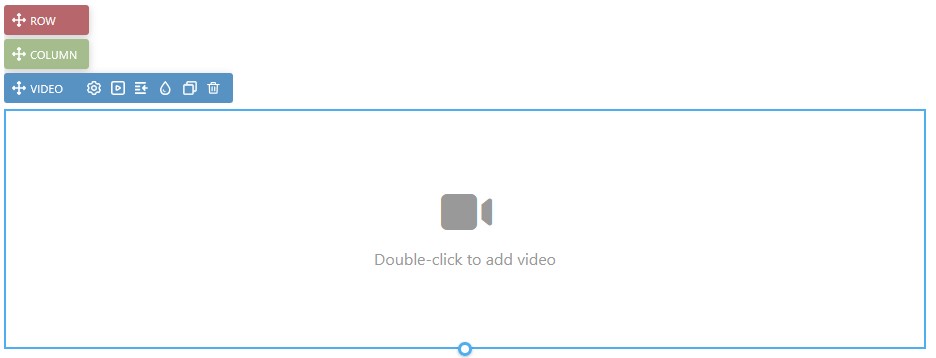
Click Add on the left-hand rail, open the Elements section, and either click the Video icon to place it at the end of the page, or drag it onto the canvas and drop it where you want it; a line shows where it will land.
Configuring the video
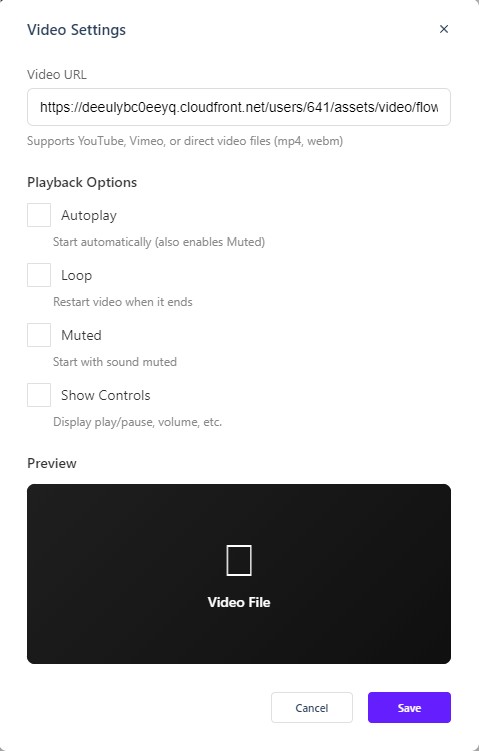
With the video selected, click Video Settings on its element label to open the Video Settings dialog, the surface the screenshots below show; the same options sit in the Properties Control Column. Double-clicking the element opens Select Video instead, for choosing the source. The dialog holds:
- Video URL — paste a YouTube or Vimeo link, or a direct video file URL (mp4, webm).
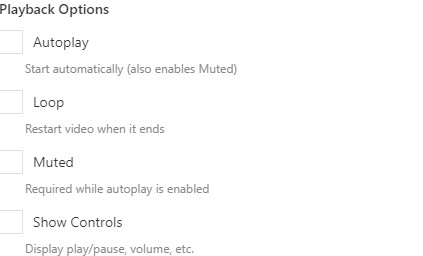
- Playback Options — toggle Autoplay, Loop, Muted, and Show Controls. Autoplay also enables Muted. A live preview appears once a URL is entered.
Playback behavior on mobile
Set the video’s height to auto in the general section of its properties if you want it to fit its section rather than forcing full-screen behavior on phones. A fixed pixel height is what tends to force full-screen behavior on mobile; auto lets the video fit the section instead.
The Properties panel
Like every element, the Video exposes the full Properties panel — Size, Spacing, Background, Settings, Border, Animations, Advanced, Overlay, and Accessibility — so you can control its dimensions and spacing alongside the rest of your elements.
In Flow
In Flow, the Video element works the same way, but preview it on desktop, tablet, and mobile. Video that fills a space nicely on desktop can look different in a reflowing edition, especially if its height is fixed rather than set to auto.