


The Sharing element adds a row of social share icons that let readers post the publication to social media.
Adding the Sharing element
Open the Add panel and insert the Sharing element from the Elements list, by clicking it or dragging it onto the canvas. It inserts a row of share icons onto the page.
The Social Media Sharing dialog
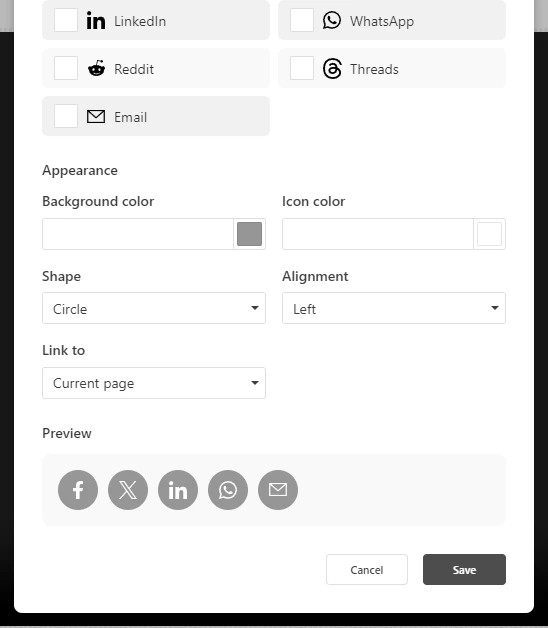
Select the Sharing element and open its dialog with Social Settings on its element label. The dialog has two main sections:
- Platforms — choose which share icons appear. The usual options are Facebook, X (Twitter), LinkedIn, WhatsApp, Reddit, Threads, and Email. Facebook, X, LinkedIn, WhatsApp, and Email are on by default.
- Appearance — control the look of the icons: Background color, Icon color, Shape (Circle or Square), and Alignment (Left/Center/Right), with a live Preview.
What gets shared
The Link to setting decides what readers share when they click an icon:
- Current page — the page the element sits on.
- First page — the start of the publication.
Sharing uses the publication’s published link, so the element is only useful once the publication is published.
In Flow
In Flow, the Sharing element works the same way. Because Flow publications are also published through the same pipeline, the element still uses the published link — so the same “published first” rule applies in Flow as it does elsewhere.