

You’ll end up with a published project at a public link, the accessible version beside it, and a way back to both.
You’ll need
- The project open in Studio, with the edits you want live saved in it.
- Somewhere to send the link: email, a website, a social post.
Publishing turns your project into a static, hosted version that anyone with the link can read. Until you publish, the project lives only in your editor.
Publishing
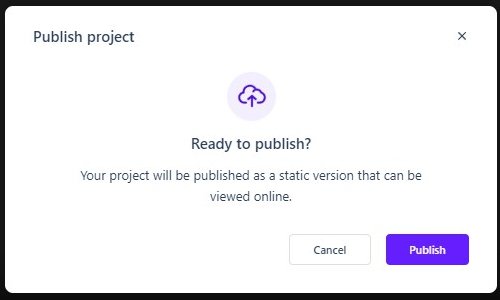
- Click Publish in the editor’s top bar and confirm the “Ready to publish?” dialog — Studio will publish your project as a static version that can be viewed online.
- Watch the progress dialog as Studio generates the static pages.
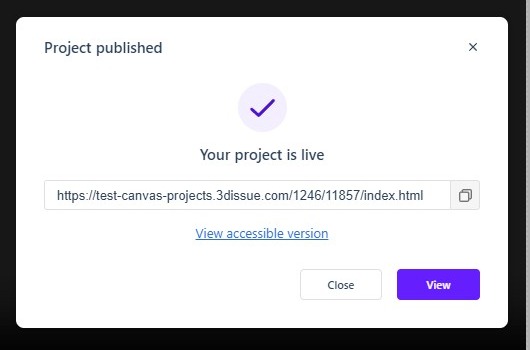
- When the dialog reports “Your project is live,” copy the link it shows. The link has the form
https://<host>/<account>/<project>/index.html.
Sharing the Link
- Copy: The success dialog and the Published Link button that now appears in the top bar both give you the public URL to share by email, social media, or your website.
- Accessible version: Every published project also has an accessibility-first rendering; the success dialog links to it, and it is worth sharing alongside the main link.
- Offline: The Publish options dropdown in the top bar includes Publish Offline for producing a downloadable copy that reads without an internet connection.
Updating a Published Project
Edits after publishing do not change the live version — publish again and Studio regenerates the static pages at the same link. Your readers’ URL never changes. The full round trip, including a project you published offline, is Can I update a previously published Studio project?.
Unpublishing
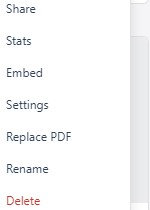
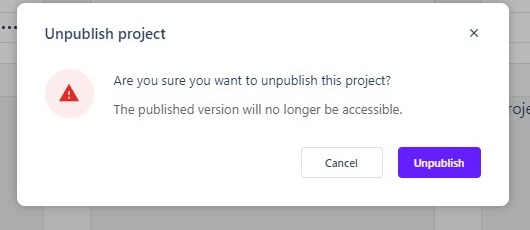
To take a project offline, open the dashboard, click the tile’s More options (…) menu, and choose Unpublish. Confirm the dialog — the published version will no longer be accessible at its link. The project itself, with all its edits, stays safely in your dashboard, and the tile’s primary button returns to Publish.
Once live, a project’s tile shows a permanent View button for opening the published version, and its menu carries View, Preview, Rename and Delete, plus Unpublish now that it is live (see Managing Projects from the Dashboard).
If it doesn’t work
- Readers still see the old version. Edits after publishing do not reach the live version until you publish again; the URL stays the same.
- The link has stopped working. Check the dashboard tile: if its primary button reads Publish rather than View, the project was unpublished.