

Preview shows your project exactly as readers will see it, without publishing anything. Click Preview in the editor’s top bar at any time.
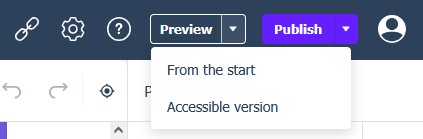
Preview Options
The dropdown beside the Preview button offers two ways to run it:
- From the start: Open the preview at page 1, ready to click through the whole publication.
- Accessible version: Open the accessibility-first rendering of your project — the same experience screen-reader users and assistive technology get. Run this check before every publish so accessibility issues surface early (see Managing the Pages Panel for the per-page accessibility indicator).
Previewing costs nothing and changes nothing — it is the safe way to check animations, video playback, navigation, and mobile layout (switch the canvas to Mobile first if you want the mobile experience) before your readers ever see the project. Publishing what you have checked is covered in Preview & Publish. The checks worth clearing first are collected in Before you publish: the pre-publish checklist.