

Studio protects your work three ways: autosave while you work, immediate undo/redo, and Version History for stepping back to any recent save point.
Undo and Redo

The editor actions strip (behind the arrow toggle at the top of the page bar) holds Undo and Redo. The buttons are labeled with what they will do — for example “Undo: Add bootstrap-row” — so you can see exactly which action you are about to reverse. When there is nothing to undo or redo, the button says so and is disabled.
Autosave
The top bar shows a Saved indicator whenever your work has been stored. You do not need to save manually; the hamburger menu’s Save command is there when you want certainty before closing.
Version History
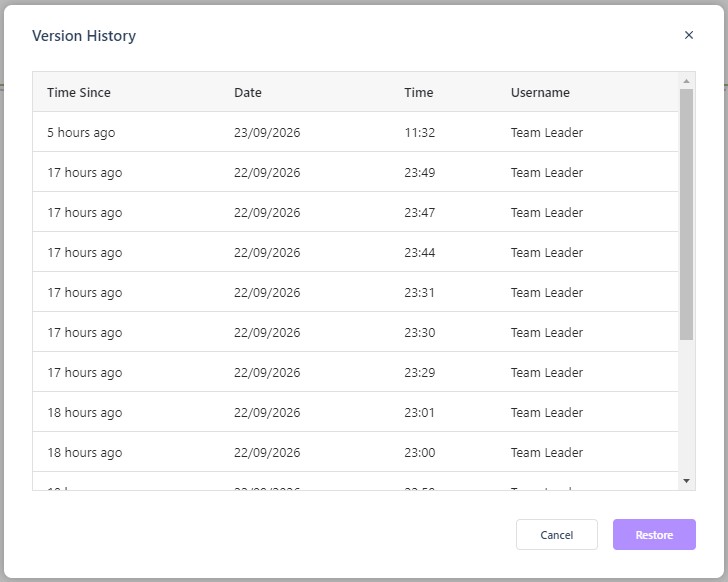
Open Version history from the editor actions strip to see a table of save points:
- Time Since — how long ago the save happened (“13 minutes ago”).
- Date and Time — the exact moment.
- Username — who was editing.
Select any row and click Restore to return the project to that save point; Cancel closes the window without changing anything. Because autosave records who saved each version, this is also how a team can see the recent history of shared work.
Working Safely
- For small mistakes, Undo is fastest.
- For experiments you regret, restore a save point from Version history.
- Before a big restructuring — or when handing over to a teammate — open Version history first and note the latest save, so you know your way back.
Because every save point is kept, there is no separate backup routine to run: How do I back up my work? covers what is retained and what survives a deletion.