

You’ll end up with a GA4 measurement ID saved in the project’s settings, and your own visits appearing under Realtime once it is published.
You’ll need
- A GA4 property and a web data stream for the publication’s URL — the Google half is the same for every product.
- The G- measurement ID, copied from the stream details.
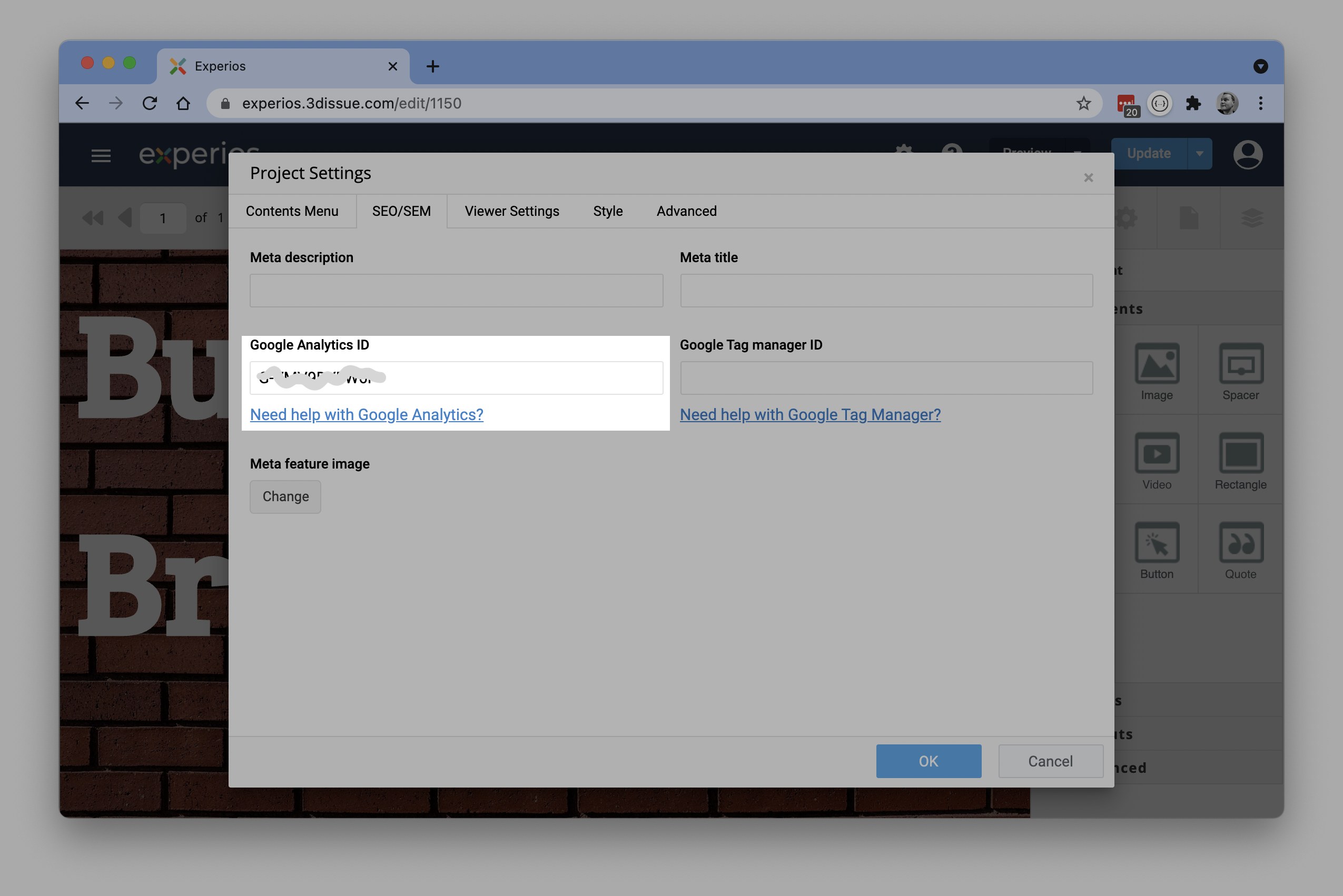
Two halves: create the GA4 property in Google, then paste its measurement ID into the project’s settings. The Google half is the same for every product; the settings field is where products differ, and in Studio it lives on the SEO/SEM tab.
Create the property
- In your Google Analytics console, open Admin and create a new GA4 property — set the property name, time zone, and currency, then the industry category and company size, and choose the Examine user behavior objective (or its equivalent on the current console).
- Create a Web data stream for the publication’s URL (your masked domain, if you use one), with Enhanced measurement enabled.
- Copy the Measurement ID — the
G-id. That is the value the settings field wants. The oldUA-property format is retired; GA4 is the only supported generation. - Enable data collection in the stream setup (or via Setup Assistant) — this can also be done after you publish.
Where the ID goes in Studio
Open Project Settings (the cog icon) → SEO/SEM tab → Tracking, and paste the ID into Google Analytics ID. For the full walkthrough — including the Learn how to set up Google Analytics link and the republish note — see Google Analytics 4 setup. The same panel also holds the SEO fields; see Search Engine Visibility and Tracking for those.
Where the ID goes, by product
The settings field differs by editor:
- Studio: Project Settings → SEO/SEM → Tracking, covered above.
- Replicate: the Brands screen, on the brand rather than in the editor; see Google Analytics 4 setup (Replicate).
- Flow: no Flow screen offers the field; see Google Analytics for Flow publications (e-165).
Check it works
Publish with the ID saved, click through the live project, and check Reports → Realtime in the GA4 console — your visit should appear within moments, and granular events under Events (full reports can take up to 48 hours to populate). If nothing lands, confirm the ID was saved and the project republished, and that browser privacy extensions aren’t blocking the scripts.
If it doesn’t work
- Nothing appears in Realtime. Confirm the ID was saved and the project republished, and that a browser privacy extension is not blocking the scripts.
- The report is still empty a day later. Full reports can take up to 48 hours to populate; Realtime is the immediate check.