

Elements can enter the page with movement (a fade, a slide, a zoom) instead of simply appearing. The animation is a property of the element, set from its Properties panel (see Configuring Element Properties).
Setting an Animation
Select the element (a text block, image, button, table, or even a whole row) and open the Animations section of its Properties Control Column.
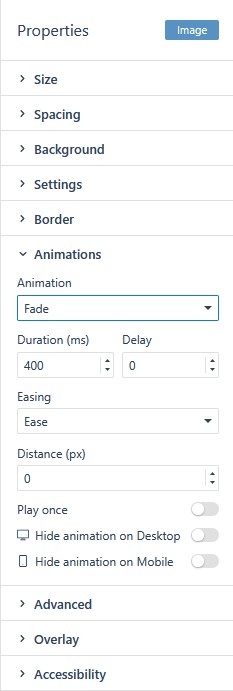
The section provides these controls:
- Animation — the dropdown that selects the animation type (see below). Fade is the default once an animation is set.
- Duration (ms) is how long the animation runs, in milliseconds.
- Delay is a wait before the animation starts.
- Easing — the speed curve the animation follows (for example Ease).
- Distance (px) is how far a directional animation travels, in pixels.
- Play once runs the animation only on first appearance instead of repeating.
- Hide animation on Desktop / Hide animation on Mobile — disables the animation on a specific device class.
Applied animations play in the published project; run Preview (see Previewing Your Project) to check the effect before publishing.
The Animation Types
- Fade — the element dissolves in. Directional variants shift it a short distance at the same time: Fade Up, Fade Down, Fade Left, Fade Right, and the diagonal Fade Up Right, Fade Up Left, Fade Down Right, Fade Down Left.
- Slide travels in from off its final position: Slide Up, Slide Down, Slide Left, Slide Right.
- Zoom scales into place, from the center (Zoom In, Zoom Out) or from a corner (for example Zoom In Up, Zoom Out Right).
- Flip turns the element into view: Flip Left, Flip Right.
Using Animation Well
- Animate the elements that carry the message, a hero image or a headline, and let supporting content appear normally.
- Keep one direction. A page where everything slides in from a different side reads as chaotic; consistent Fade Up across a column reads as intentional.
- Remember that some readers are sensitive to motion. Subtle fades are kinder than large slides and zooms, and the Accessible version of your project (see Improving Accessibility) presents content without the visual layer.