

You’ll end up with the same published link serving the new pages, with your interactivity either carried over or rebuilt, depending on the mode you choose.
A Replicate flipbook is built from its source PDF, and when the PDF changes upstream (a corrected version, a new edition, a fixed page), you don’t have to start over. Replace the source file and the flipbook is rebuilt from it. Your published links remain the same, so readers always get the latest version of your publication.
You’ll need
- The replacement PDF, exported complete with its corrections in place.
- The same page count and layout as the file it replaces, if you intend to use Update Issue.
Replacing the PDF
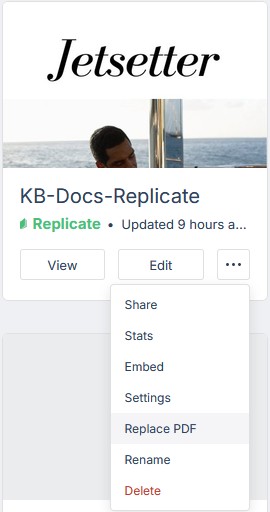
- Open the project’s dashboard tile ⋯ menu (published projects show View / Edit; unpublished ones show Publish / Edit).
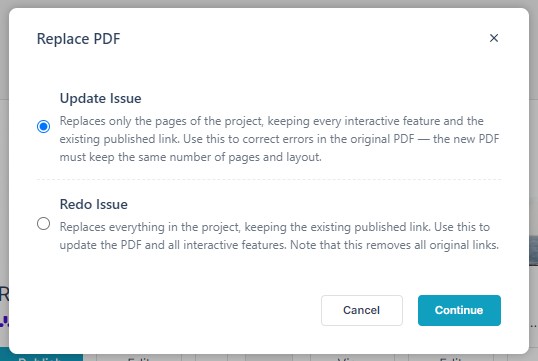
- Choose Replace PDF. A two-mode dialog opens: pick the mode, click Continue, and pick the new PDF file in the file chooser that opens:
- Update Issue — “Replaces only the pages of the project, keeping every interactive feature and the existing published link. Use this to correct errors in the original PDF; the new PDF must keep the same number of pages and layout.”
- Redo Issue — “Replaces everything in the project, keeping the existing published link. Use this to update the PDF and all interactive features. Note that this removes all original links.”
- Wait for the project to prepare, exactly as on first import; large PDFs take a while, and the tile shows Preparing… until the new file is ready (see Create your first flipbook from a PDF).
- Publish again so the live reader serves the new pages: publishing updates your publication at the same link, so links you’ve already shared keep working.
The published link survives both modes, so links you’ve already shared keep working across a replace.
What happens to the interactivity you added?
Links, media, and other elements you added in the editor live in the project, not in the PDF. The two modes treat them differently.
- Update Issue keeps every interactive feature (only the page contents swap, so your links and media stay put, which makes it more useful for minor changes).
- Redo Issue replaces everything and removes all original links, for when the new PDF needs the interactivity rebuilt from scratch.
Either way, open the editor after a replace and step through the pages to confirm links still land where they should before publishing.
Can I replace just one page?
No: the dialog offers two modes, Update Issue and Redo Issue, both whole-document swaps. The way to change a single page is to export a new full PDF with that page corrected and replace the whole source. Keep the page count and order stable when you do, because page-based things depend on it:
- Deep links. Shared links of the form
…/index.html?page=Nopen the flipbook on page N; if pages move, those links open a different page. - Reader references. Anything that cites “page 12” in your content or in links you’ve published.
- Update Issue. The dialog requires the new PDF to keep the same number of pages and layout; a mismatched file is the Update path’s failure mode.
Replacing is not editing, and not unpublishing
- Editing (adding interactivity in the editor) never requires a replace; just publish again when done.
- Replacing swaps the source file and rebuilds the pages.
- Taking the publication offline is a separate decision: there is no Unpublish control in Replicate: deleting the project is what removes its live publication.
If it doesn’t work
- Update Issue is refused, or the replace fails. That mode needs the new file to keep the same number of pages and the same layout, so a PDF exported from a different document fails on it (see Can I replace one page and keep my existing links?).
- Your links have gone. Redo Issue removes all original links, and nothing brings them back but the editor. Use Update Issue whenever the page structure is unchanged.
- The live link still serves the old pages. The tile has to finish Preparing…, and the project has to be published again, before readers see the new file.