

You’ll end up with a link on the page that jumps the reader to another page of the same flipbook, without leaving the publication.
The Go To Page tool places a link that jumps the reader to any page within the same flipbook — a contents entry, a “see page 12” cross-reference, or a back-to-cover control, all without leaving the publication.
You’ll need
- The flipbook open in the editor, on the page the link should start from.
- The page number the reader should land on.
Adding a Go To Page link
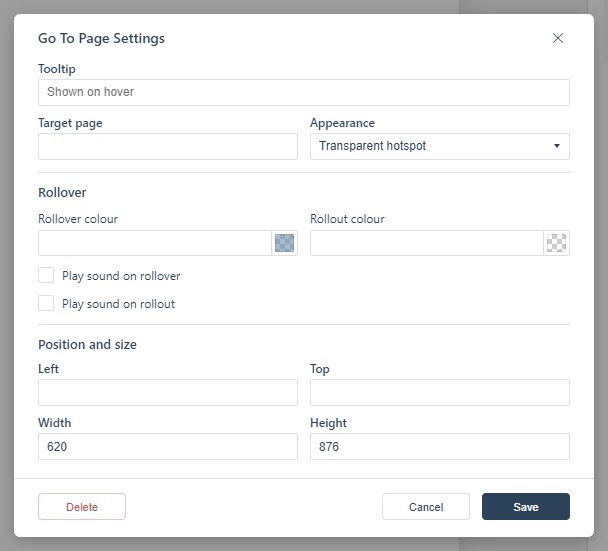
- Click Go To Page on the toolbar (see A Quick Tour of the Replicate Editor).
- Draw a box on the page where the link should sit.
- In the dialog, select the page number the reader should land on.
- Save the link. The area is invisible to readers unless hotspot markers are switched on in the viewer settings.
Page links are also created automatically: page numbers and web addresses printed in the source PDF are detected when the flipbook is processed (see Adding a Web Link). Use the Go To Page tool when you want control over exactly where the link sits and which page it targets; internal navigation then stays inside the flipbook instead of opening a browser tab.
If it doesn’t work
- Nothing appears on the page. These tools create hotspots, which are invisible unless hotspot markers are switched on — the area is clickable either way (see Linking to Another Page (Go To Page)).
- The reader lands somewhere other than the page you picked. The picker lists pages in the PDF’s order, so compare the number with the page thumbnail before saving.
- Nothing has changed on your live link. Edits reach readers only when you publish again — see Can I edit my flipbook after publishing?.