

You’ll end up with every publication on a brand reporting into your GA4 property, from one field.
You’ll need
- A GA4 measurement ID (the
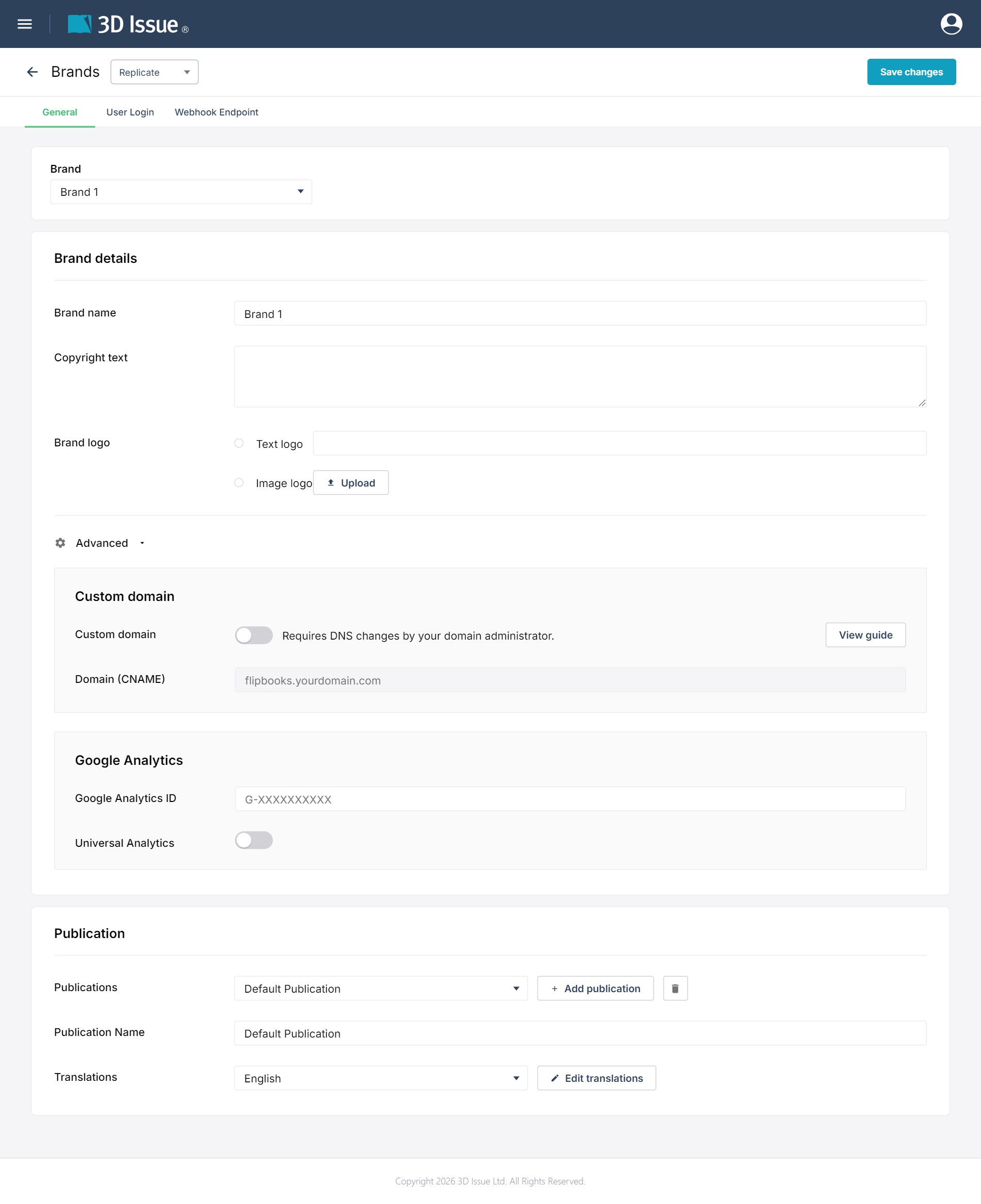
G-format) from your Google Analytics 4 property. - The Brands screen with the product selector on Replicate, and the brand your publication uses.
The Google Analytics tracking ID for a Replicate publication goes in its brand. Analytics is configured per brand, and every publication assigned to that brand reports through it. Get your GA4 measurement ID first (see Google Analytics 4 setup for the Google-side steps), then paste it in one place:
Where the ID goes: the brand’s Advanced section
- Open the user menu (top right of the dashboard) and choose Brands.
- Set the product selector at the top to Replicate, and pick the brand your publication uses in the Brand selector (publications get their brand from the tile’s ⋯ → Settings dialog — see Brand settings (Replicate) for the full screen tour and how brands are assigned).
- On the General tab, open the Advanced section. Paste your measurement ID into Google Analytics ID.
- Click Save changes (top right). Every publication on this brand now reports through that ID.
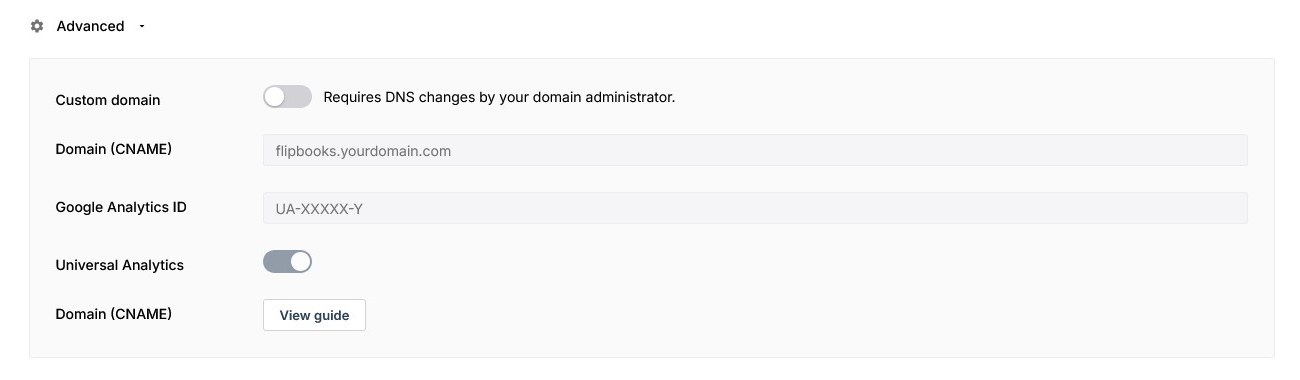
Universal Analytics toggle
The field’s placeholder is UA-XXXXX-Y and a Universal Analytics toggle sits below it. Universal Analytics properties stopped processing data in 2023, so the toggle is part of the product’s legacy support rather than the recommended path: for anything new, use a GA4 measurement ID from your Google Analytics 4 property (the G- format — see Google Analytics 4 setup for creating the property and finding the ID).
If it doesn’t work
- You only have a
UA-ID. The field’s placeholder isUA-XXXXX-Yand a Universal Analytics toggle sits below it — that is the product’s legacy support; Universal Analytics properties stopped processing data in 2023. - Nothing arrives in GA4. Confirm the ID is the
G-measurement ID, and that Save changes was clicked at the top right. - Traffic lands in the wrong property. Analytics is configured per brand, so a publication assigned to another brand reports through that brand — check the tile’s ⋯ → Settings.