

A Replicate flipbook starts as a static replica of your PDF. Editing is how it becomes more: links, video, galleries, forms, hotspots, and a dozen other interactive elements layered onto the fixed pages. The tools run left to right along the strip, and the sections below take them in that order.

The interactivity tools live on the toolbar along the left edge of the canvas. The strip is:
- Select: the default mode; click an element to edit or delete it.
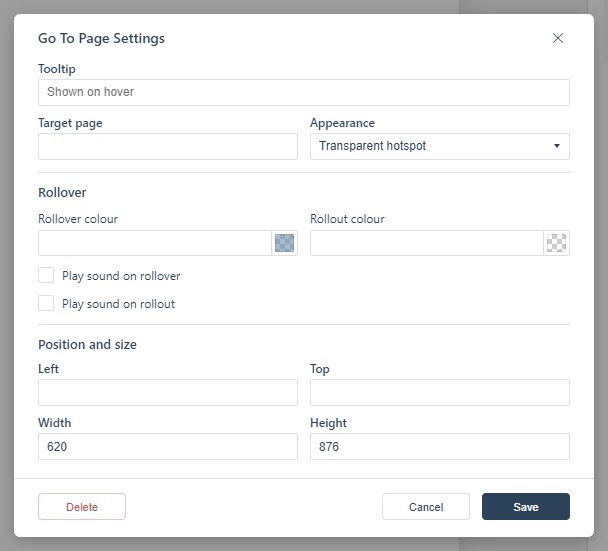
- Go To Page: a jump link to another page of the same flipbook (Linking to Another Page (Go To Page)).
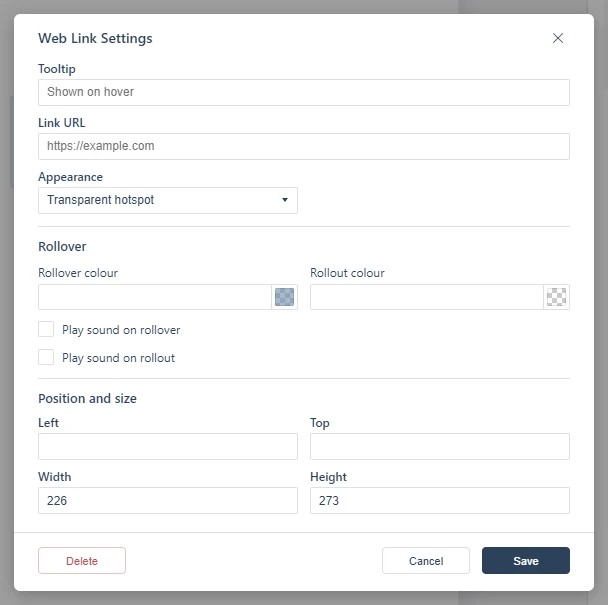
- Web Link: a link to a webpage (Adding a Web Link).
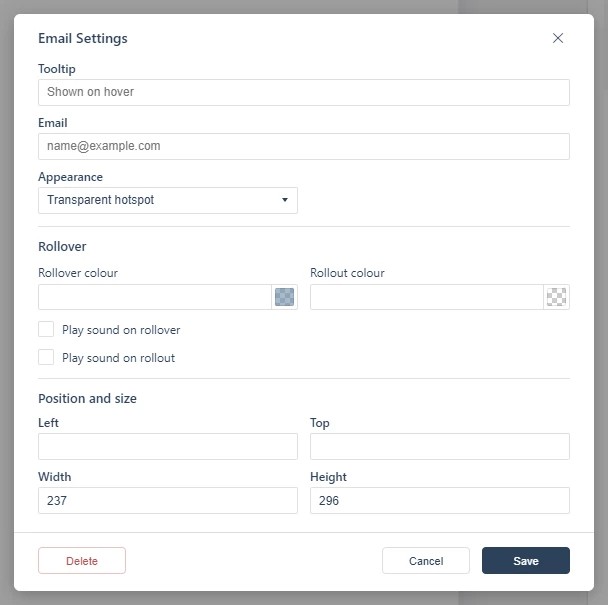
- Email: a link that opens the reader’s mail app with a message addressed to you (Adding an Email Link).
- Audio: sound on a page (Adding Audio).
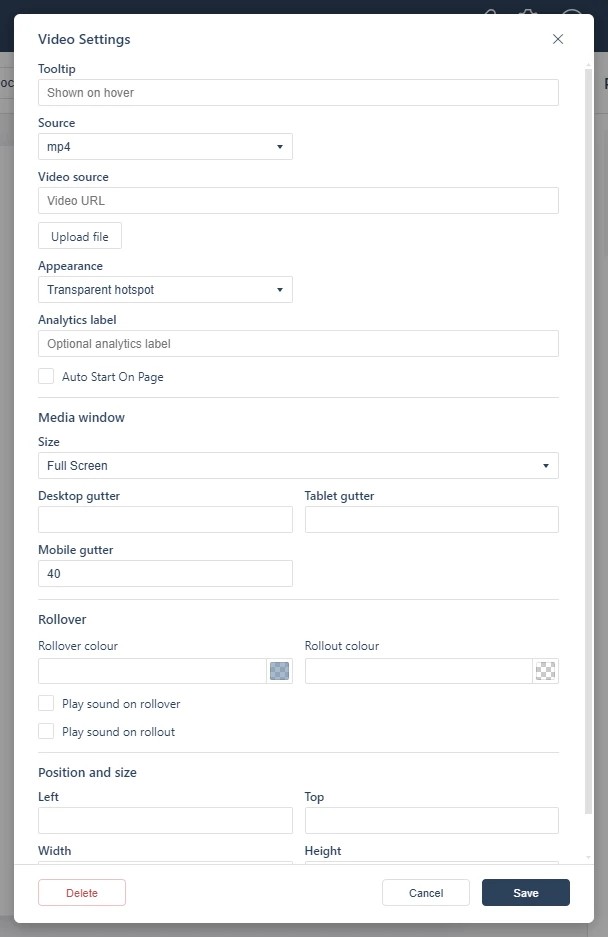
- Video: moving footage on the page (Adding a Video).
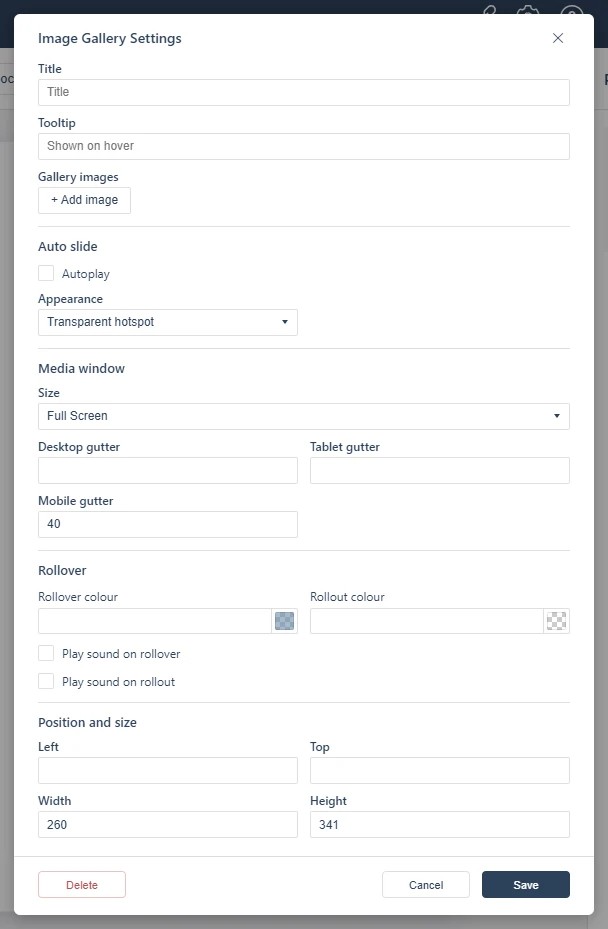
- Image Gallery: a swipeable photo slideshow (Adding an Image Gallery).
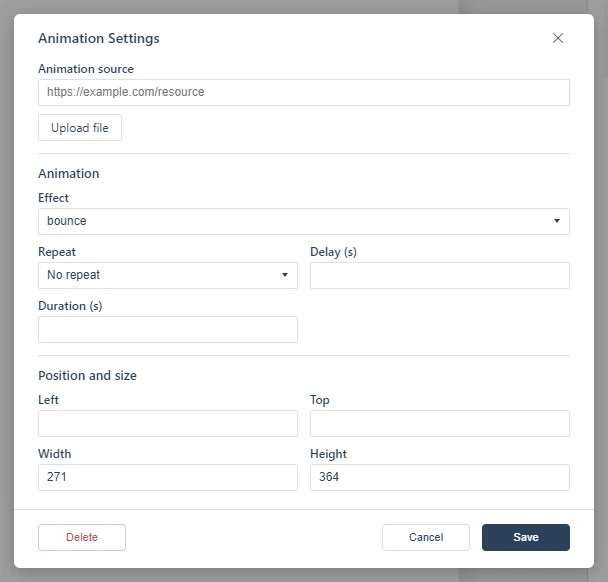
- Animation: an HTML5 animation on the page (Adding an Animation).
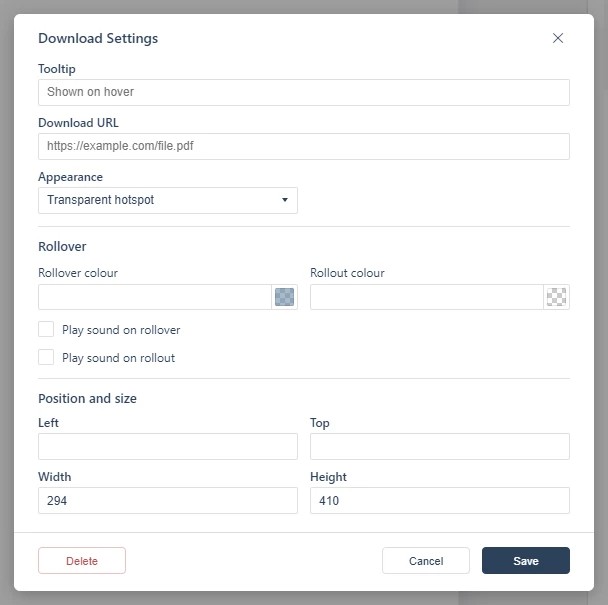
- Download: a file to download (Adding a Download Button).
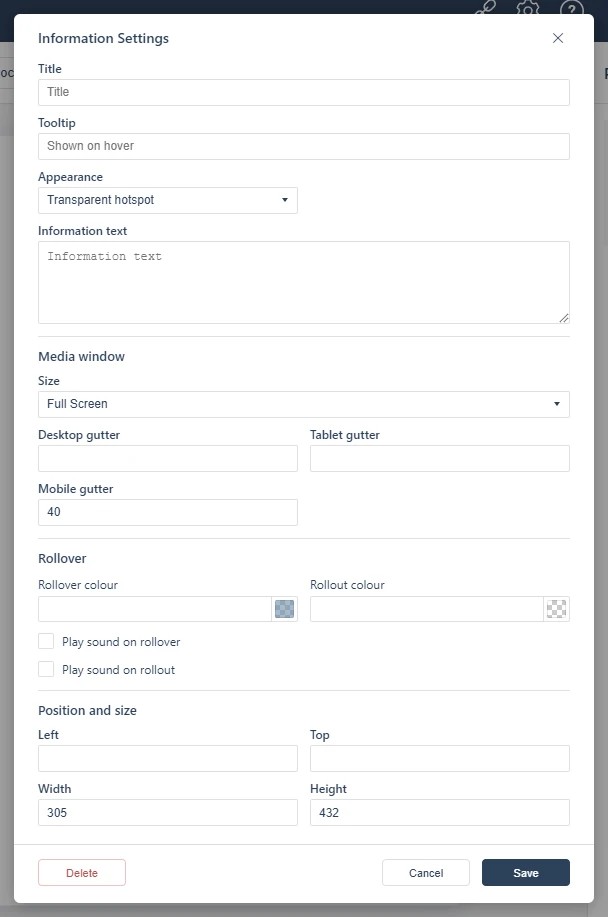
- Information: a pop-up with your text (Adding an Information Pop-up).
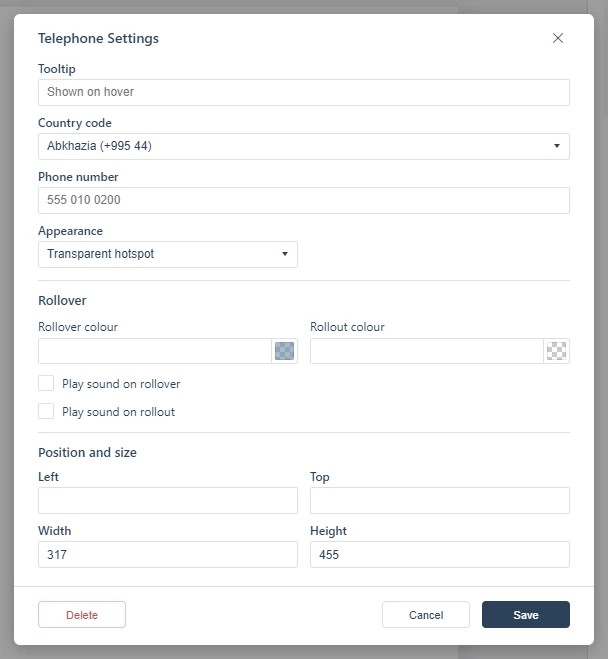
- Telephone: a tap-to-call link (Adding a Telephone Link).
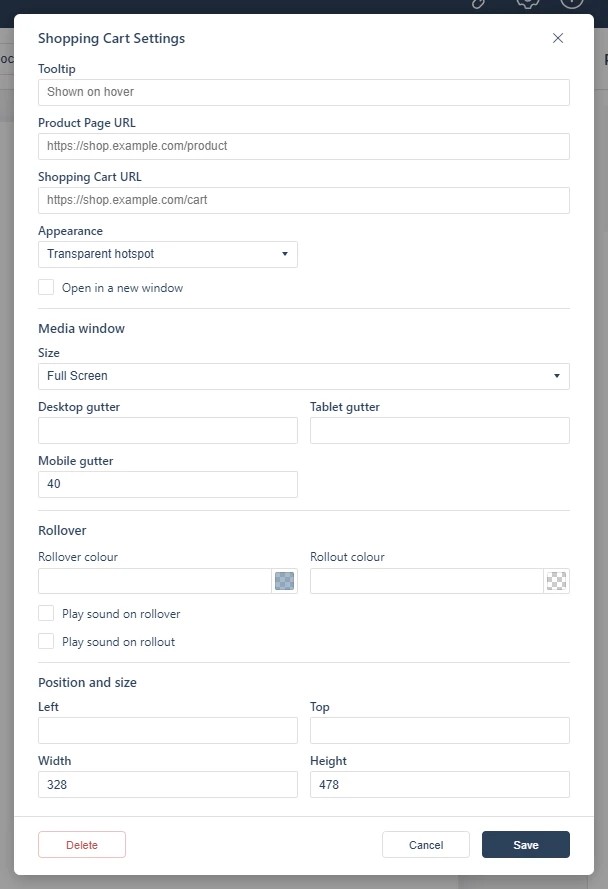
- Shopping Cart: a buyable link to a product page or cart (Adding a Shopping Cart).
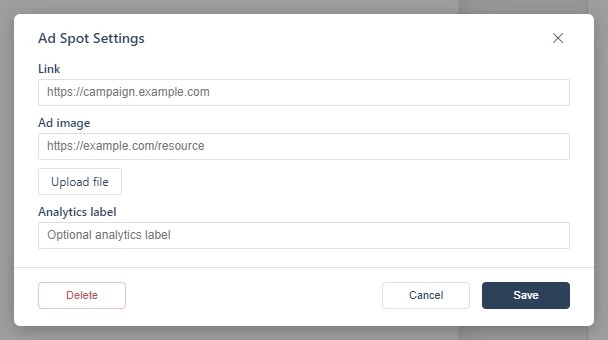
- Ad-spot: a pop-up advert triggered by the page turning (Adding an Ad-spot).
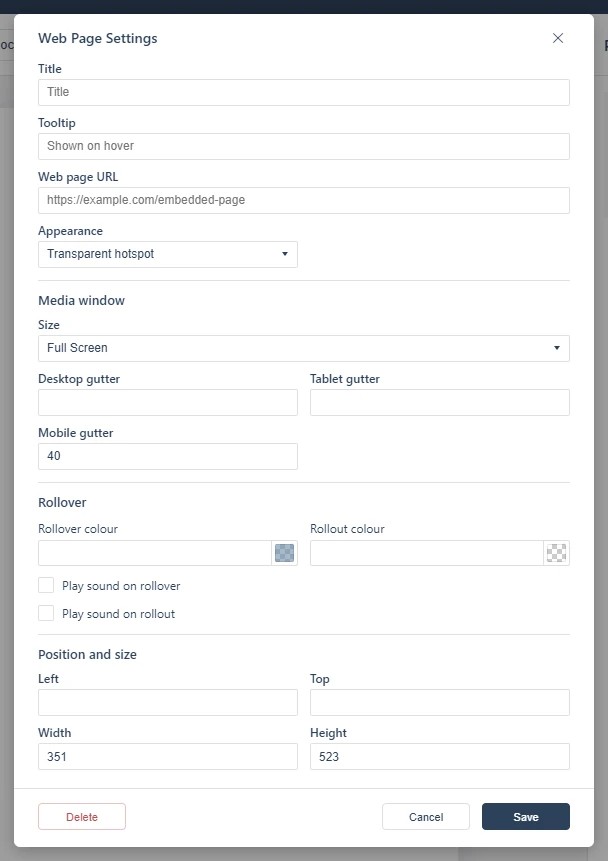
- Web Page: a webpage opened in a pop-up inside the flipbook (Opening a Web Page in a Pop-up).
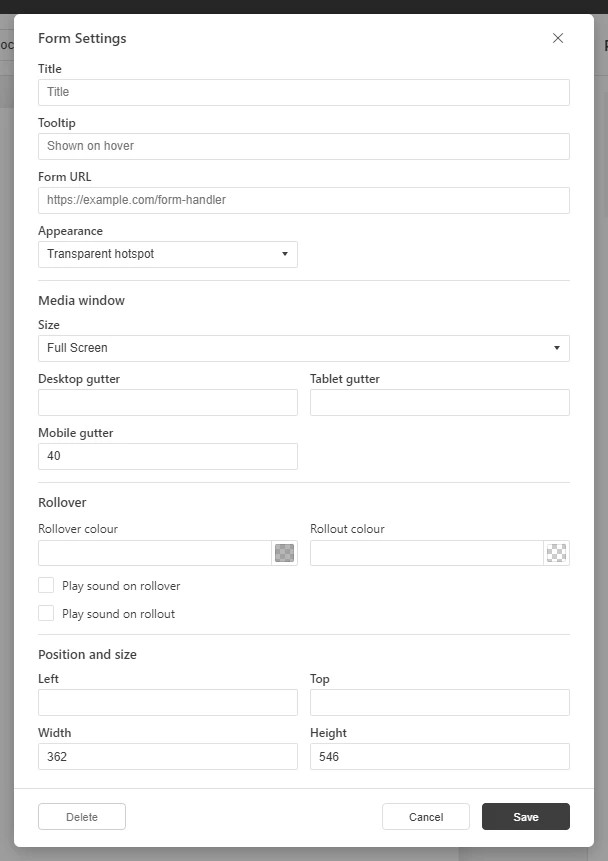
- Form: a form opened in a pop-up inside the flipbook (Adding a Form Pop-up).
Each tool works the same way: pick it, draw a box on the page, and fill in its settings dialog. Which tool suits which job is Hotspots, tooltips & triggers: choosing the right interaction. The tool screenshots below show the dialogs as they appear:
Go To Page
Web Link
Audio
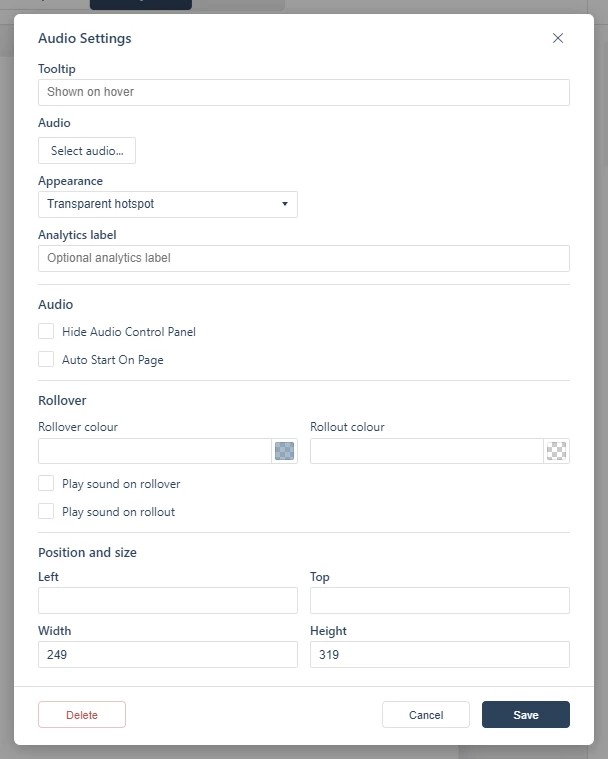
Image Gallery
Animation
Video
Download
Information
Telephone
Shopping Cart
Ad-spot
Web Page pop-up
Form pop-up
Editing vs. Studio: what not to expect
Replicate’s editor adds interactivity and configures the reading experience; it does not re-layout pages. Element-level design (rows, columns, responsive flow) belongs to the Flow edition or to Studio (see What is 3D Issue? Replicate, Flow, and Studio). A Flow edition can travel with the flipbook when Flow Mode is enabled.
Edits and the live publication
Editing never touches the live link until you publish: publishing again updates the same URL your readers already have (see Publish & share your first flipbook). If the source PDF itself changes, that’s a replace, not an edit (see Updating or replacing the source PDF).