

You’ll end up with a page that plays sound when the reader reaches it or presses play.
The Audio tool adds a sound file to a page of the flipbook — page narration, a music clip, a language-lab exercise. Page-level audio is placed with the toolbar; publication-wide sound (page-turn effects, background music, audiobook auto-flipping) is configured separately in the flipbook settings (see A Quick Tour of the Replicate Editor).
You’ll need
- The flipbook open in the editor, on the page the sound belongs to.
- An audio file, ready to upload in the dialog.
Adding page audio
- Click Audio on the toolbar.
- Draw a box where the audio control should sit, such as over a speaker icon printed on the page or in the space beside the text it narrates.
- Upload the audio file and set playback behavior in the dialog, then save.
In the dialog
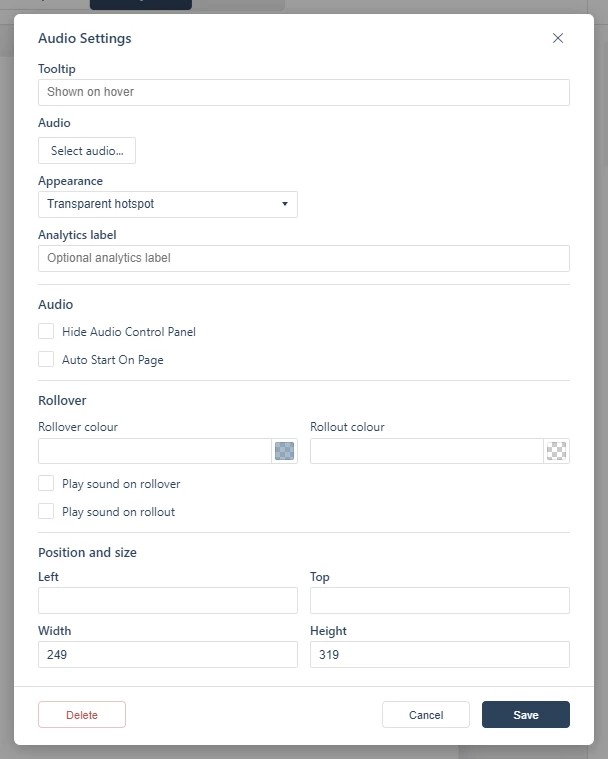
- Audio: the sound file itself, chosen with the Select audio… upload button.
- Hide Audio Control Panel: plays the sound without showing the reader a player bar.
- Auto Start On Page: begins playing when the reader reaches the page, without waiting for a click.
- Analytics label: isolates this audio in your analytics reporting.
Publication-wide audio in the settings
- Flip sound: a short page-turn effect when the reader changes pages. A default sound is included; you can upload your own — keep it a short effect, not a long clip.
- Background audio: a track that plays once or loops for as long as the flipbook is open.
- Interactive sound: a highlight effect that plays when the reader hovers over a hotspot.
- Audiobook: pairs per-page audio with automatic page turning — each page plays its track, then turns. Pages without audio turn after a default delay you can set per page.
For spoken narration over video content instead, see Adding a Video.
If it doesn’t work
- Nothing appears on the page. These tools create hotspots, which are invisible unless hotspot markers are switched on — the area is clickable either way (see Linking to Another Page (Go To Page)).
- The audio never plays. Auto Start On Page is what starts it without a click; with it off the reader must press play, and Hide Audio Control Panel leaves them nothing to press.
- Nothing has changed on your live link. Edits reach readers only when you publish again — see Can I edit my flipbook after publishing?.