

You’ll end up with a pop-up that opens over the page when the reader clicks its hotspot.
The Information tool opens a pop-up dialog containing your text when the reader clicks its area — extra detail that would clutter the page: ingredients, opening hours, footnote-style background, a bio for a bylined photo.
You’ll need
- The flipbook open in the editor, on the page the pop-up belongs to.
- The pop-up copy, short enough to read without losing the reader’s place on the page.
- Click Information on the toolbar.
- Draw a box over the text or image that should reveal the pop-up.
- Type the pop-up’s text into the dialog’s Information text box, give it a Title if you want one, and save.
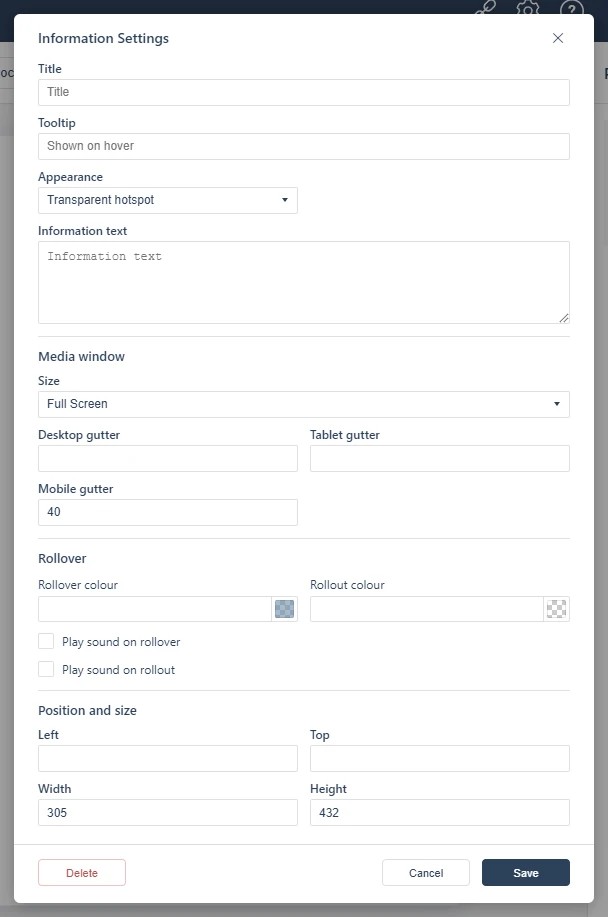
Keep pop-up copy short: a few lines the reader can take in without losing their place on the page. Content that deserves a page of its own is better added to the PDF itself or to the Flow edition (see Creating a Flow Publication); content on another site belongs in Opening a Web Page in a Pop-up.
If it doesn’t work
- Nothing appears on the page. These tools create hotspots, which are invisible unless hotspot markers are switched on — the area is clickable either way (see Linking to Another Page (Go To Page)).
- The pop-up opens with a title and no text. The Information text box is the pop-up’s content; a title on its own produces a headed, empty dialog.
- Nothing has changed on your live link. Edits reach readers only when you publish again — see Can I edit my flipbook after publishing?.