

You’ll end up with an animation playing inside the area you drew on the page.
The Animation tool places an HTML5 animation on the page — an animated banner, an infographic that plays through, a character loop. Animations run in the reader’s browser with no plug-in, on desktop and mobile alike.
You’ll need
- The flipbook open in the editor, on the page the animation belongs to.
- The HTML5 animation file.
- Click Animation on the toolbar.
- Draw a box where the animation should appear.
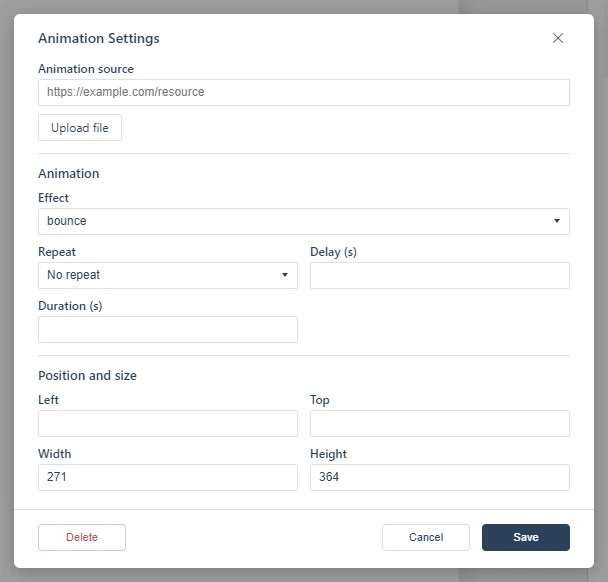
- Choose the animation file and how it presents in the dialog, then save.
Playback controls
The dialog’s playback fields shape how the animation runs: an Effect for the entrance movement, Repeat for whether it loops, a Delay before it starts, and a Duration for how long the movement takes. The animation plays in the area you draw — there is no separate pop-out/embedded choice to make.
If the animation is video rather than an HTML5 file, use Adding a Video instead; video gets streaming and its own source handling that animation files do not.
If it doesn’t work
- Nothing appears on the page. These tools create hotspots, which are invisible unless hotspot markers are switched on — the area is clickable either way (see Linking to Another Page (Go To Page)).
- The animation does not play. Whether a file is refused at upload or fails silently once published decides where to look first.
- Nothing has changed on your live link. Edits reach readers only when you publish again — see Can I edit my flipbook after publishing?.