

You’ll end up with an advert that pops up when the reader turns to the page you placed it on.
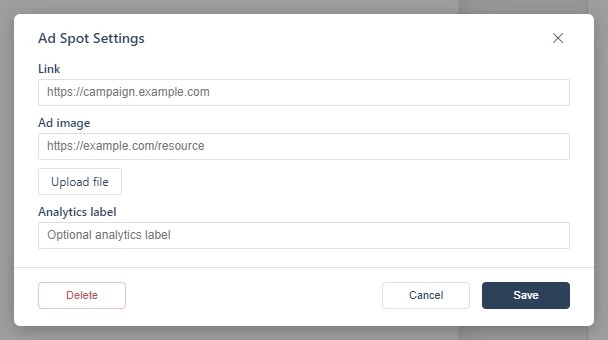
The Ad-spot tool attaches a pop-up advert to a page. When the reader turns to that page, the advert appears automatically — a sponsor placement the printed page doesn’t have to reserve space for. The advert can include a link through to the sponsor’s website (see Adding a Web Link).
You’ll need
- The flipbook open in the editor, on the page the advert should interrupt.
- The advert creative — a file to upload or a URL — and the link it should carry.
- Click Ad-spot on the toolbar with the target page open.
- Provide the advert creative by URL or with the Upload file button, and the destination Link, in the dialog.
- Save it. The advert pops up when readers turn to this page.
Because the advert interrupts the reading flow, use it sparingly: readers accept one page per sponsor, not one on every other page. Sell the page and position deliberately, and link the creative so interested readers can act immediately. A quieter alternative is an information hotspot (see Adding an Information Pop-up) or a simple link over the sponsor’s printed mention.
If it doesn’t work
- The advert never appears. Ad-spots trigger on the page being turned to, so a reader who arrives at that page from a link or the contents may not see it fire.
- The advert appears on every visit to the page. That is the intended behavior — there is no per-reader frequency setting described here.
- Nothing has changed on your live link. Edits reach readers only when you publish again — see Can I edit my flipbook after publishing?.