

You’ll end up with a clickable area that opens your webpage in the reader’s browser.
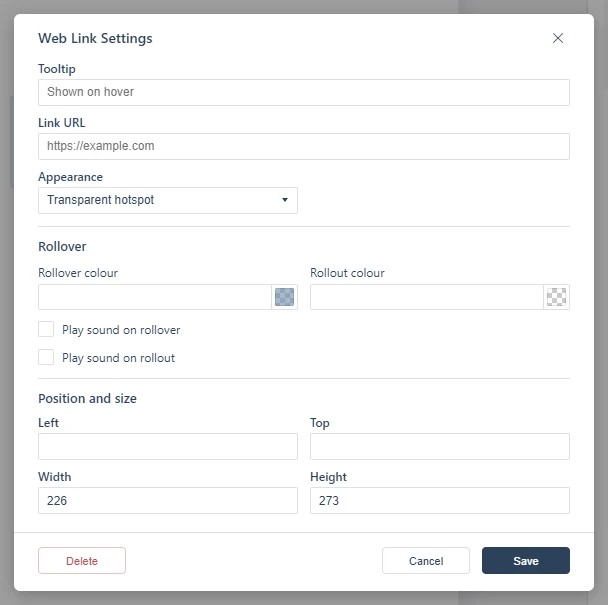
The Web Link tool places a link that opens a webpage when the reader clicks or taps it — your store, a subscription page, an article referenced in the text. It is the tool most of your PDF’s printed URLs are turned into automatically at creation time (see Create your first flipbook from a PDF).
You’ll need
- The flipbook open in the editor, with the page you are linking from on screen.
- The full destination URL, including its
https://prefix.
- Click Web Link on the toolbar.
- Draw a box over the area that should be clickable, such as a printed URL, a “Buy now” badge, or a product photo.
- Enter the destination URL in the dialog and save.
Links detected automatically
When your PDF is processed, web addresses, page references, email addresses, and phone numbers printed in the text are detected and linked without any manual work. If your catalog uses codes rather than plain URLs — SKU numbers, for example — custom detection can match those patterns too; contact support to have a pattern configured for your publication (see Adding a Shopping Cart).
For links that stay inside the publication, use Linking to Another Page (Go To Page); for reader enquiries, see Adding an Email Link.
If it doesn’t work
- Nothing appears on the page. These tools create hotspots, which are invisible unless hotspot markers are switched on — the area is clickable either way (see Linking to Another Page (Go To Page)).
- The link opens the wrong site. Check the address pasted into the dialog, including the scheme — the field does not add
https://for you. - Nothing has changed on your live link. Edits reach readers only when you publish again — see Can I edit my flipbook after publishing?.