

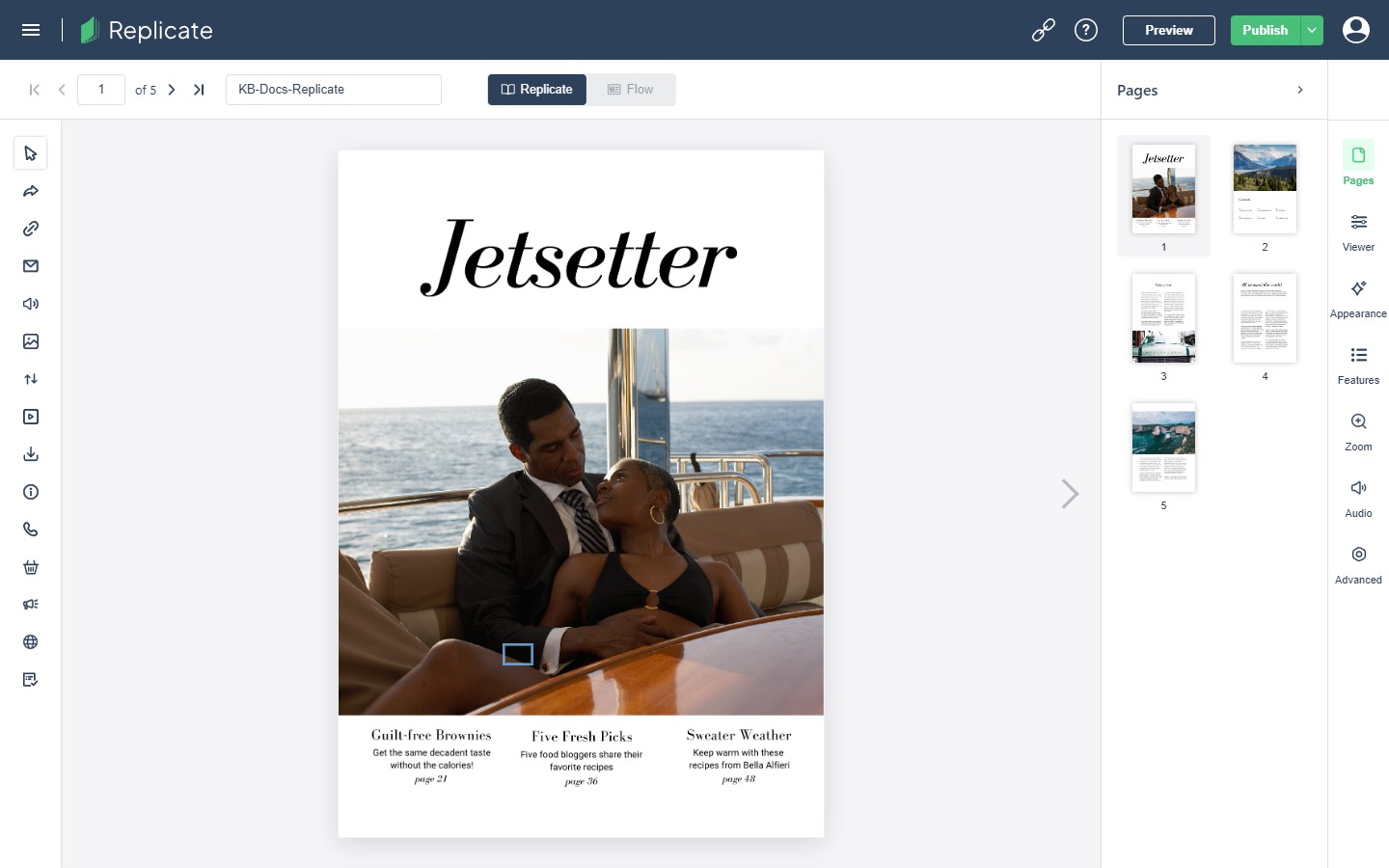
Open a project with Edit and the editor opens on the Replicate edition — your flipbook, page by page, with a Replicate | Flow switch above the canvas. The switch moves you between configuring the flipbook and its Flow edition; on a brand-new project the Flow side is disabled until a Flow edition has been generated. This tour stays on Replicate.
The Canvas
Your pages render as readers will see them, with page navigation — first / previous / next / last and a page box. A collapsible Pages panel lists thumbnails of every page.
The Settings Panel
The flipbook’s reading experience is configured in the settings panel, opened from a right-hand icon rail and organized into sections:
- Viewer — the reading interface itself.
- Appearance: Background (Canvas, Wooden Floor, Concrete, Custom, None), Preloader (Default/Custom), Intro (Disable/Default/Custom), Theme (Light/Dark), a Table Of Contents editor, and Display options: Auto Flip Timer, Spine Shading, Drop Shadows, Show Hotspot Locations, Show Tooltips — plus Article Mode Enabled (on by default), which lets a Flow edition travel with the flipbook (see Creating a Flow Publication).
- Features, Zoom, Audio, Advanced — the remaining reading-experience controls.
The Table Of Contents editor in that section has its own page: Table of Contents editor covers building the list and the page or URL each entry points at.
Top Bar
Left to right: Menu, Dashboard (back to the projects list), and the project name, which you can rename in place. On the right sit Help, Preview, Publish, the More publish options menu beside it (Self Host, Publish to Webhook), and the account button last. There is no settings button in the bar: the reading settings are the right-hand rail’s panels, described above, and the Replicate | Flow switch sits just under the bar, above the canvas.
Adding Interactivity
A toolbar on the left edge of the canvas holds the interactive elements you can add to the fixed pages: Select, Go To Page, Web Link, Email, Audio, Image Gallery, Animation, Video, Download, Information, Telephone, Shopping Cart, Ad-spot, Web Page, and Form.
Where Editing Differs From Studio
Replicate’s editor is about the reading experience and interactivity layered onto the fixed pages — not freeform layout. Element-level design (rows, columns, styles) belongs to the Flow edition or to Studio.