

You’ll end up with a Flow edition that reads in order, at a length readers will finish, in both the flipbook and the reflowed layout.
You’ll need
- A Flow-enabled project that has already produced its auto-generated output.
- The Flow editor, where content order, images and spacing are fixed.
Work in stages — structure first, content second, readability last — and your Flow edition converges quickly. This is the recommended pass, in order:
- Review the auto-generated output. Scroll every page; note dense pages, long runs of text, and obvious ordering problems.
- Fix content order. Reorder misplaced blocks so the reading sequence is logical; group related content. See Fixing Content Order in Flow.
- Refine the text. Break up long paragraphs, correct OCR slips, add or adjust headings, cut redundant text.
- Optimize images. Resize or remove decorative and oversized images; align what remains with the content it supports. See Working with Images in Flow.
- Reduce excessive scroll. Combine short sections where it helps, simplify complex layouts, and tune spacing with the Indent Panel — see Spacing, Padding, and the Indent Panel.
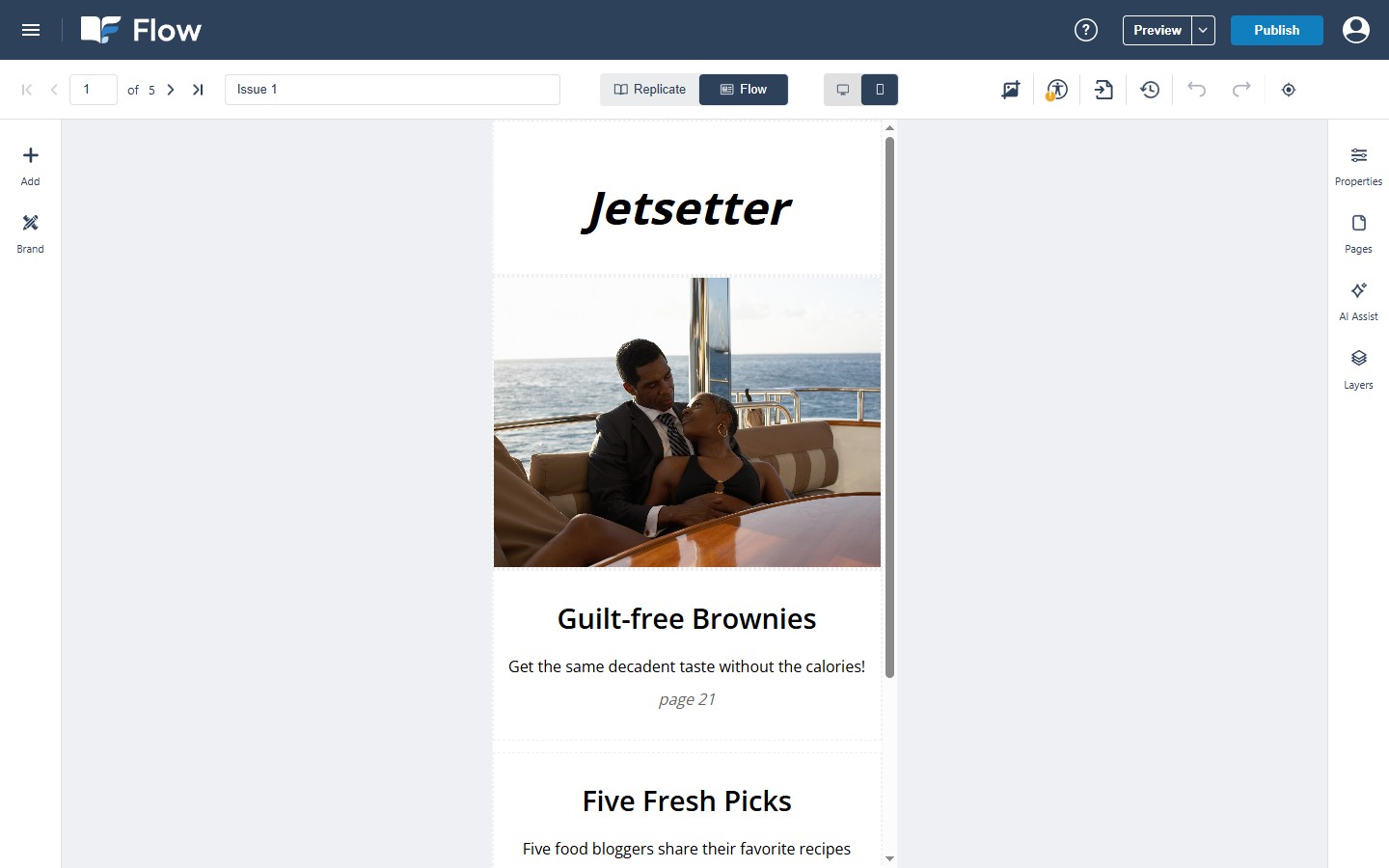
- Mobile preview. Narrow the window or open the mobile view: check readability, image scaling, and scrolling feel.
- Final review. Reading order, page-to-page consistency, small polish — then publish (one publish ships both editions). A final self-check: is the content easy to scan, are key messages easy to find, does the imagery support the content, and does the page read comfortably from start to finish?
If it doesn’t work
- The edition still reads badly after the pass. Go back to content order before touching spacing — this workflow puts structure first because spacing over a bad sequence never holds.
- It reads well on desktop and not on mobile. That is step 6: narrow the window or open the mobile view and check readability, image scaling and scrolling again.