

Follow the below steps for Mac and PC.
PC
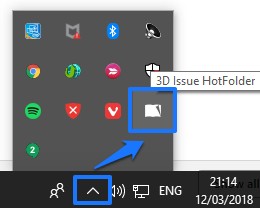
- Open the Queue Manager from the tray. Right-click the 3D Issue HotFolder icon in your system tray.
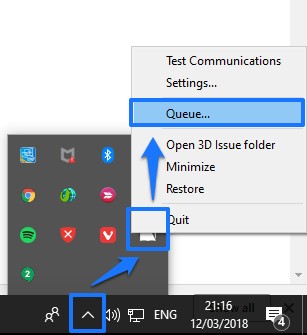
- Empty the queue. Choose Queue from the HotFolder menu. If any issues are listed there, select them and click the x in the top right corner so that your queue is empty.
- Close both applications. Close 3D Issue Flipbooks, then quit the conversion plug-in (3D Issue HotFolder) from the system tray (Right Click > Quit) if either of them is still running.
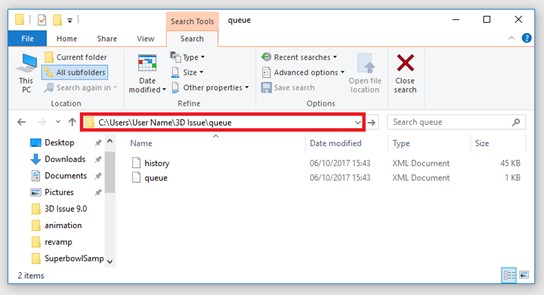
- Delete the queue files. Open File Explorer on your PC and navigate to:
C:Users{Your User Name}3D Issuequeue
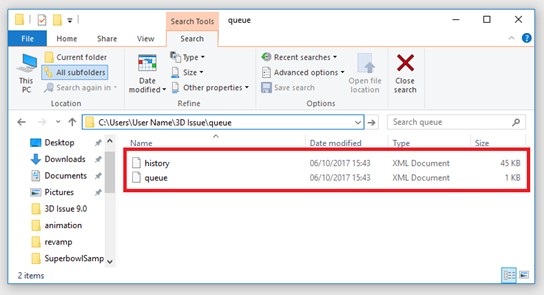
You should see two files, history.xml and queue.xml. Delete both of them from the queue folder.
- Restart, check the upload settings and rebuild. Restart the machine, open your magazine in the software and go to the output tab. Click edit under the upload panel and confirm that your upload settings are correct, then rebuild or upload your magazine online.


Mac
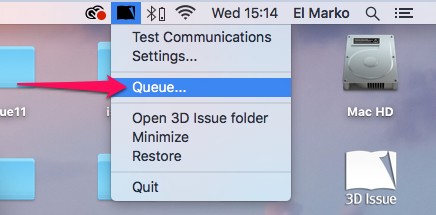
- Open the Queue Manager. Right-click the 3D Issue icon in your menu bar and choose Queue.
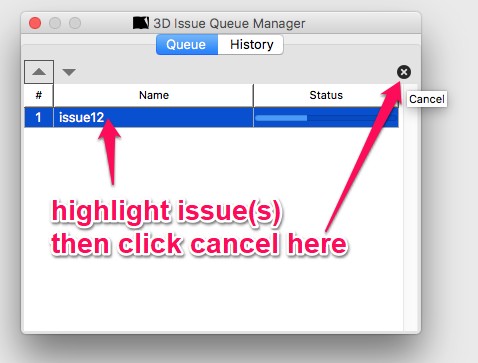
- Cancel the builds. Select the issue and click the x in the top right corner so that your queue is empty.
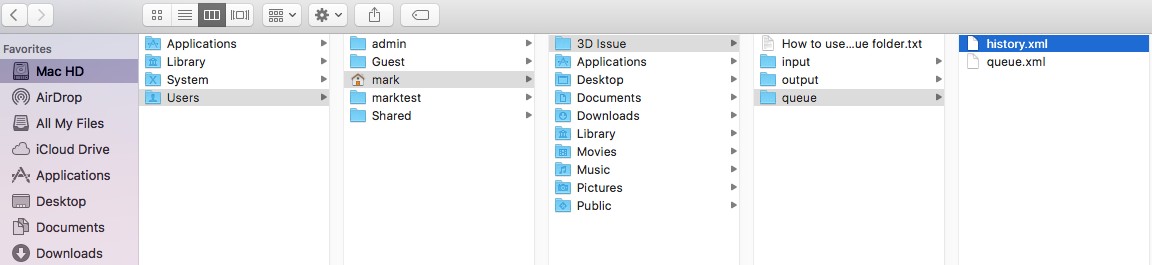
- Find the queue folder. In Finder, select Go from the top menu, then Go to Folder…, enter the path below and click OK:
~/3D Issue/queue
- Delete the queue files. Delete history.xml and queue.xml.
- Restart and rebuild. Restart the Mac, launch the software and attempt to build your Flipbook again.


Stopping an issue that is still waiting, without clearing the queue files, is How can I stop my Flipbooks from being processed in the Queue Manager?.
If the issue still persists, send support@3dissue.com screenshots of each of the windows in the upload settings so that support can check them for any errors.