

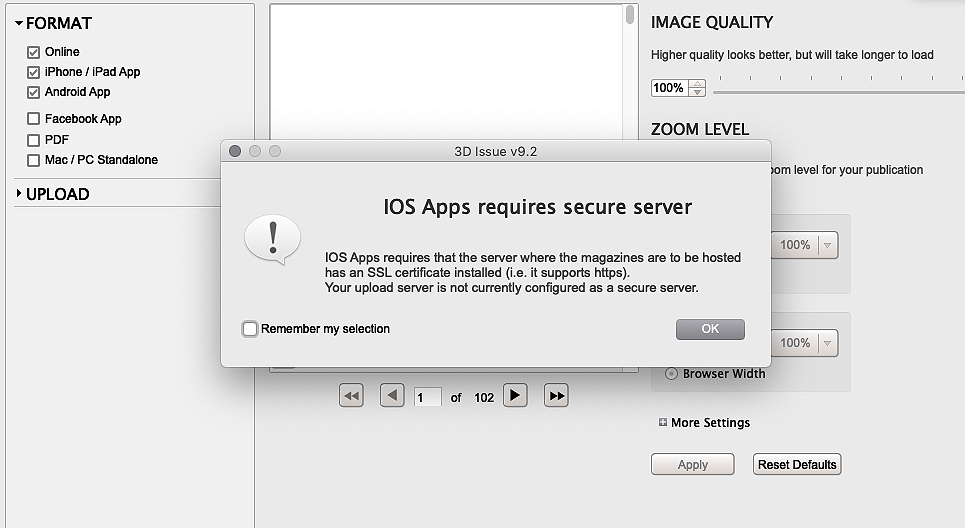
You’ll end up with the issue and library addresses set to HTTPS, which is what the iOS apps ask for.
You’ll need
- The project open in 3D Issue, with the upload panel showing in the Output tab.
Set both addresses to HTTPS
- In the Output tab, click Edit under the upload panel.
- Proceed through your upload settings as you may have done before.
- On the final window, called Confirm your upload settings, set both the Issue and the Library Address to HTTPS instead of HTTP.
- Click Finish.
If you continue to experience problems, contact support@3dissue.com
If it doesn’t work
- The dialog comes back after a rebuild. Open the settings again with Edit under the upload panel: on the Confirm your upload settings window both the Issue and the Library Address have to read HTTPS, not just the first one.
- It still fails with both addresses on HTTPS. Contact support@3dissue.com — the article’s own closer for readers who continue to have problems.