

You’ll end up with every issue your account holds in the cloud visible under its template, and the ones you no longer want online removed.
You’ll need
- Cloud services added to your account.
- The issue built and uploaded, so it appears under its template.
- In the Output tab of 3D Issue Professional, choose 3D Issue Cloud Hosting from the Upload drop-down menu.
- Ensure that Online is checked under the Format menu, then build: the issue files are generated and uploaded to the cloud server.
- View the issue online at the URL the software gives you.
How do I remove/manage issues that I have uploaded to the cloud?
You would launch 3D Issue and click Manage Issues under the Portal menu
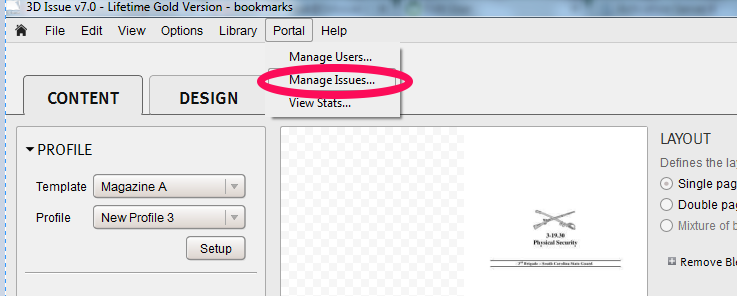
In the window that opens you can see cloud hosted issues for each of your templates:

In the above example, only a single issue has been uploaded to the cloud under the template Magazine B. It can be removed by highlighting the issue and then clicking Delete.
An issue that is listed here but shows no thumbnail in the app is usually one left unpublished in this window: Why is my issue thumbnail missing?.
If it doesn’t work
- The issue is not in the list. The window lists issues per template: switch the template selector to the one you published to.
- Nothing was uploaded when you built. The Upload selector in the Output tab has to be set to 3D Issue Cloud Hosting, with at least Online ticked under Format.