

You’ll end up with a Google Map either embedded on a page or popping out from a hotspot, inside your published flipbook.
You’ll need
- The place found in Google Maps, and its embed link.
- The flipbook project open in the software, with the page you want the map on selected.
As you can see in the sample below Google Maps has been both embedded on the page (page 3) and a hotspot has been added that pops Google Maps out on top of the page (page 2). I have included instructions for both of these features below for you.
Firstly, you need to find the embed link for the map you would like to add to your publication; you can do this by following the steps below.
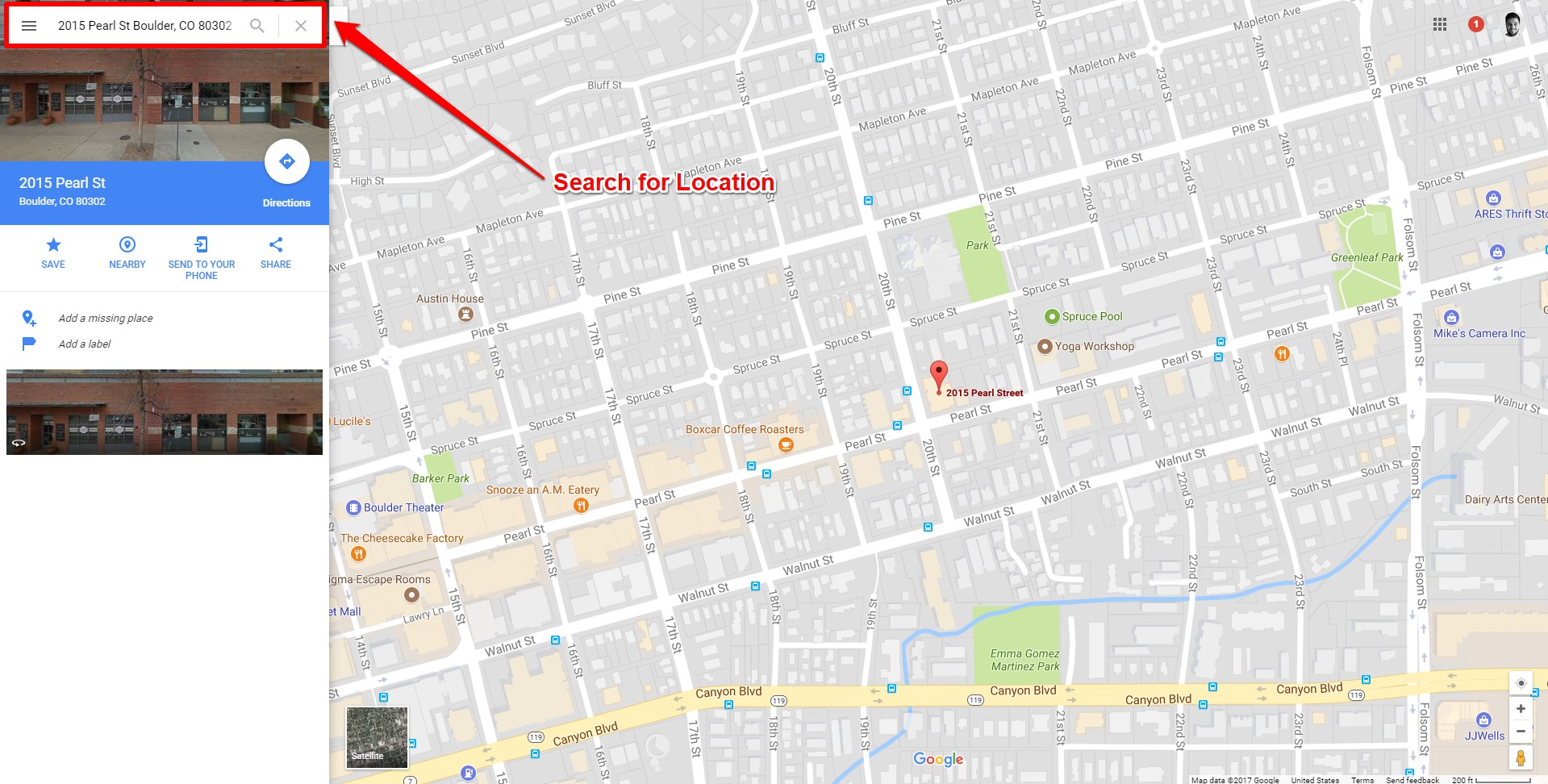
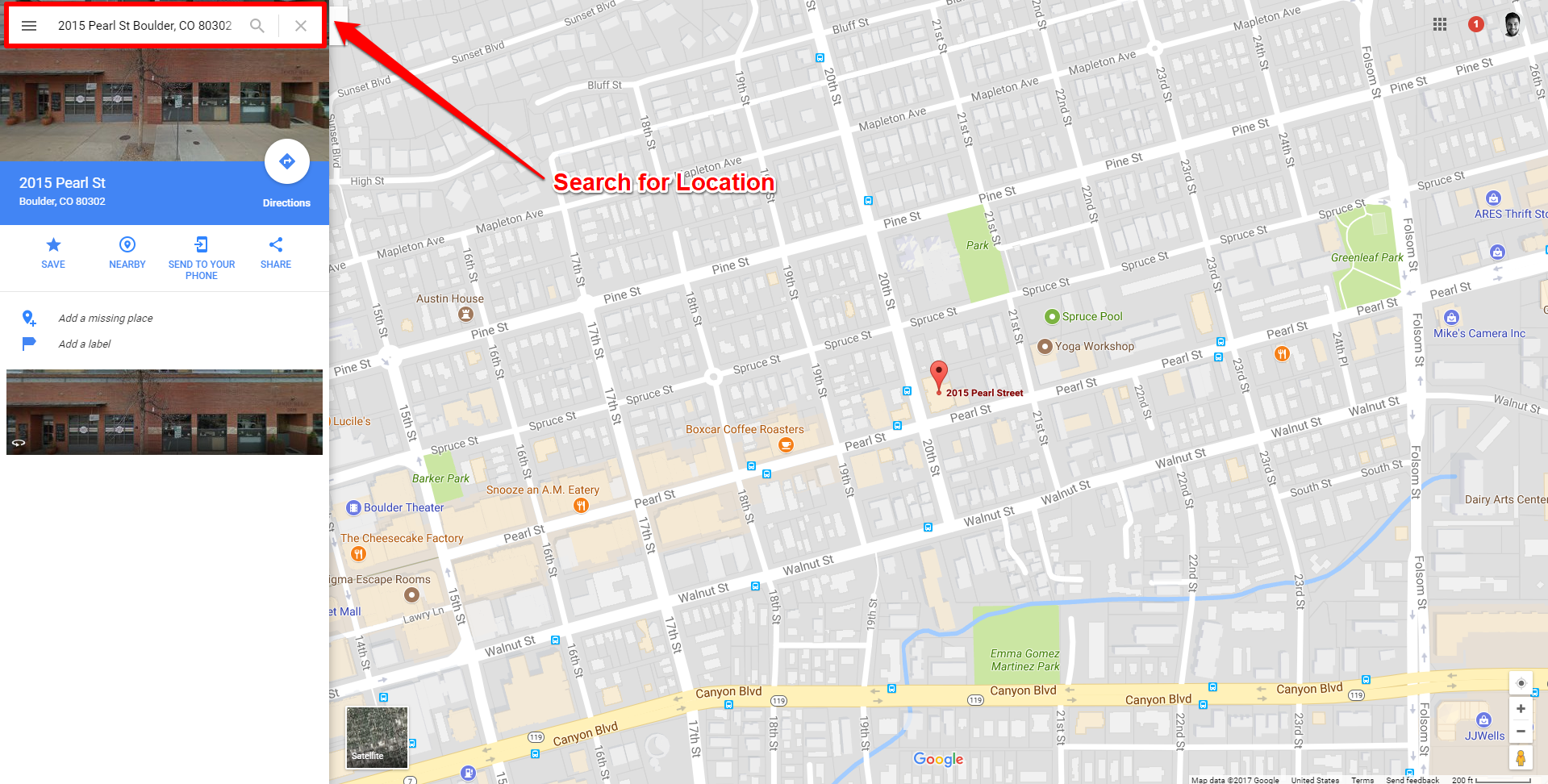
- Search in Google Maps for the place you want to include in your publication.
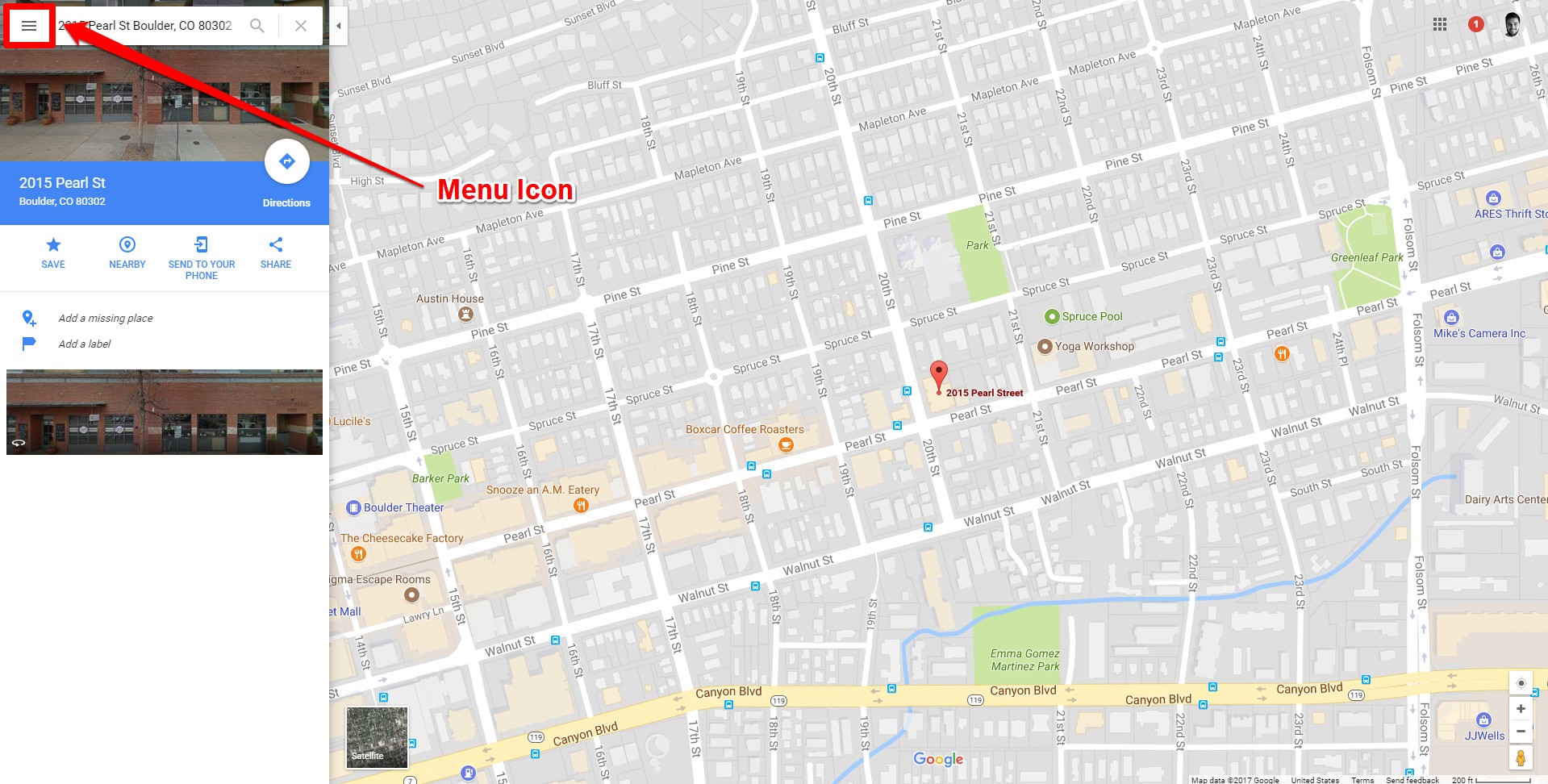
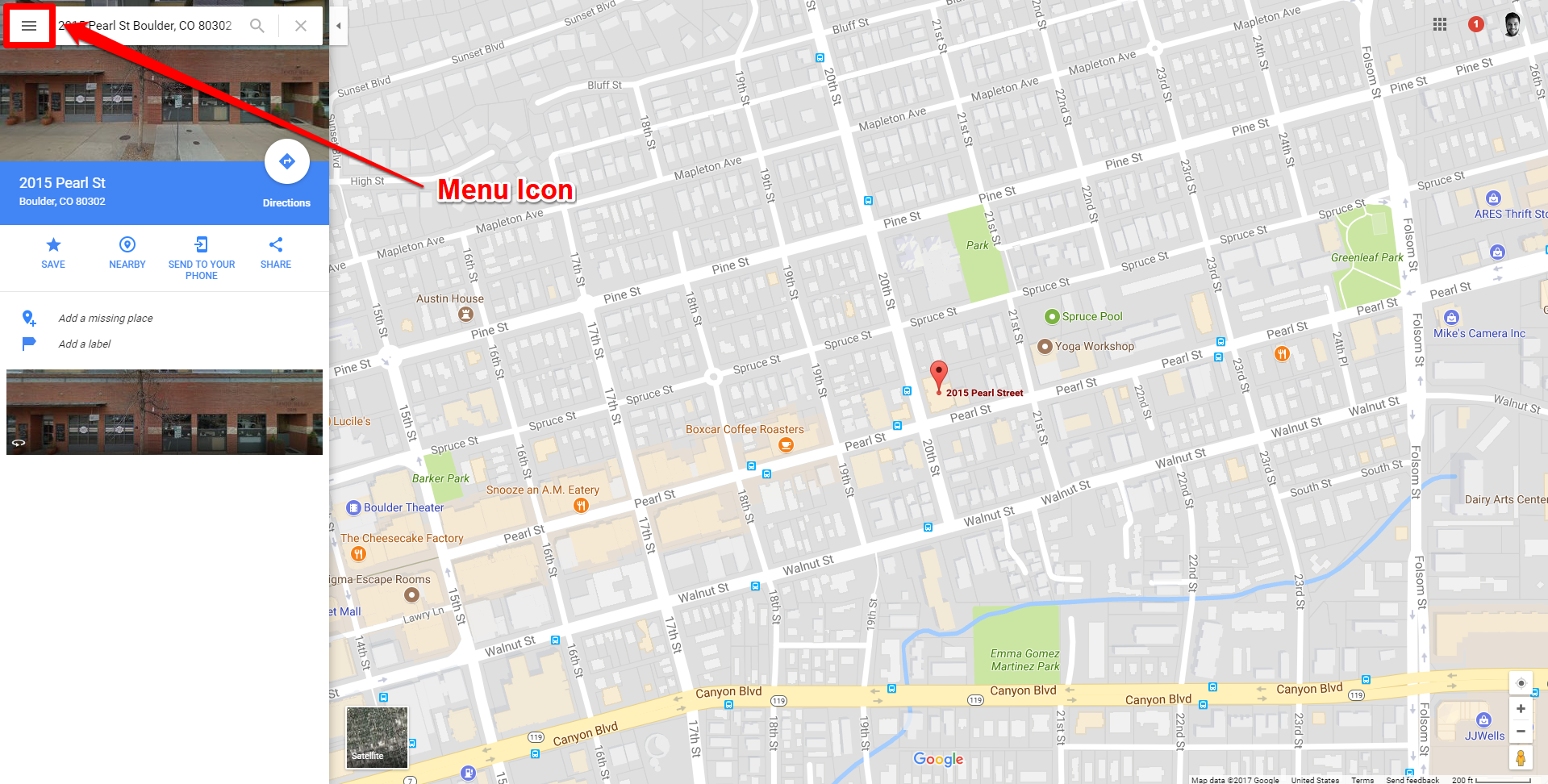
- Click the Menu icon in the top left corner of Google Maps.
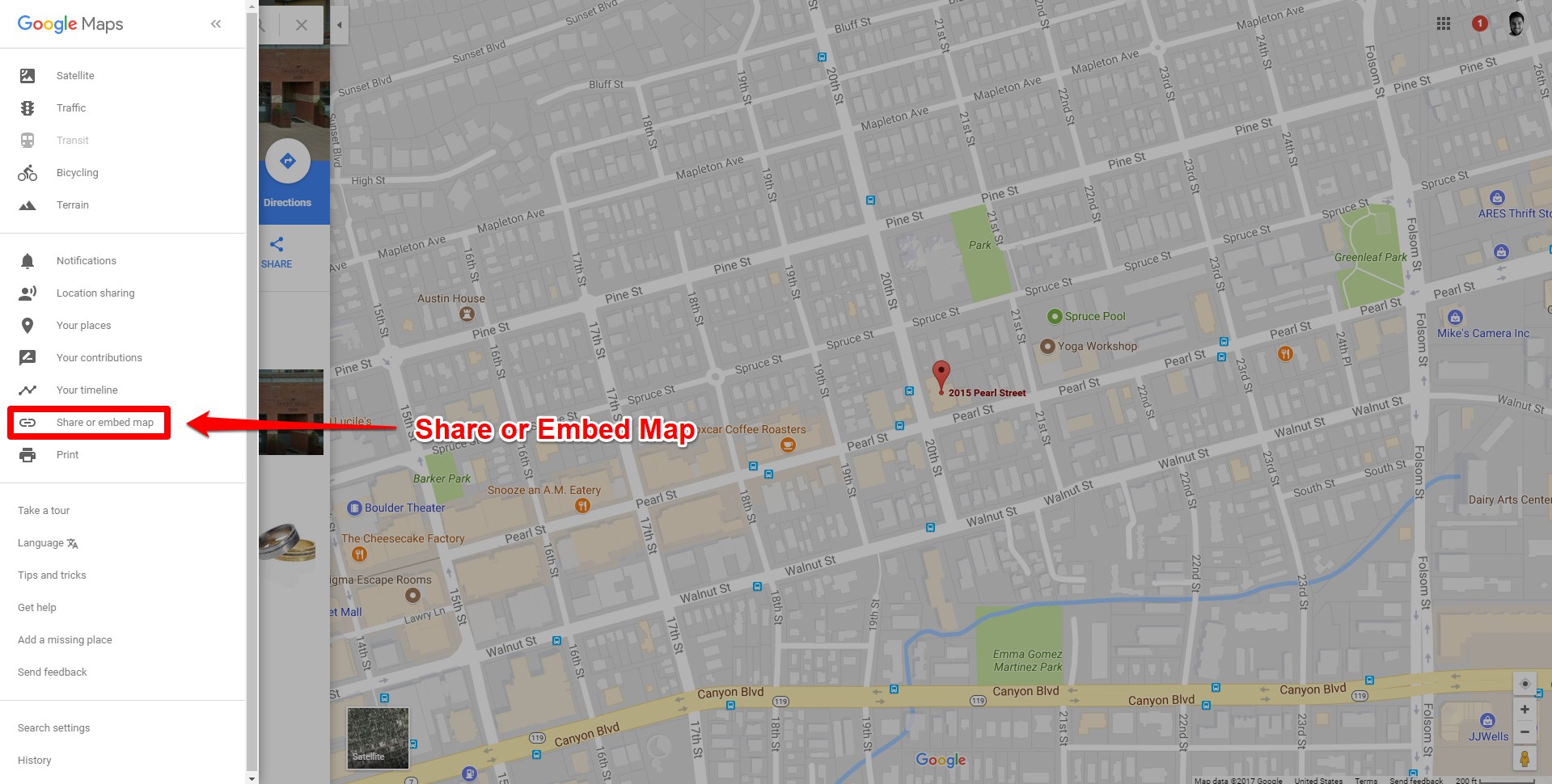
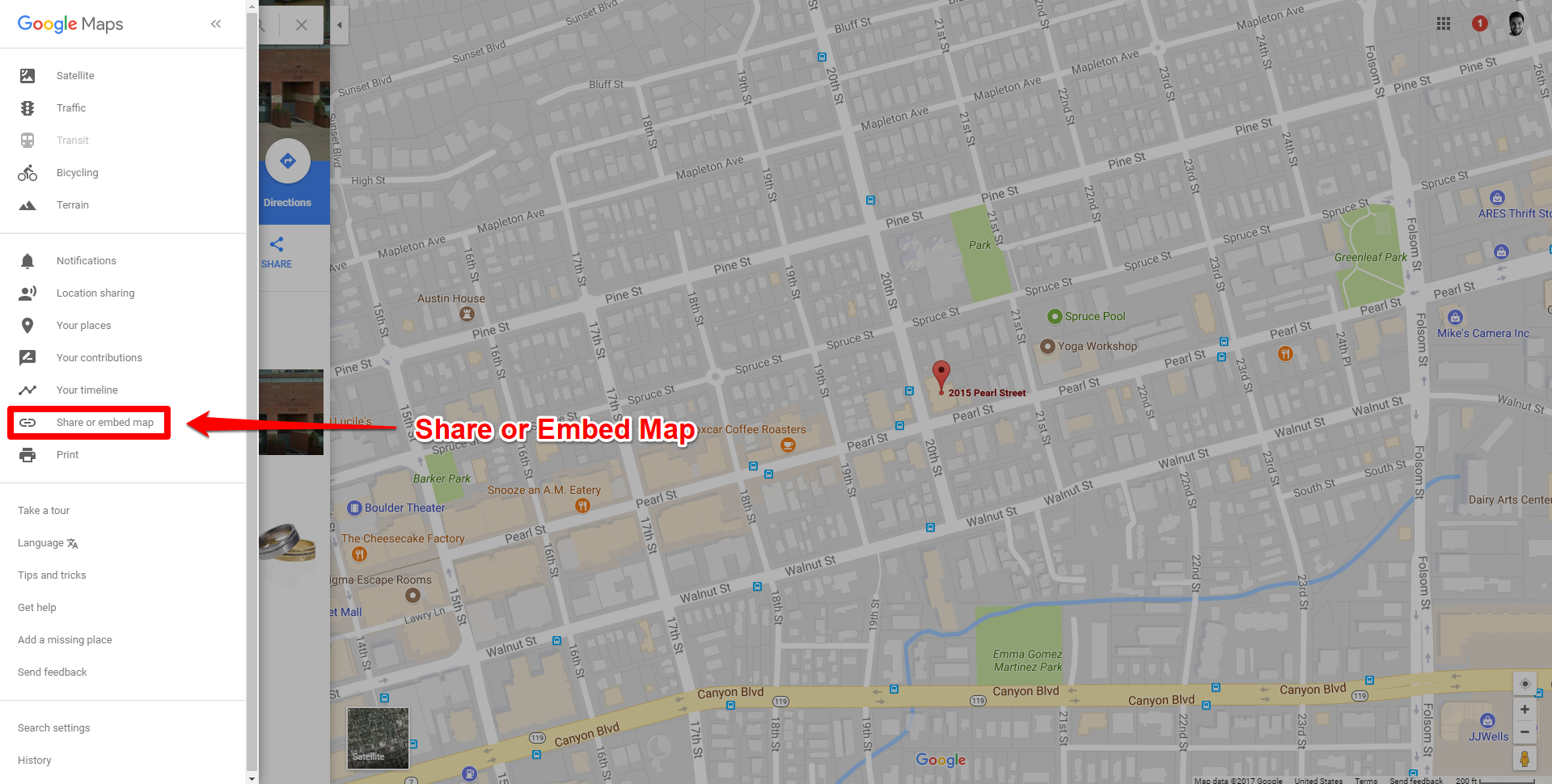
- Choose Share or Embed Map.
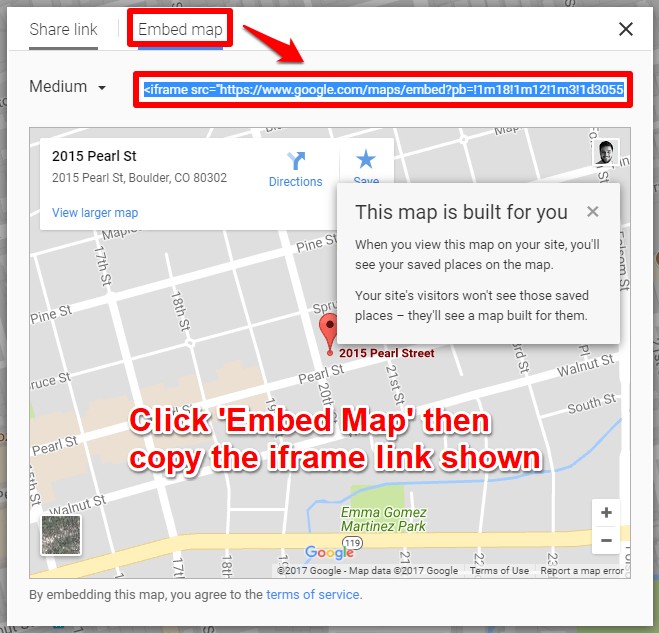
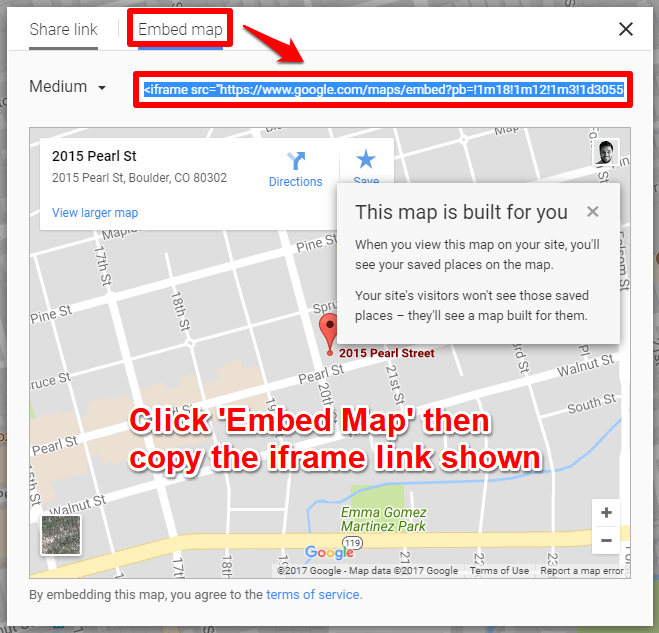
- Choose Embed Map and then copy the iframe code
- Remove everything in the iframe code as highlighted in bold below, except the web link (blue).
<iframe src=”https://www.google.com/maps/embed?pb=!1m18!1m12!1m3!1d2852.733212456086!2d-79.71625998447928!3d44.35653147910352!2m3!1f0!2f0!3f0!3m2!1i1024!2i768!4f13.1!3m3!1m2!1s0x882abd0da51fe805%3A0xe43c9588ce190ec0!2s164+Bishop+Dr%2C+Barrie%2C+ON+L4N+6X5%2C+Canada!5e0!3m2!1sen!2ses!4v1518019585504” width=”600″ height=”450″ frameborder=”0″ style=”border:0″ allowfullscreen></iframe> - From the above iframe code, you are extracting the highlighted link as seen below.
https://www.google.com/maps/embed?pb=!1m18!1m12!1m3!1d2852.733212456086!2d-79.71625998447928!3d44.35653147910352!2m3!1f0!2f0!3f0!3m2!1i1024!2i768!4f13.1!3m3!1m2!1s0x882abd0da51fe805%3A0xe43c9588ce190ec0!2s164+Bishop+Dr%2C+Barrie%2C+ON+L4N+6X5%2C+Canada!5e0!3m2!1sen!2ses!4v1518019585504
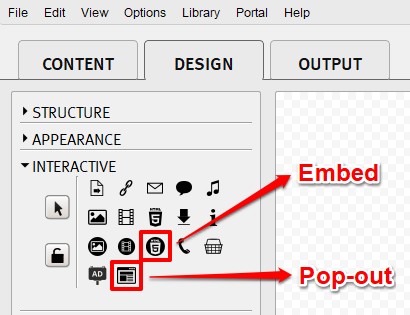
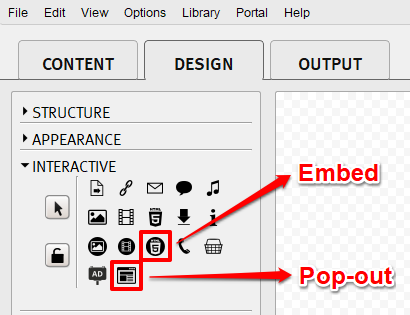
Now that you have the embed link for your map you can add it to your publications through the software. In the DESIGN tab of the software under Interactive there are two features you can use to add your map to your publication; Embedded HTML5 Animation Tool (Embedded Google Maps) or Webpage (Pop-out Google Maps from Button/Hotspot).
- Select the Embedded HTML5 Animation Tool or Webpage Feature in the software.
- Drag the desired area you would like to embed the map or place a hotspot/button on the page.
- Paste this web link into the URL/HTML5 fields in Webpage Settings/Embedded HTML5 Settings
- Click OK.
- Build your publication to see the output with Google Maps included.
See screenshots below for reference.
- Search for Location
- Click Menu Icon
- Click Share or Embed Map
- Embed Map > Copy iframe link shown
- Click Embedded HTML5 Animation Tool OR Webpage under Interactive in the DESIGN tab
- Paste the web link you extracted from the iframe link you obtained above into the URL/HTML5 fields in Webpage Settings/Embedded HTML5 Settings and click OK.
- Then Build your publication to see these changes take effect.
If it doesn’t work
- The map does not appear. The Embed Map code is not the link: keep only the URL inside
srcand drop the rest of the iframe tag. - You want the map to pop out instead of sitting on the page. That is the Webpage feature on a button or hotspot; the Embedded HTML5 Animation Tool places the map on the page itself.
- The map stays blank on a secure page. The Webpage feature cannot show an insecure page from a publication served over https, or one whose server refuses framing — Why can’t I see my website when using the ‘Webpage’ feature? has both causes.