

You’ll end up with one setting applied to every hotspot in that flipbook.
You’ll need
- The flipbook open, with its hotspots already placed.
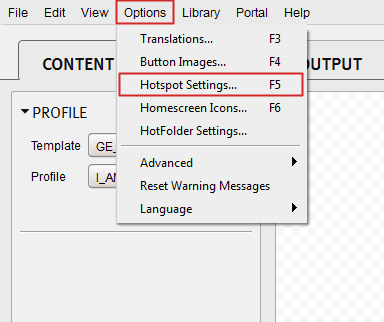
- Click Options in the top menu and choose Hotspot Settings.
- In the popup that opens, apply the setting to all hotspots in that flipbook.
Hotspots can also be created automatically from text the PDF already contains; Using Custom Link Detection covers that route.
The Video tool places a hotspot of its own: Adding a video that opens in a pop-up (e-349) covers placing it and sizing its pop-out.
If it doesn’t work
- Hotspots in another flipbook are unchanged. The setting applies to the flipbook you have open, so open that project and apply it there too.