

You’ll end up with your own JavaScript running inside your flipbook, delivered through Google Tag Manager instead of pasted into the software.
You’ll need
- A Google Tag Manager account.
- Flipbooks Desktop 9.3 or later — 3D Issue’s own walkthrough records Tag Manager as added in 9.3.
- The flipbook you want the JavaScript to run in.
Google Tag Manager can be used to add custom JavaScript to your flipbooks. The tutorial below walks through setting up Tag Manager and adding your script.
1. Create a Google Tag Manager account.
Start by creating and setting up a Tag Manager account.
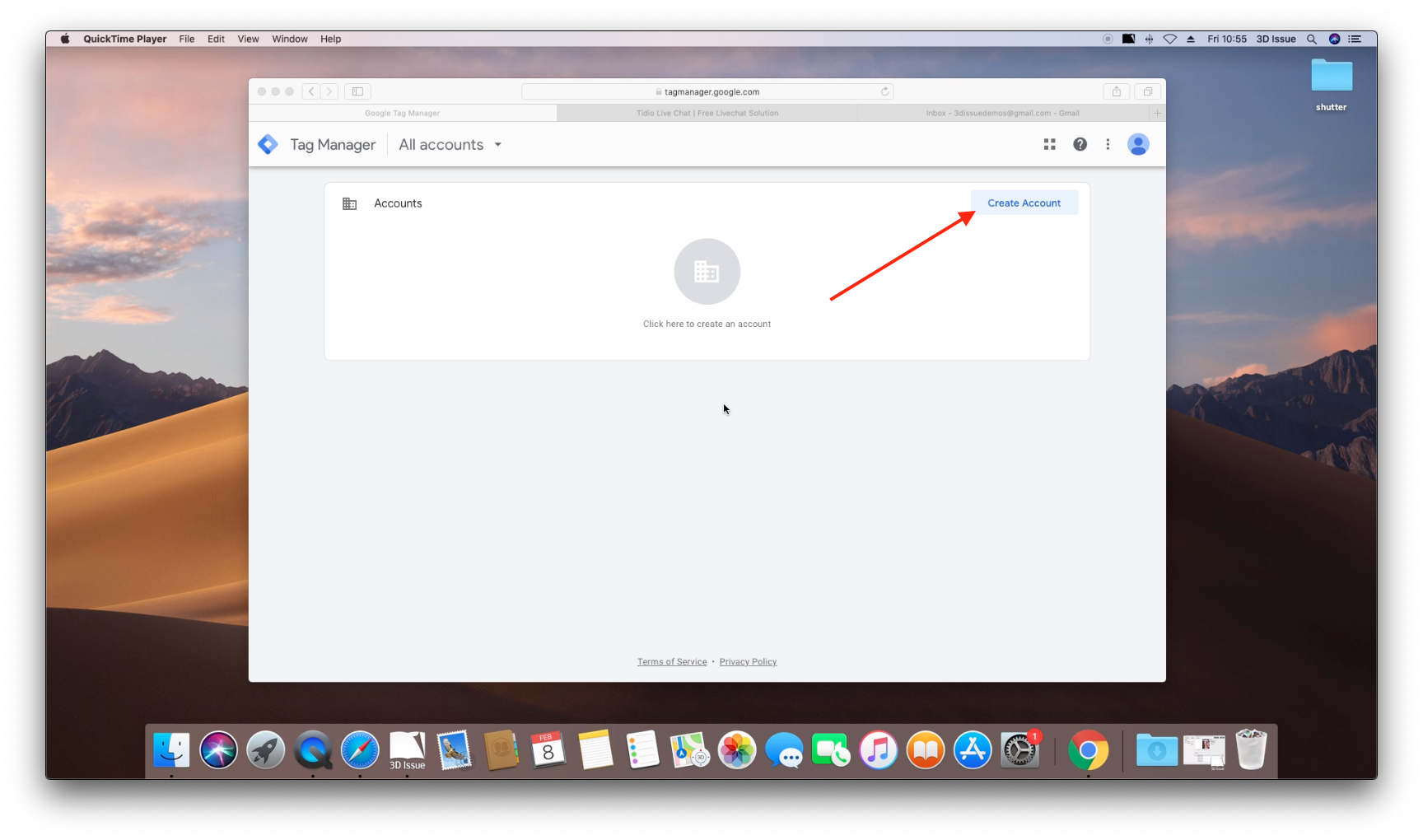
- Head over to Google Tag Manager and sign in with your Google Account to start creating an Account.
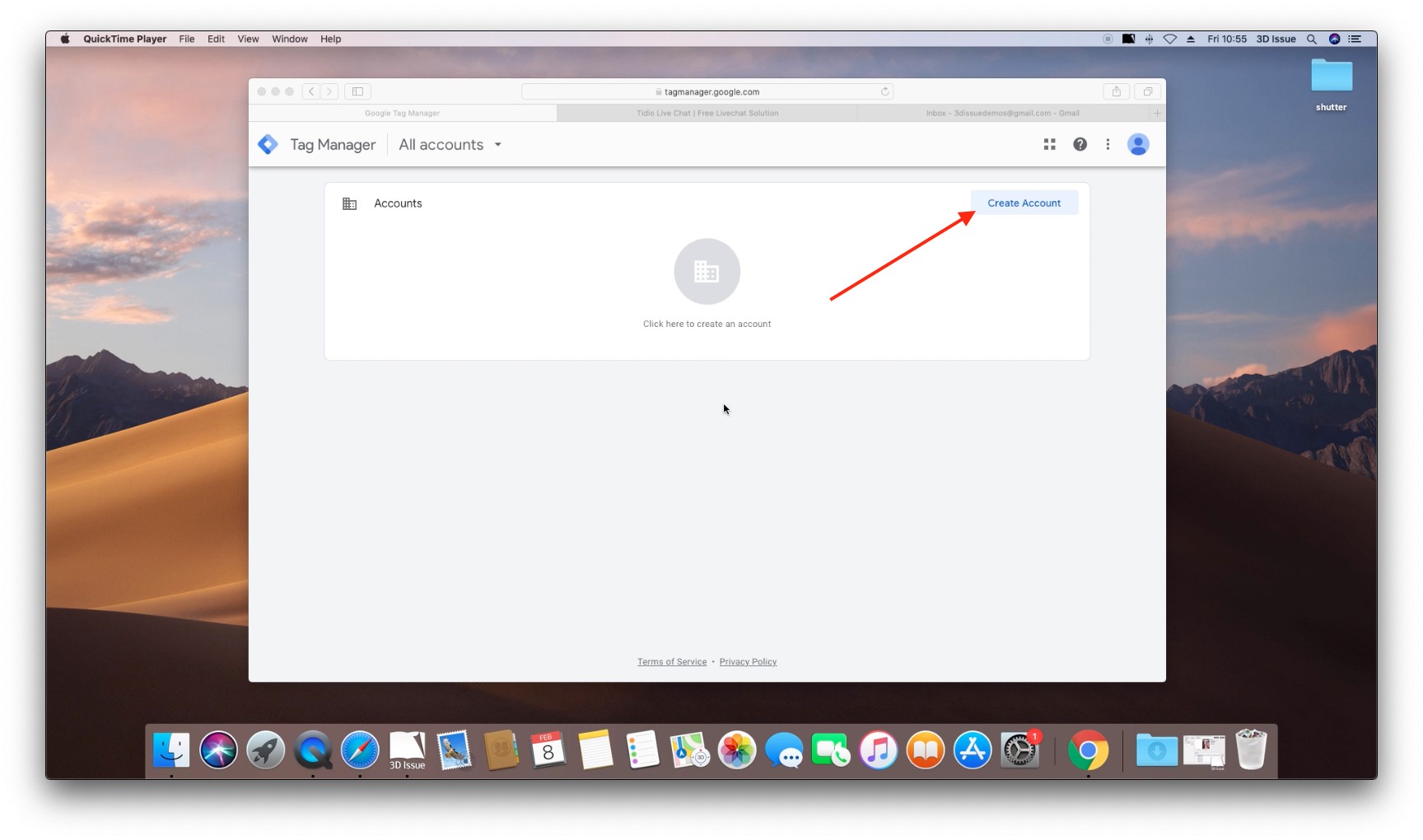
- When signed in, you’ll need to create your first Tag Manager account. Click Create Account
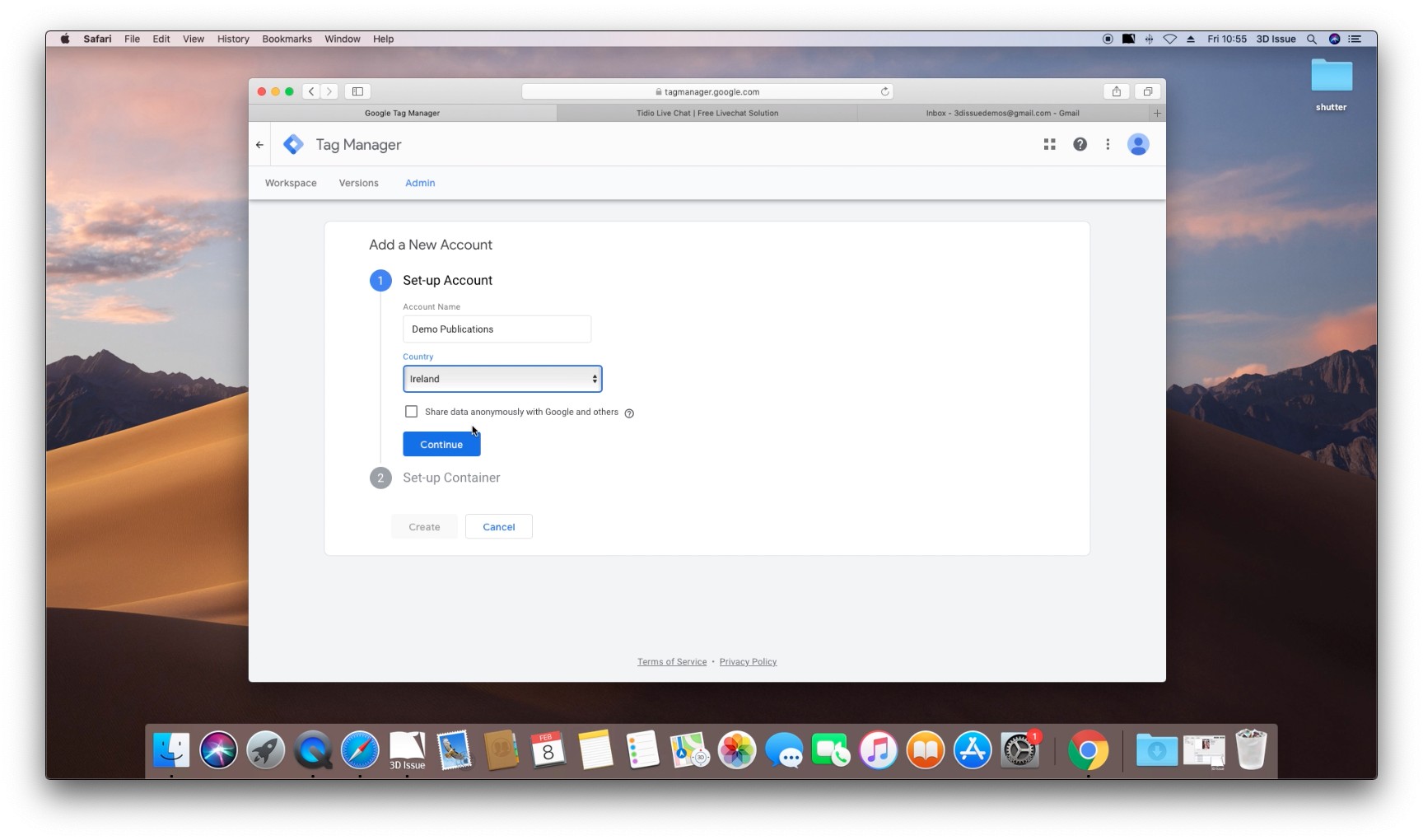
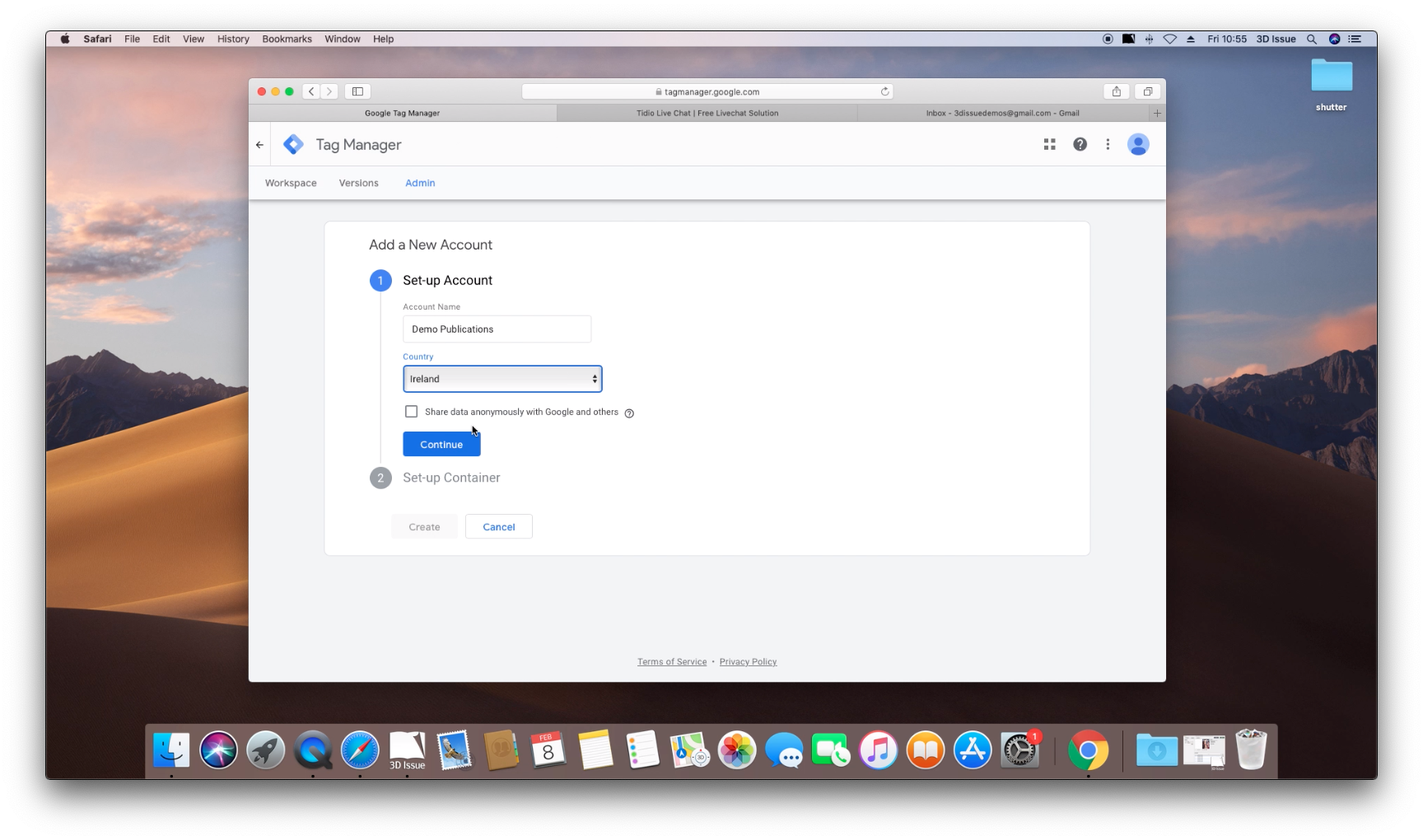
- On the next page give your new Account a name, this can be anything. Select your Country and click Continue
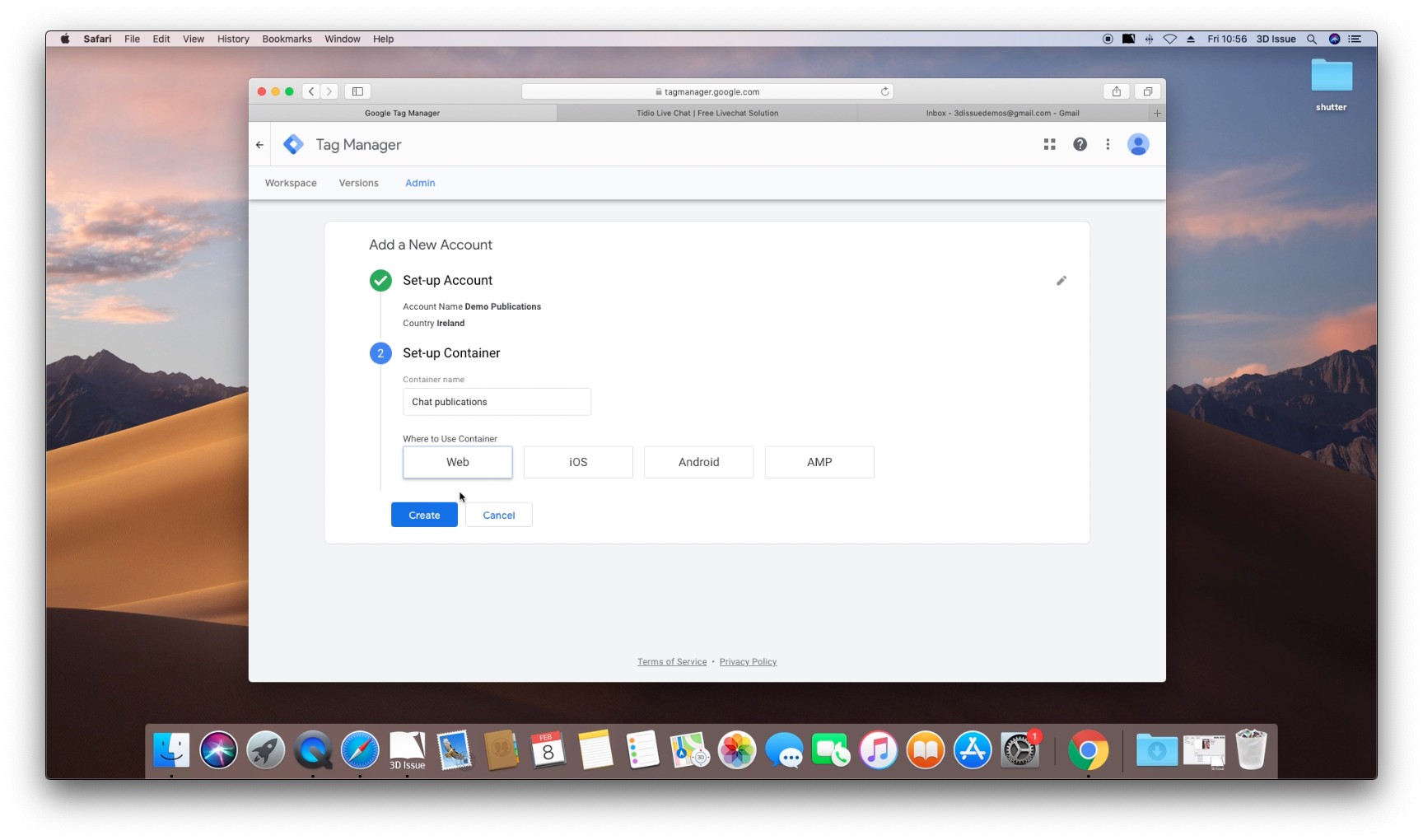
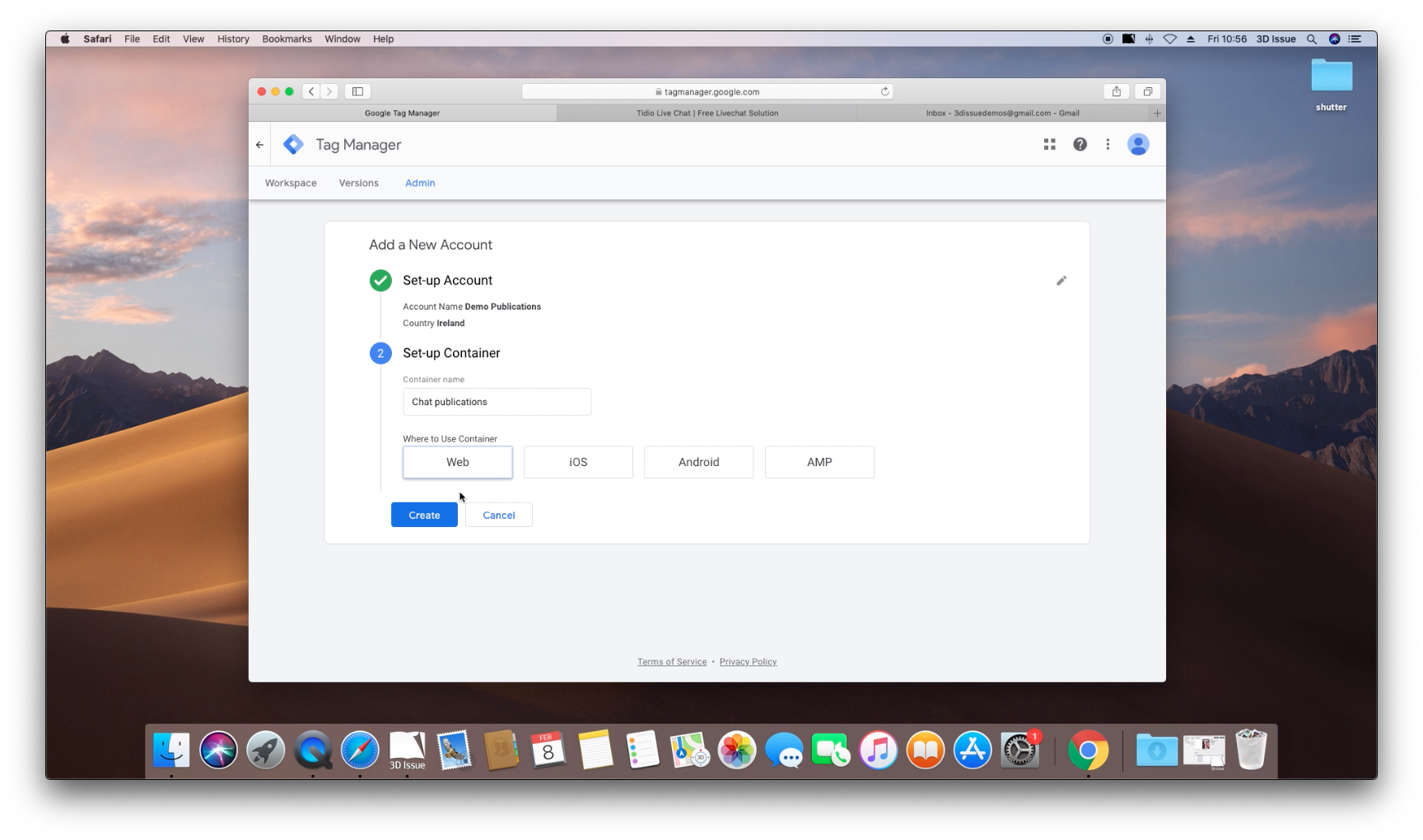
- Then give your Container a name. Containers represent your website, pages, apps etc. The container for the web is the one to use, so select that too.
- Agree to the terms & privacy policy if prompted.
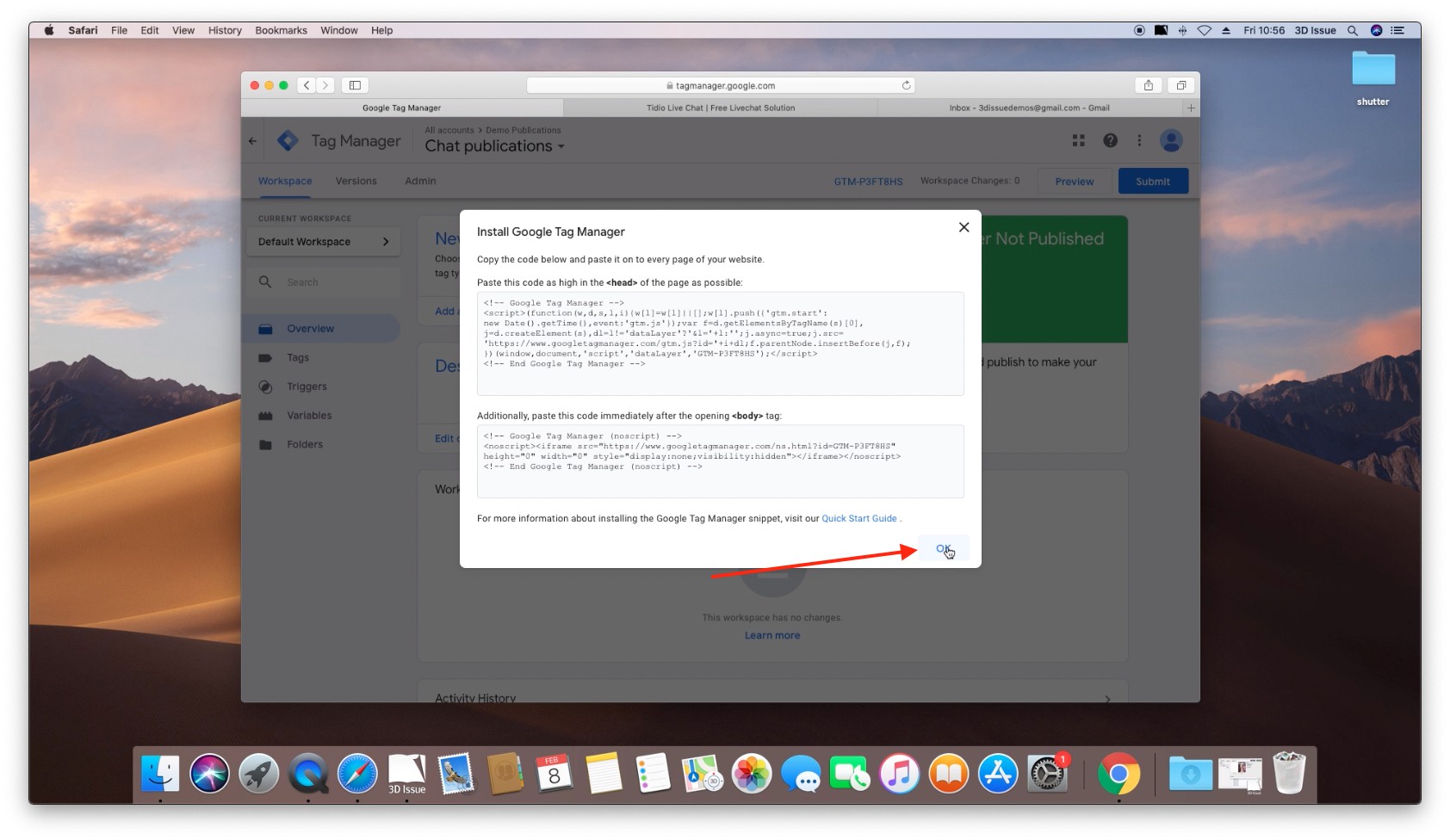
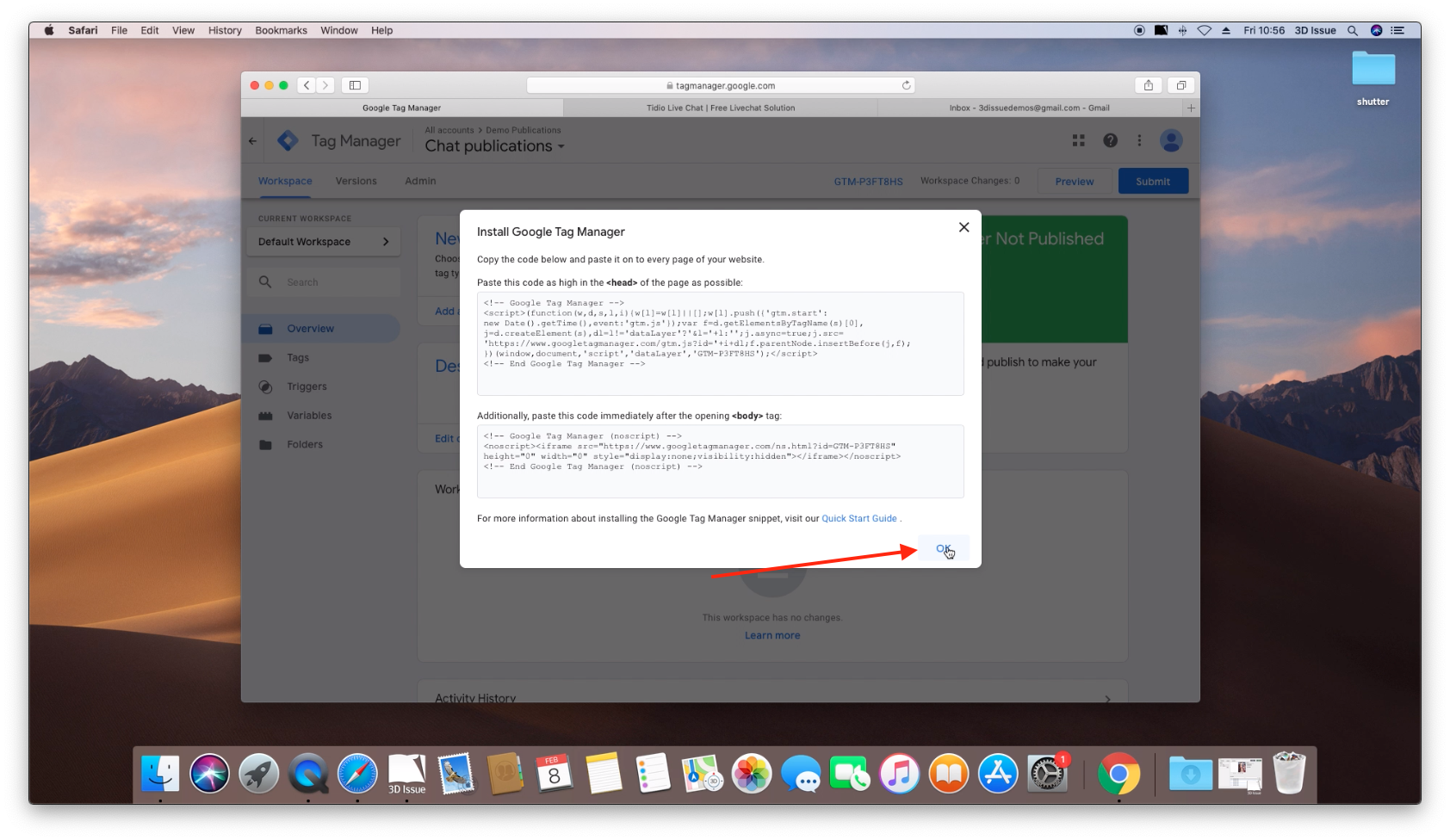
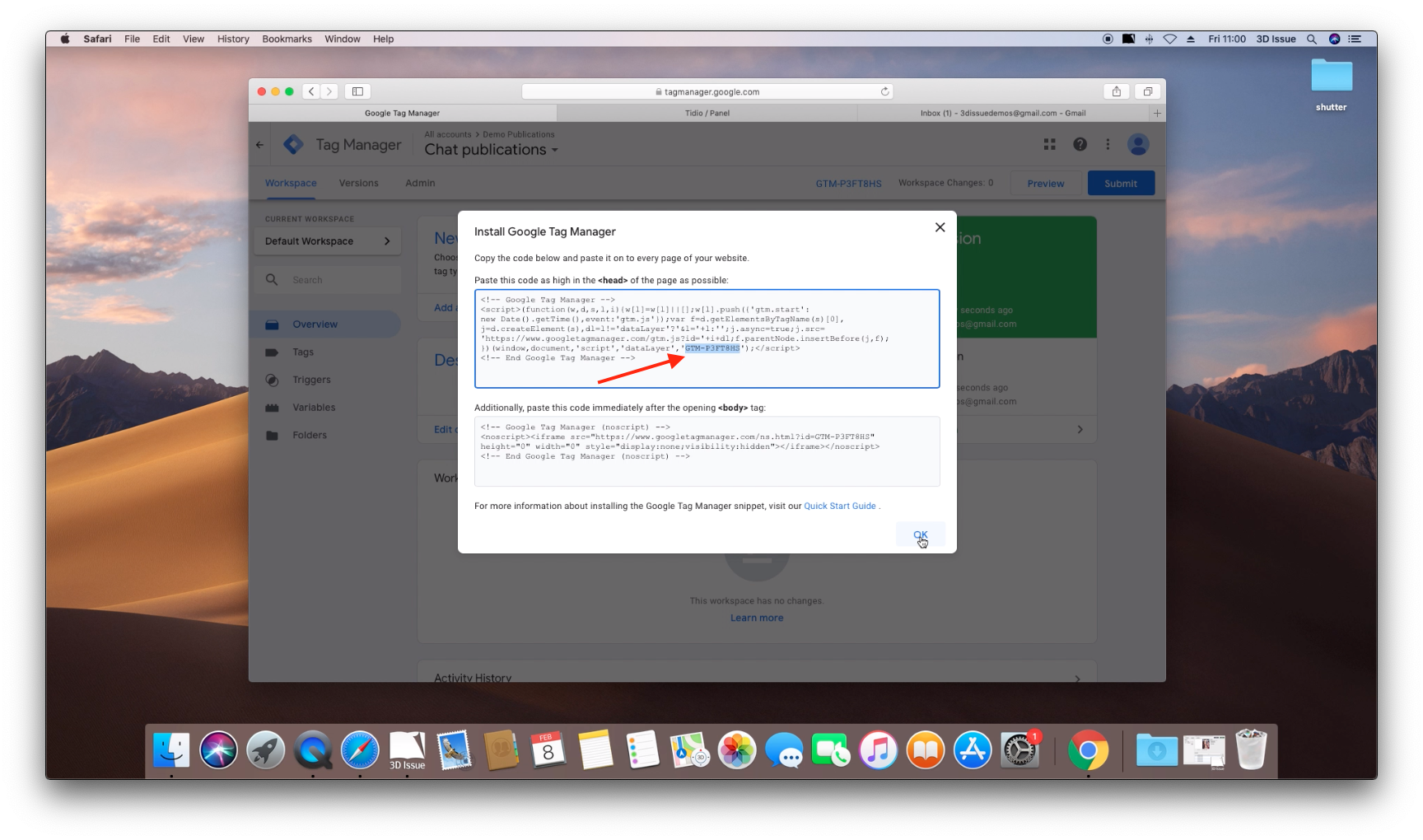
- You’ll be brought into your new Tag Manager workspace, and will likely be prompted to Install Google Tag Manager, click OK
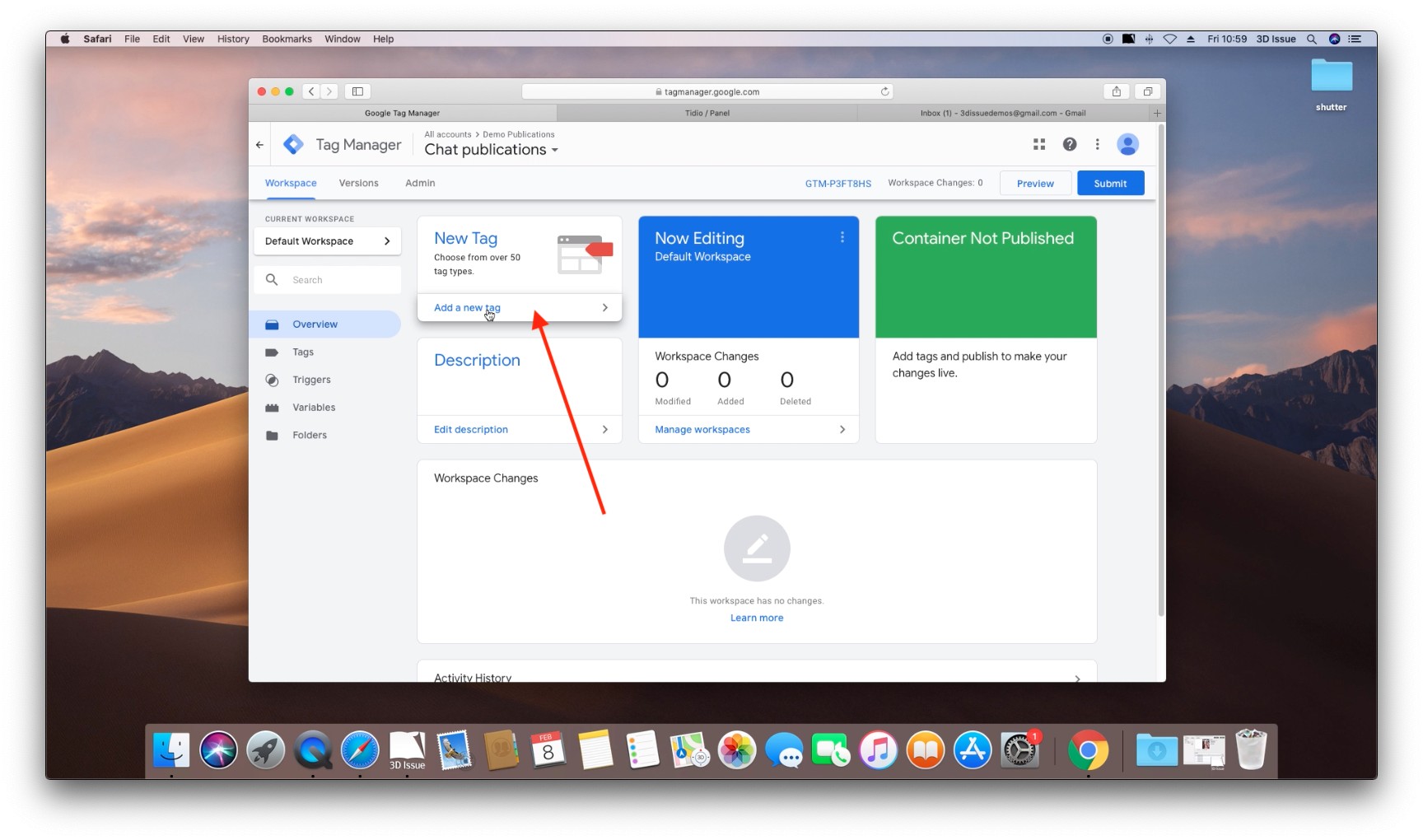
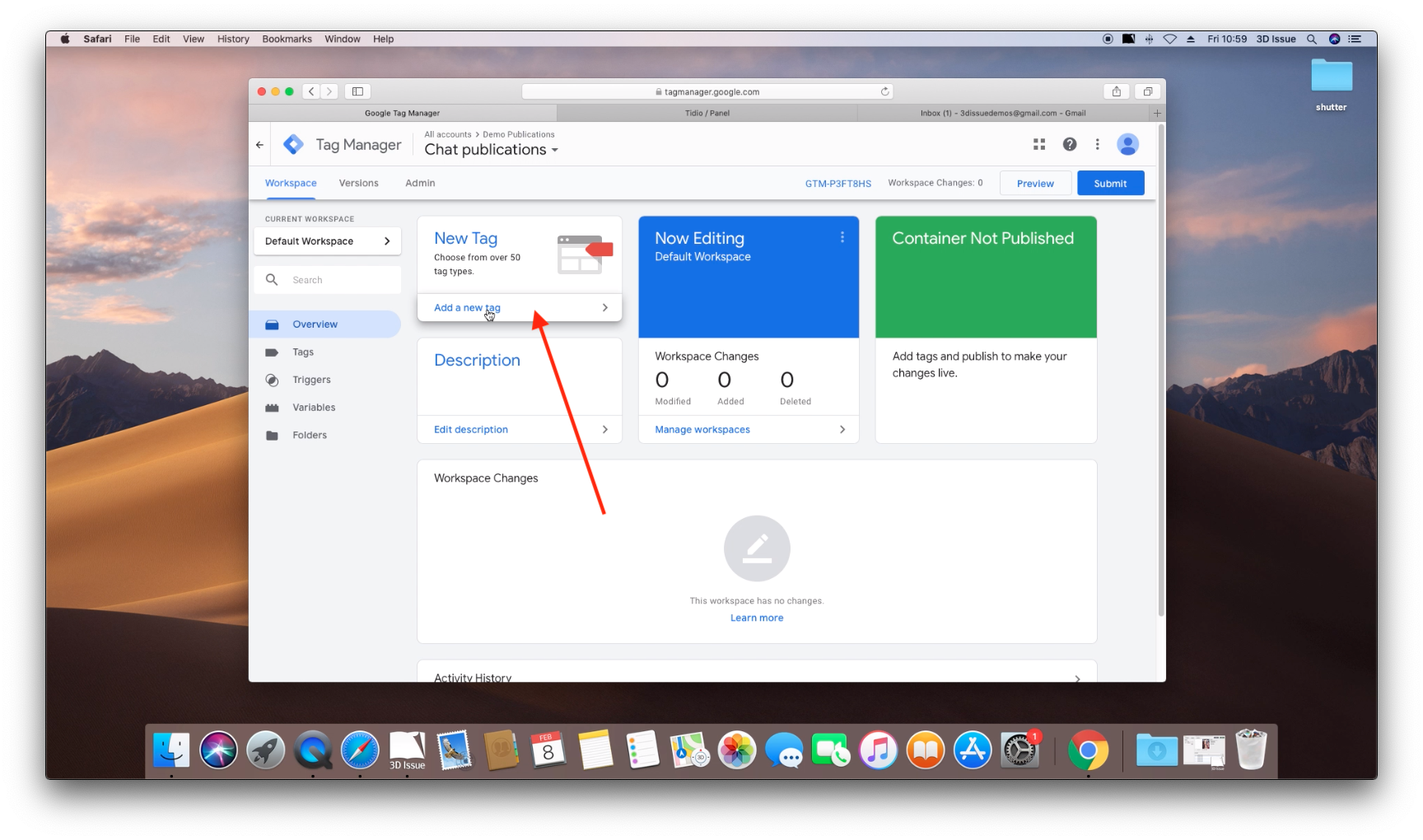
- Click Add a new tag
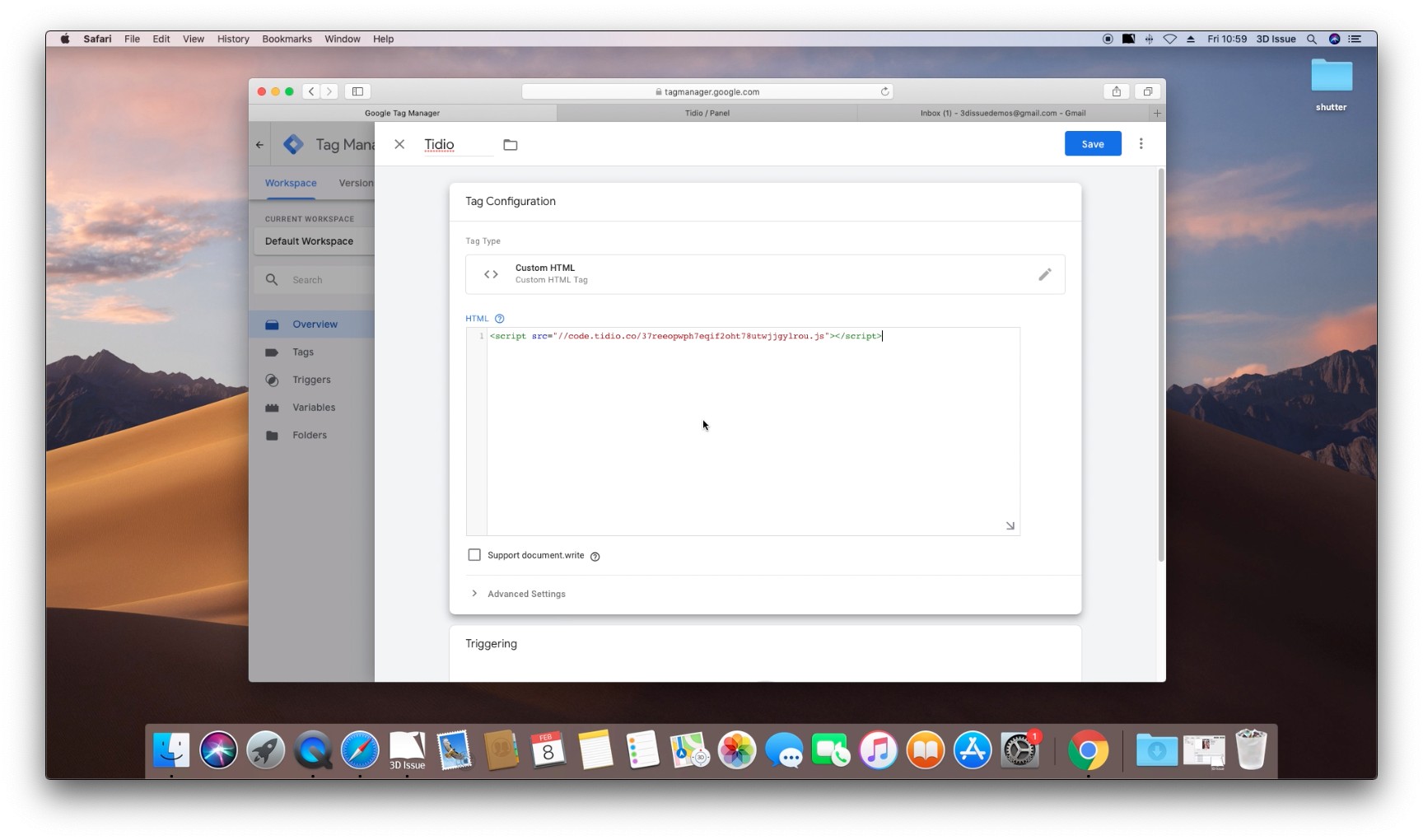
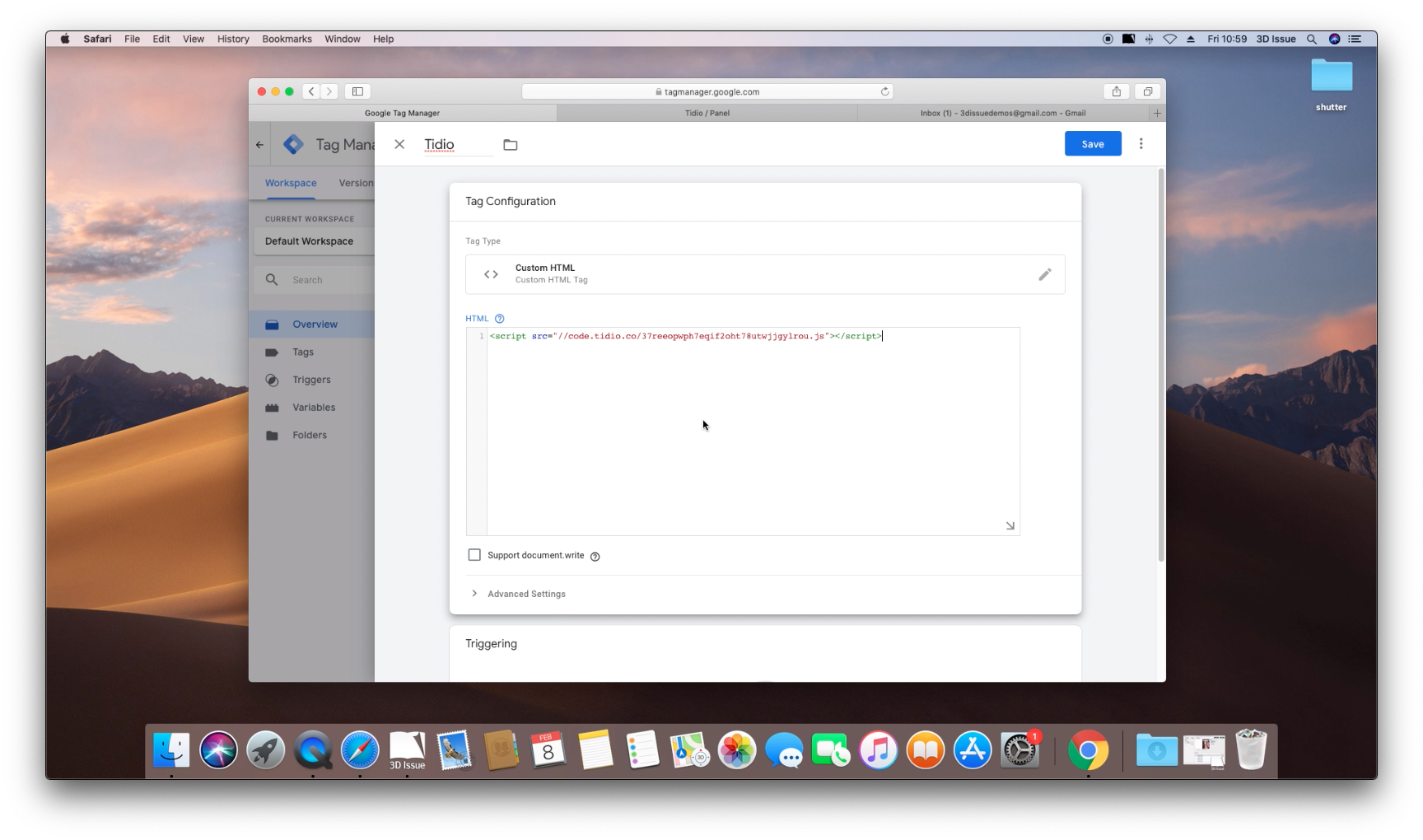
- Give your new Tag a name, you can give it any name, choose one that’s relevant though so it’s easy to recognize.
- Click Tag Configuration to start adding your tag. In the pane that opens scroll down and select Custom HTML
- In here you can enter your Javascript. You can include it as a linked resource or in an inline script tag.
- Scroll down to Triggering and click it.
- In the Pane that opens, check the box beside All Pages and click Add in the top right corner.
- Click Save
- You’ll be brought back to your Tag Manager Workspace.
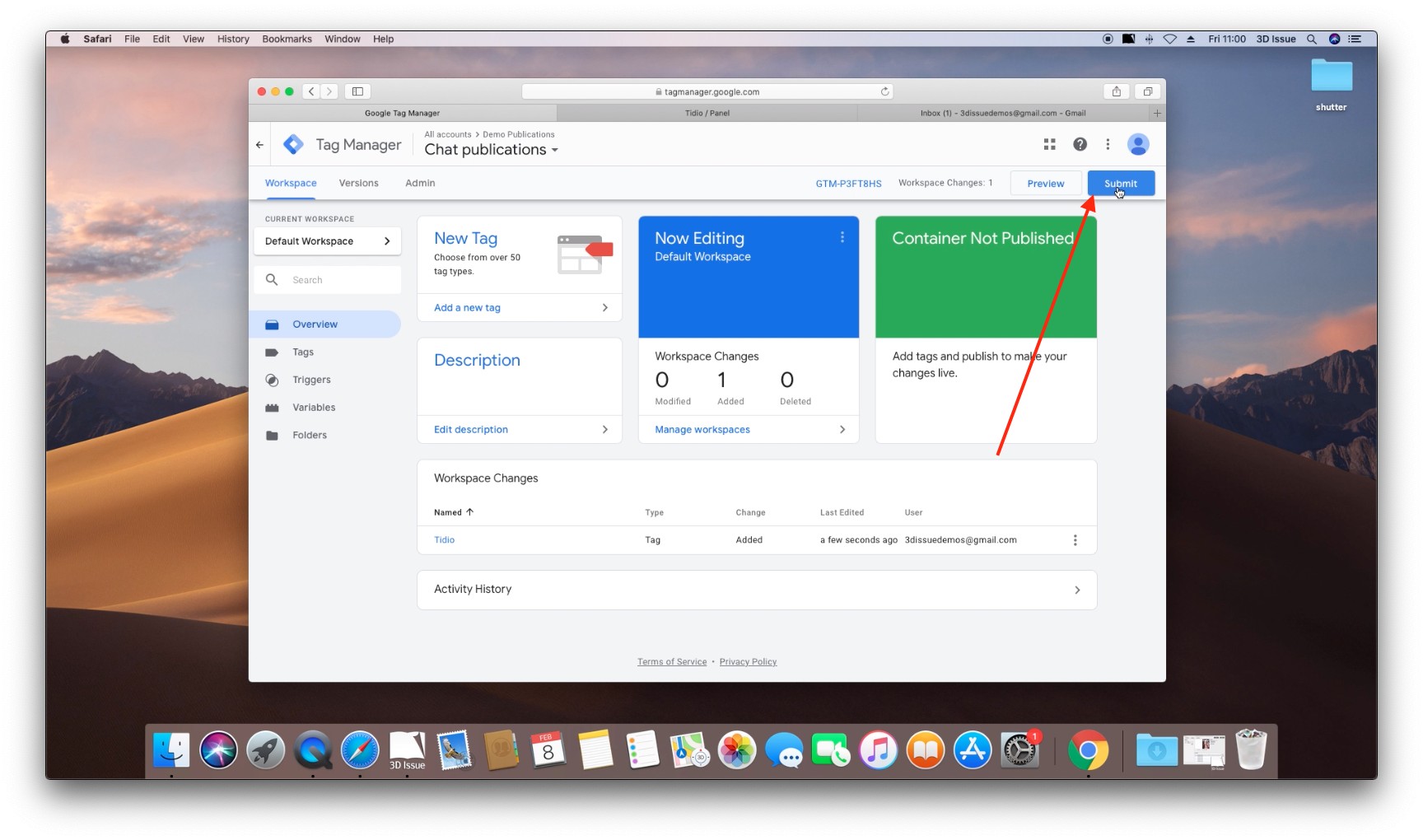
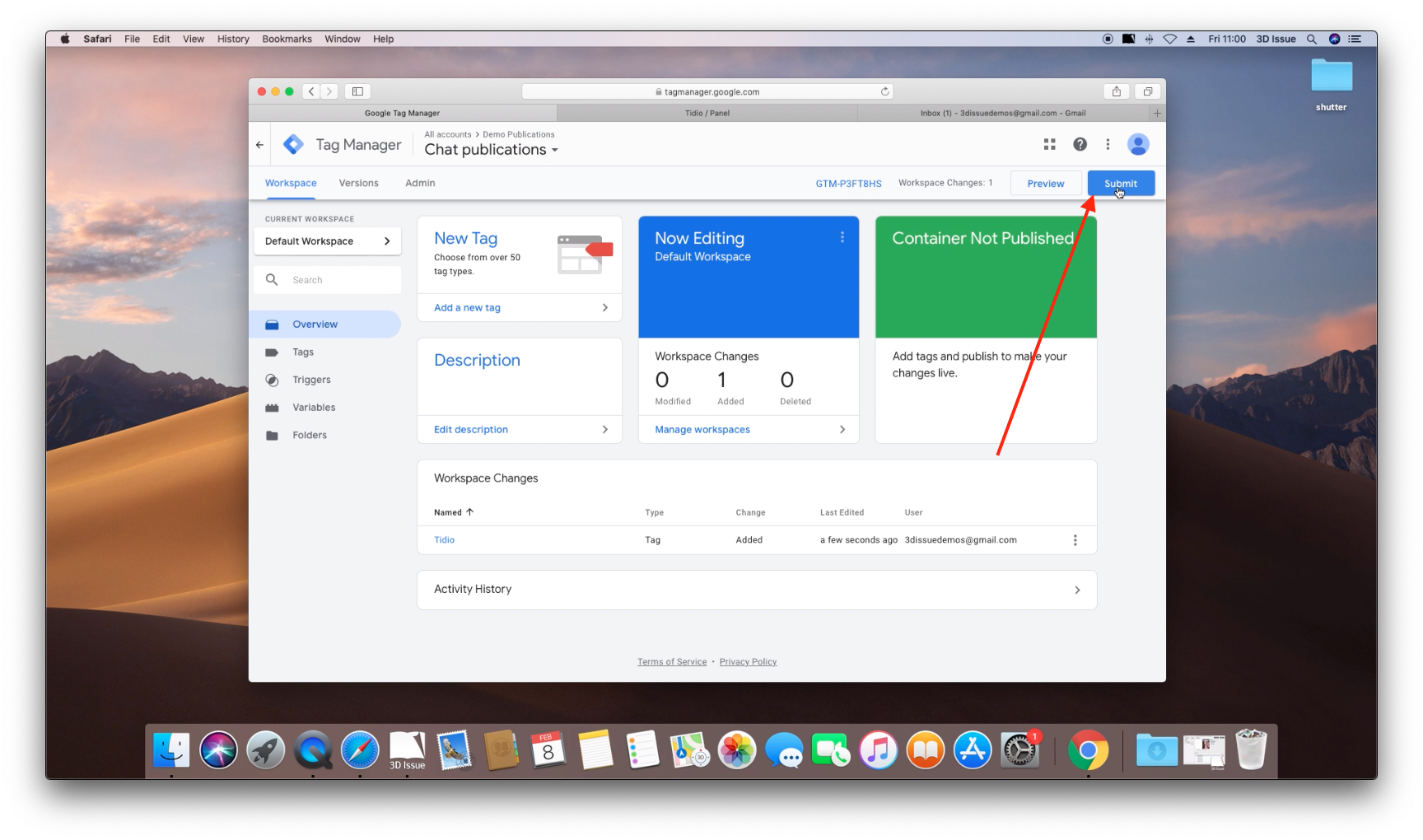
Tag Manager requires you to Submit or Publish changes, so do that. - Click Submit in the top right corner
- Give your Version a name (This can be anything). Click Publish
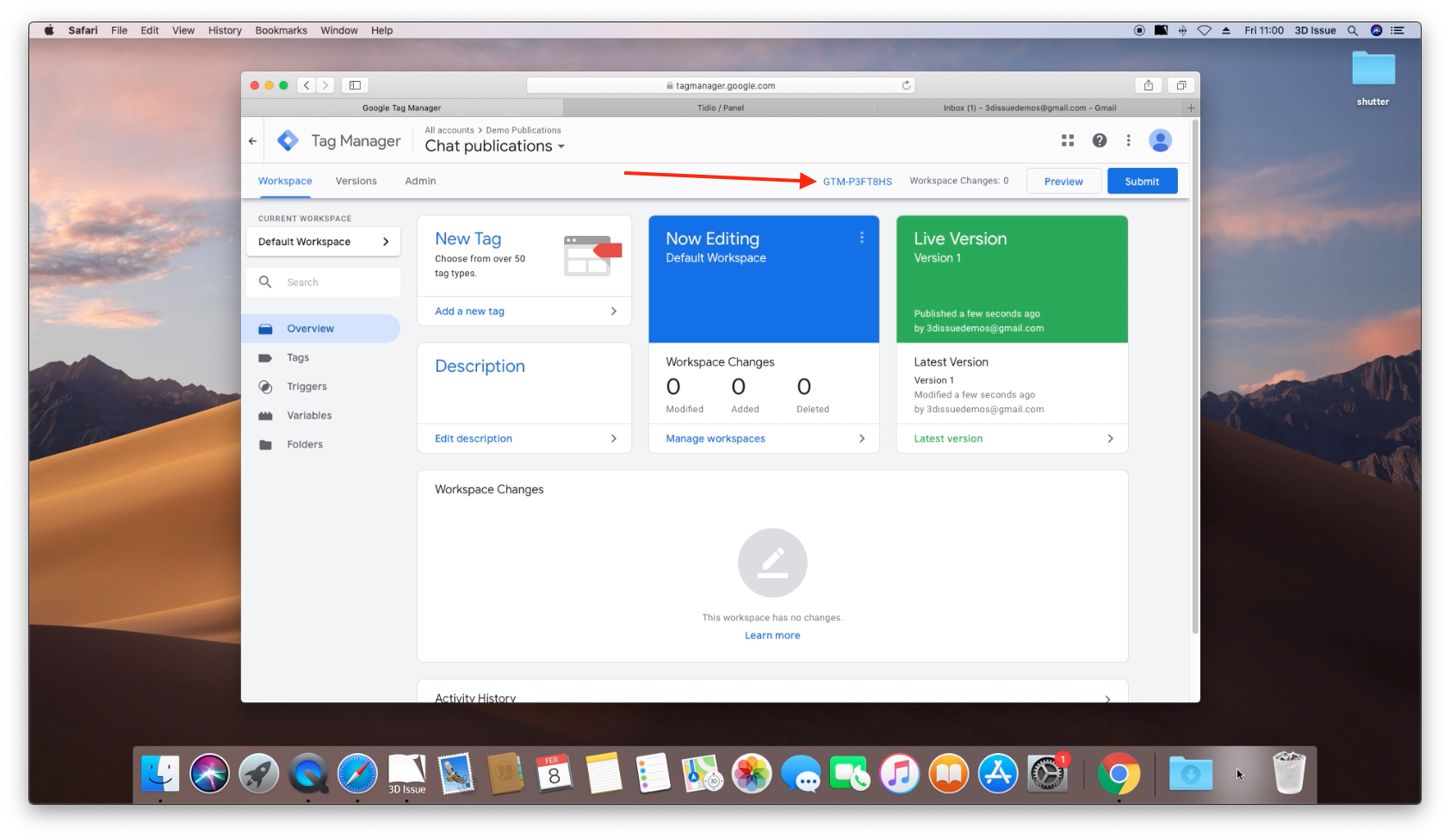
- Switch back to the workspace Tab in Tag Manager and click the GTM id along the top bar.
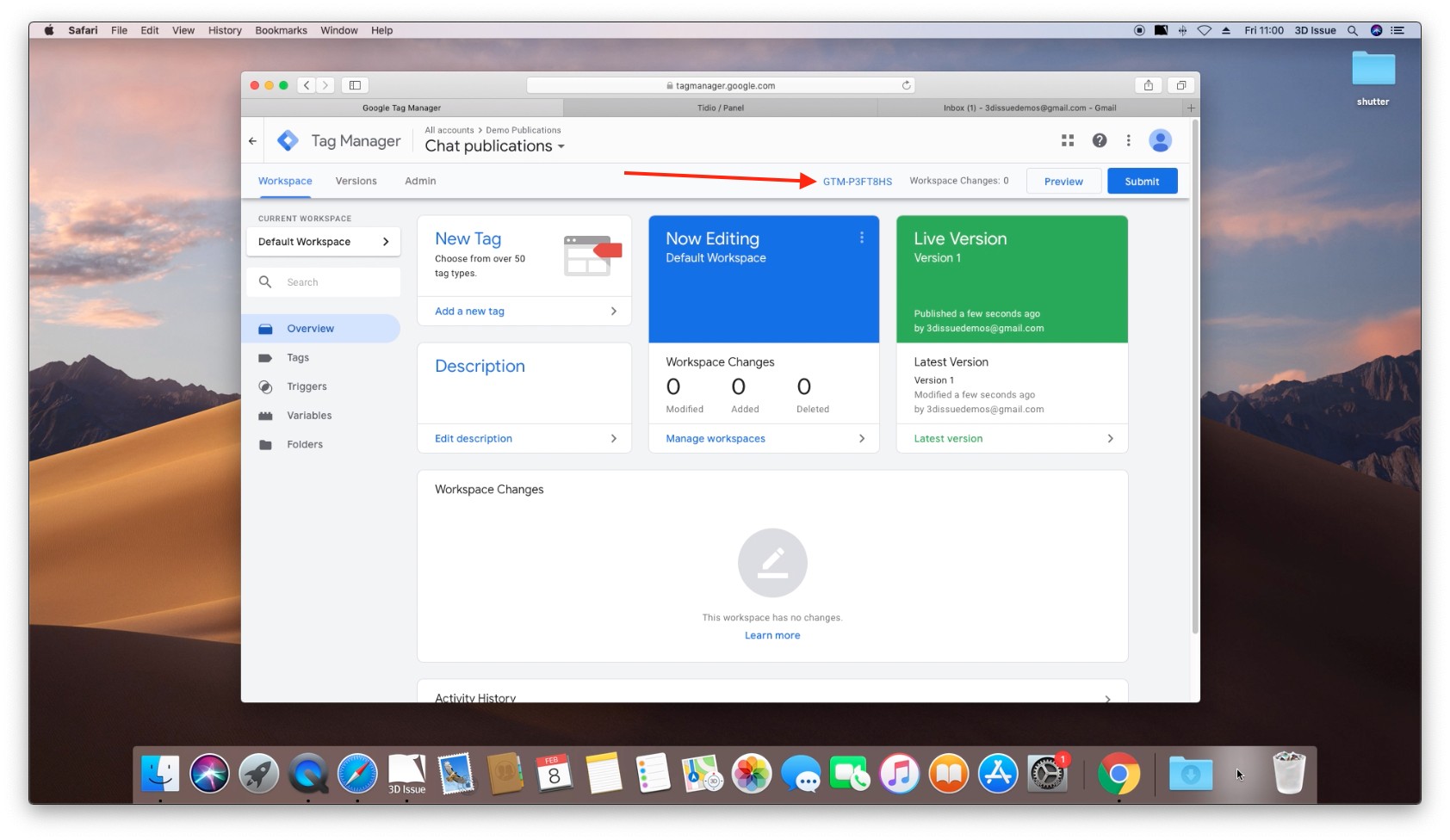
- In the Dialog that opens, locate and copy the GTM id.
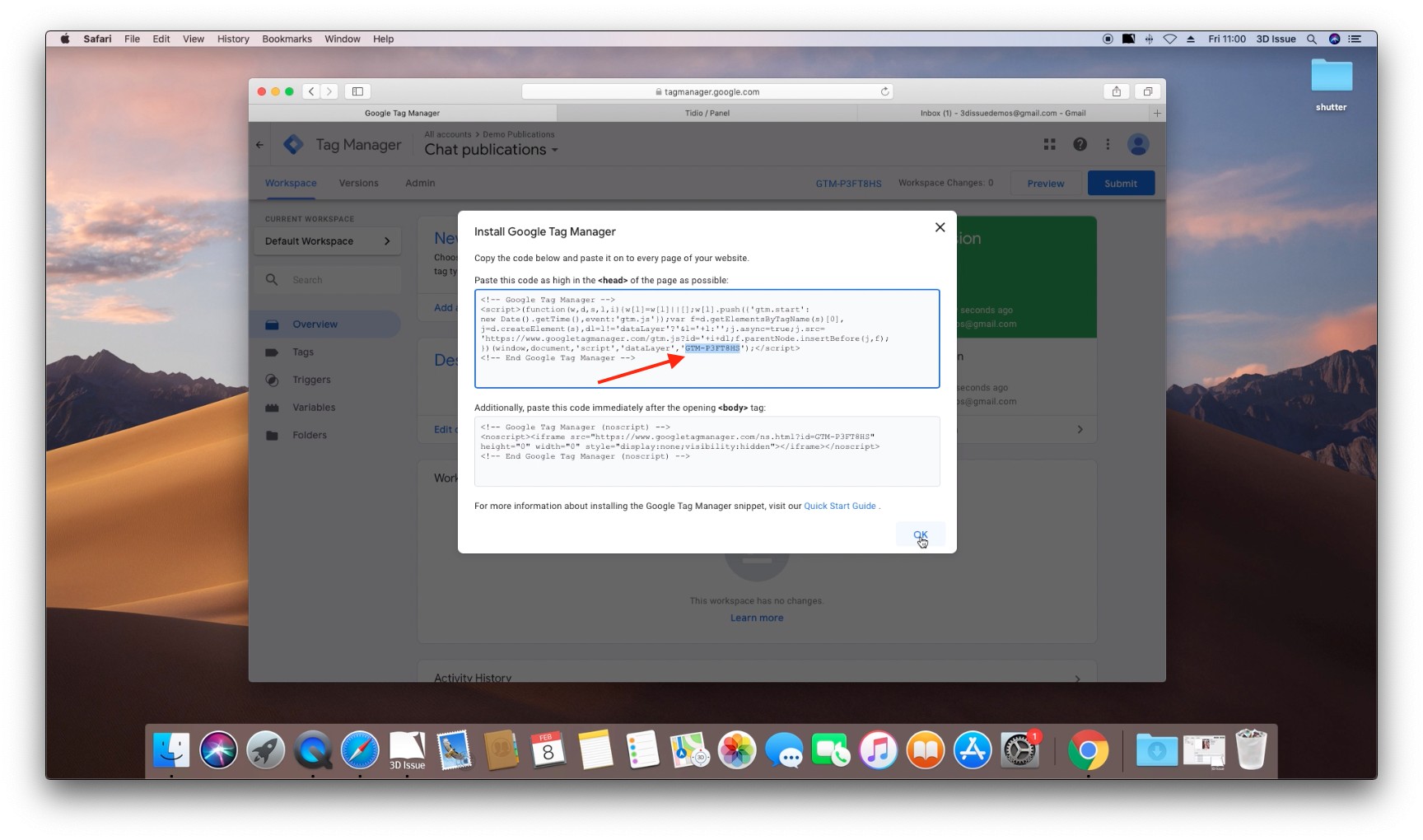
- And that is Tag Manager setup with your Javascript. Now add Tag Manager to the Flipbook.
2. Add your Tag Manager ID to your Flipbook
- Launch 3D Issue 9.3 on your Computer and open or create the Flipbook you wish to add your javascript to.
- In the Content tab select the correct template and profile. Then select Setup
- In the window that opens select the Domains tab and next to the domain(s) your Flipbook will appear under paste in the Tag Manager ID copied earlier.
- Click Next, then Finish
- Now switch to the Design tab.
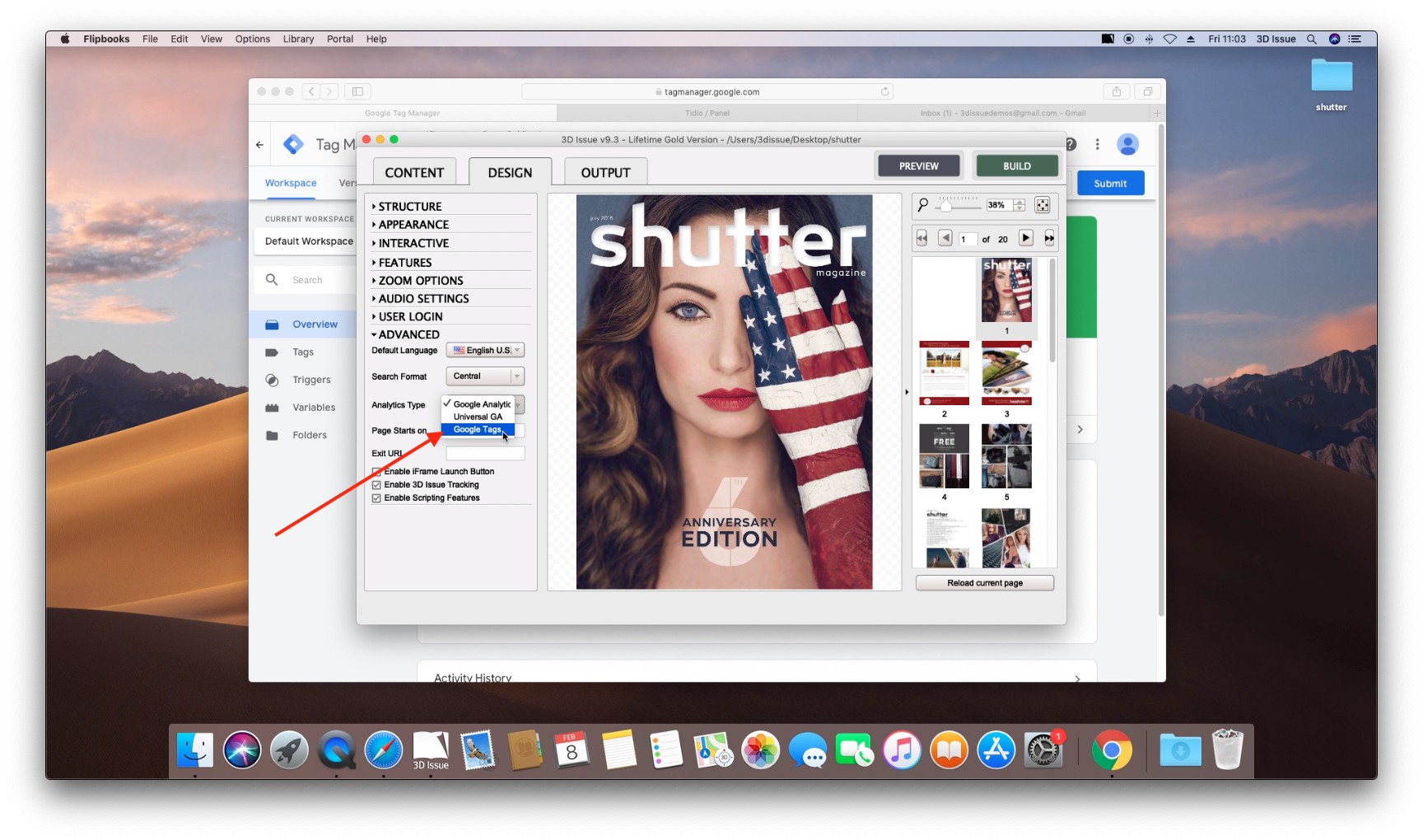
- Expand the advanced Panel on the left.
- Next to Analytics Type select Google Tags.
- Build and upload your Flipbook, and then view it.
And that’s it. Your Flipbook is now running your custom javascript.
If it doesn’t work
- The flipbook does nothing new. Tag Manager holds your tag but the container was never published — Submit and Publish the version.
- Tag Manager is set up and still nothing runs. In the Design tab, expand the advanced panel and check Analytics Type is set to Google Tags.
- Nothing reaches Tag Manager at all. Check the Tag Manager ID was pasted next to each domain the flipbook appears under, in Setup → Domains.