

You’ll end up with a publication that has already passed the checks which most often force a republish — the PDF limits, the images, the type and contrast, the phone layout, the accessibility findings and the tracking.
You’ll need
- The source PDF, saved on the machine rather than a network drive.
- Images at the size they will be displayed, in RGB.
- The project open in the product that builds it: Replicate, Flow or Studio.
- A phone, or a browser window narrowed to phone width.
1. The PDF
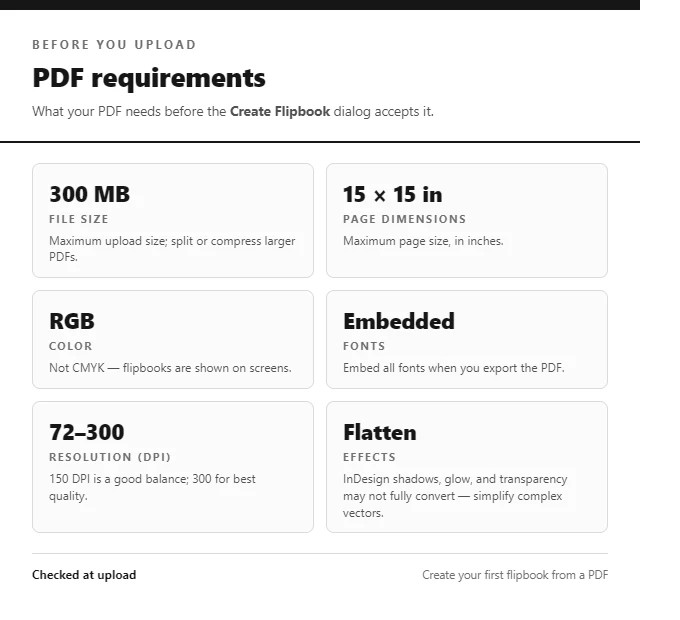
- Under 300 MB, with no page larger than 15 × 15 inches — beyond that it is rejected at import.
- Exported as PDF 1.4 or newer with every font embedded. Unembedded fonts are the usual cause of pages that render in the wrong typeface.
- Between 72 and 300 DPI. 150 DPI is the compromise between crisp zooming and file size.
- RGB rather than CMYK: these pages are read on screens.
- Saved locally, with no special characters in the file name or its folder — a PDF read from a network or remote drive is a known cause of a build that stops partway.
- If a Flow edition is planned, text that is selectable in the PDF. Flow rebuilds real text; anything baked into an image has to be read by OCR or retyped.
2. The images
- A full-page image at 1500–2500 px wide; less for a column or a card.
- RGB. A CMYK source looks wrong the moment it reaches a screen.
- Source quality rather than upscaling: the platform compresses on upload and makes its own resized copies, so an oversized file only slows the upload.
The graphics around the pages have sizes of their own — a 1680 × 1050 JPEG background, a preloader in PNG of any size (it is resized to the width of the bar), an intro around 270 × 270, and a 2500 × 60 JPEG banner whose content is left-aligned rather than stretched across the full width.
Requirements are in What are the PDF requirements?, image preparation in Optimizing images for your publication, and the four viewer graphics in Image specifications for the reader: Background, Preloader, Intro, and Banner.
3. Type and contrast
- Every heading given a real heading level rather than a styled size, so the structure is announced rather than merely seen.
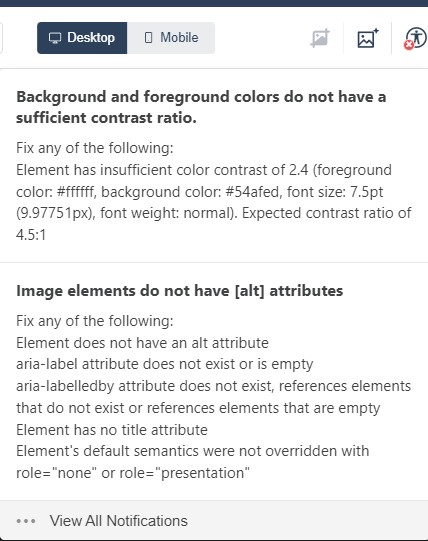
- Body text against its background at 4.5:1 or better — the ratio the built-in checker tests for.
Setting the Text Type (Heading Levels) sets the levels; Improving Accessibility explains what the checker measures. A publishing habit that keeps the check cheap is in Accessibility while you build.
4. The phone layout
- Switch the canvas to Mobile — Studio’s page-bar toggle, or Flow’s Desktop/Mobile button — and read each page at that width.
- Look for anything that only works with a pointer: hover states, tooltips, controls sitting outside the screen edge.
The walkthrough is Testing your publication on mobile devices.
5. Accessibility
- Run Check accessibility status on each page and work the list until the button stops showing its ! marker. Each finding selects the element it is about.
- Describe elements as they are placed: alt text on images, aria labels on controls, roles on text. The cheapest fix is the one made while the element is still selected.
- Know what the edition can promise. A page-turning flipbook is image-based, so text-to-speech cannot read it; the Flow edition and the accessible version are what carry that requirement.
- If Require WCAG compliance before publishing is switched on for the team, publishing stays disabled until the findings are clear.
Making Your Publication More Accessible covers the per-element attributes and How accessible are my digital publications? is honest about the limit of a page-turning flipbook.
6. Tracking, before the first publish
Add the Google Analytics 4 measurement ID where the product that builds the publication expects it — the field differs by product, and the desktop software has a setup of its own. Doing it before the first publish means the first reader is counted.
Google Analytics 4 setup covers Studio, Google Analytics 4 setup (Replicate) Replicate, Google Analytics for Flow publications (e-165) Flow, and Guide To Setting Up Google Analytics 4 In Desktop the desktop software.
7. Publish, then open the link
- Publish. Publishing captures the state of the project at that moment, so anything edited afterwards needs another publish.
- Open the link on a phone and on a desktop.
- If the project has a Flow edition, try both views: the switcher sits at the bottom-left of the reader and phones open on the responsive one.
Publishing a Flow Publication covers what a publish produces on a two-edition project.
If it doesn’t work
- The build stops at a fixed percentage. Move the PDF off the network drive and check the name for special characters — Why does my magazine get stuck at 44%? works through it.
- A Flow publish stalls at 90%. Give it a few minutes: it is the same pipeline as Replicate’s, and the hold has been seen to clear on its own with every page already processed. If it has not moved, report it with the project id and timestamp rather than retrying in a loop.
- Publish is disabled as “not compliant”. Why is my project not compliant? (e-127).
- Something else. Error messages index: what each one means groups the documented errors by symptom.