

By the end you’ll know where the account menu, the editor menu, and your role’s limits live, so you can reach any area of the product without hunting for it. What each role can reach is listed in What can each role do (Designer / Expert / Writer)?.
You’ll need
- A signed-in account.
- Your role, as set by your account administrator, if a menu item described here is missing.
A few navigation pieces are always within reach, whichever tool you are using. Knowing where they live makes everything else faster.
The User Menu
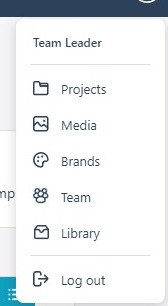
Click your User icon in the top-right corner, on the dashboard and inside the editors, to open the account menu. It shows your name and the account areas:
- Projects is the project list (from the editors, this is your way back to the dashboard).
- Media is the shared media library for uploading and organizing images, videos, and audio. See Using the Media Library.
- Brands — logos, colors, and default styling per product. See Managing Brands.
- Team — users, roles, and status. See Managing Your Team.
- Library is your account’s document library.
- Log out.
The Editor Menu (Hamburger)
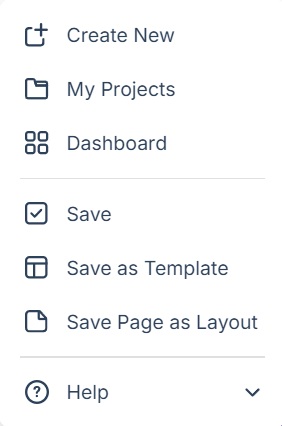
Inside an editor, the Menu button at the top-left opens a quick-navigation drawer:
- Create New starts another project.
- My Projects and Dashboard — back to the project list.
- Save — save the project on demand (the editor also autosaves, and the top bar shows a Saved indicator when a project is saving).
- Save as Template saves the project as a template you can start new projects from, in the category you choose.
- Save Page as Layout — keep the current page’s arrangement as a reusable layout, available from the Add panel’s Layouts section.
- Help opens the 3D Issue knowledge base.
Roles in Brief
Your role has been set by your account administrator on the Team screen. If a menu item described in the Knowledge Base does not appear for you, ask your Team Leader what your role permits. See Managing Your Team. A teammate who has a Team entry but still cannot open a project needs the project access assigned in Central: Why can’t my teammates see a project?.
If it doesn’t work
- A menu item described here is missing. Your role decides what appears; ask your Team Leader what your role permits.
- The Saved indicator never appears. Autosave reports its state while a project saves; if an edit leaves it unchanged, use Menu → Save.