

You’ll end up with a video that opens over the page when the reader clicks its hotspot, or on its own when they turn to that page.
The Video tool in the software’s Interactive set places a hotspot or button on the page. When the reader clicks it, the video opens in a pop-up on top of the publication and the page stays behind it. Use it where the footage is too large, or too distracting, to sit inside the layout: a product film, a walkthrough, a message from the editor.
You’ll need
- The project open on the page the video should open from.
- The video itself: an MP4 file, or the YouTube or Vimeo link. The dialog recommends MP4 or a YouTube/Vimeo ID.
Placing the video hotspot
- Open the DESIGN tab.
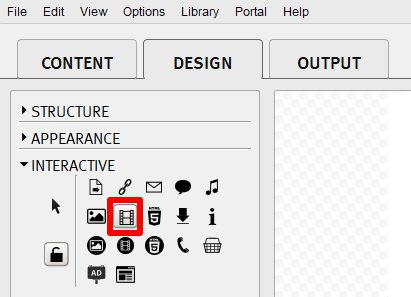
- In the left column, expand INTERACTIVE and click the video icon — the red outline in the screenshot below.
- Drag a box over the area that should open the video: a product shot, a caption, a button-sized patch of color.
Pointing it at a video
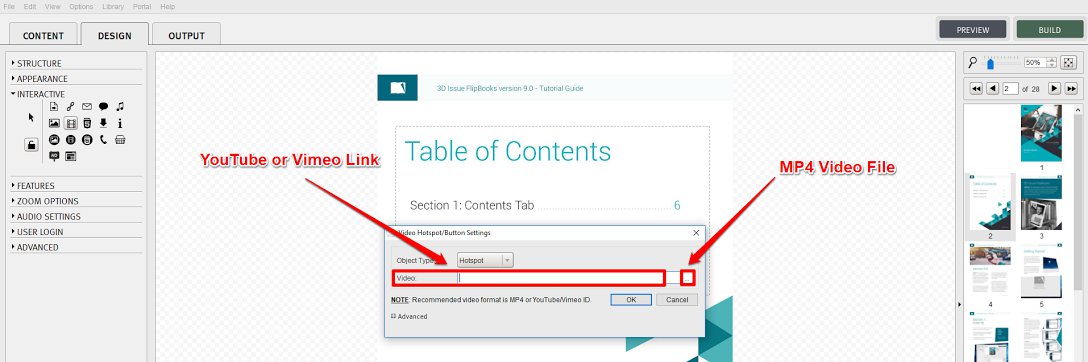
Drawing the box opens Video Hotspot/Button Settings.
- Object Type — leave it on Hotspot, or choose Button if the area should be drawn as one.
- Video — paste the YouTube or Vimeo link, or click the … button and pick an MP4 from the machine.
- OK saves the hotspot to the page.
Sizing the pop-out and the hotspot
Click Advanced in the same dialog for the settings that are worth a minute’s attention:
- Rollover Text — the tooltip that appears as the reader passes over the hotspot, such as Watch Video.
- Rollover and Rollout — opacity and color for each state, with a Play Sound option beside them.
- Size & Position — X, Y, Width, Height and Rotation of the hotspot or button on the page.
- Media Object — the size of the video pop-out itself: Fixed Size (640 × 480), or Custom Size with its own width and height.
- Analytics Label — the label the click is reported under.
- Auto Start On Page — the video opens and starts playing as soon as the reader turns to the page, with no click.
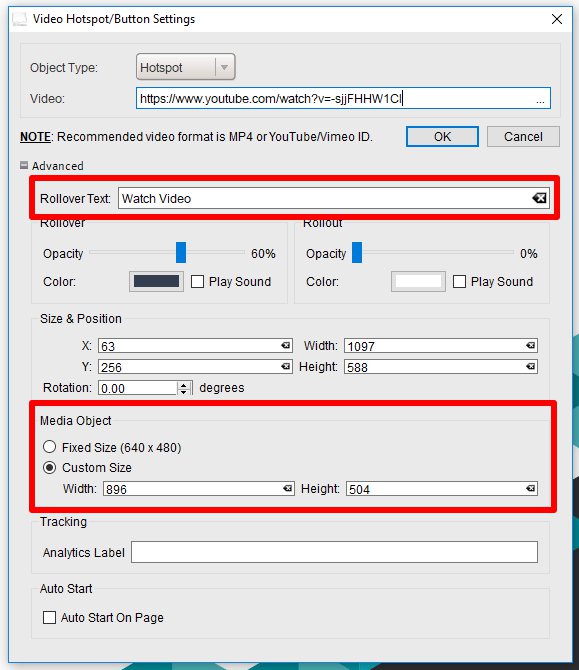
The hotspot’s size and the pop-out’s size are separate: Size & Position frames the area on the page, Media Object decides how large the video appears. Leave Auto Start On Page off for anything long or with sound — a video that opens by itself interrupts the reader mid-turn.
If the rollover text is not wanted at all, Deleting the rollover tooltips from your Flipbook covers turning it off.
If it doesn’t work
- Nothing seems to have been added. A hotspot draws nothing on the page. Roll over the area to see the rollover text, and remember that the area stays invisible in the published flipbook until a reader passes a pointer over it.
- The video waits for a click. That is Auto Start On Page being off, which is the default. Turn it on in the Advanced panel if the video should open by itself.
- The pop-out is the wrong size. Change Media Object in the Advanced panel, not the hotspot’s Width and Height.
- A YouTube Short shows Video Unavailable. That is the preview rather than the link: YouTube Shorts are Failing to Display in My Flipbook.
- The video will not play for readers. Start with the format: the dialog recommends MP4 or a YouTube/Vimeo ID. MP4 Videos are buffering to the end before playing and The videos I add are not playing cover the common playback faults.
A hotspot can carry something other than video: Embedding Google Maps into your Flipbook pops a map out from a hotspot, or embeds one on the page.