

You’ll end up with the flipbook you already built serving a second, responsive edition at the same link — the page-turning view kept for print-like reading, the Flow View for phones, and readers choosing between them.
You’ll need
- A Replicate project that is already built and published, with its PDF still in it.
- Time for Flow to process the pages — the first three unlock first.
- The published link, so the two editions can be compared side by side.
- The conversion runs from the project itself — no second project and no fresh upload.
1. Open the project you already have
Flow needs no second project. From the dashboard, open the existing one in the Replicate editor: Flow prepares the responsive edition inside it once Flow is enabled, so the flipbook keeps its design, its links and its published URL.
Do I need to create a separate project to use Flow?
2. Turn Flow on
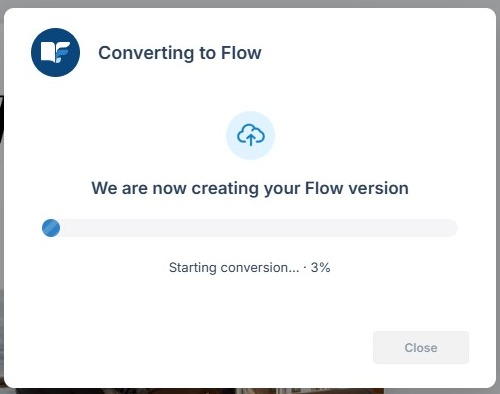
Select the Flow side of the Replicate | Flow switch above the canvas. On a project that has no Flow edition yet, that opens a Convert to Flow panel; click Convert and processing starts straight away. The canvas stays locked while the pages are queued, and a progress panel names the page count and the percentage as it works.

Checkpoint: the Flow side shows pages you can select, and switching back still shows the flipbook exactly as it was.
From Flipbook to Flow: Enable the Responsive Edition on an Existing Project
3. Read the first pass as a reader
The first output is a guess at a reading layout, not a copy of the spread: one column, reflowed text, images placed near the content they support. Clean single-column pages arrive close to finished; multi-column spreads, sidebars, pull quotes and captions placed away from their images need the most work.
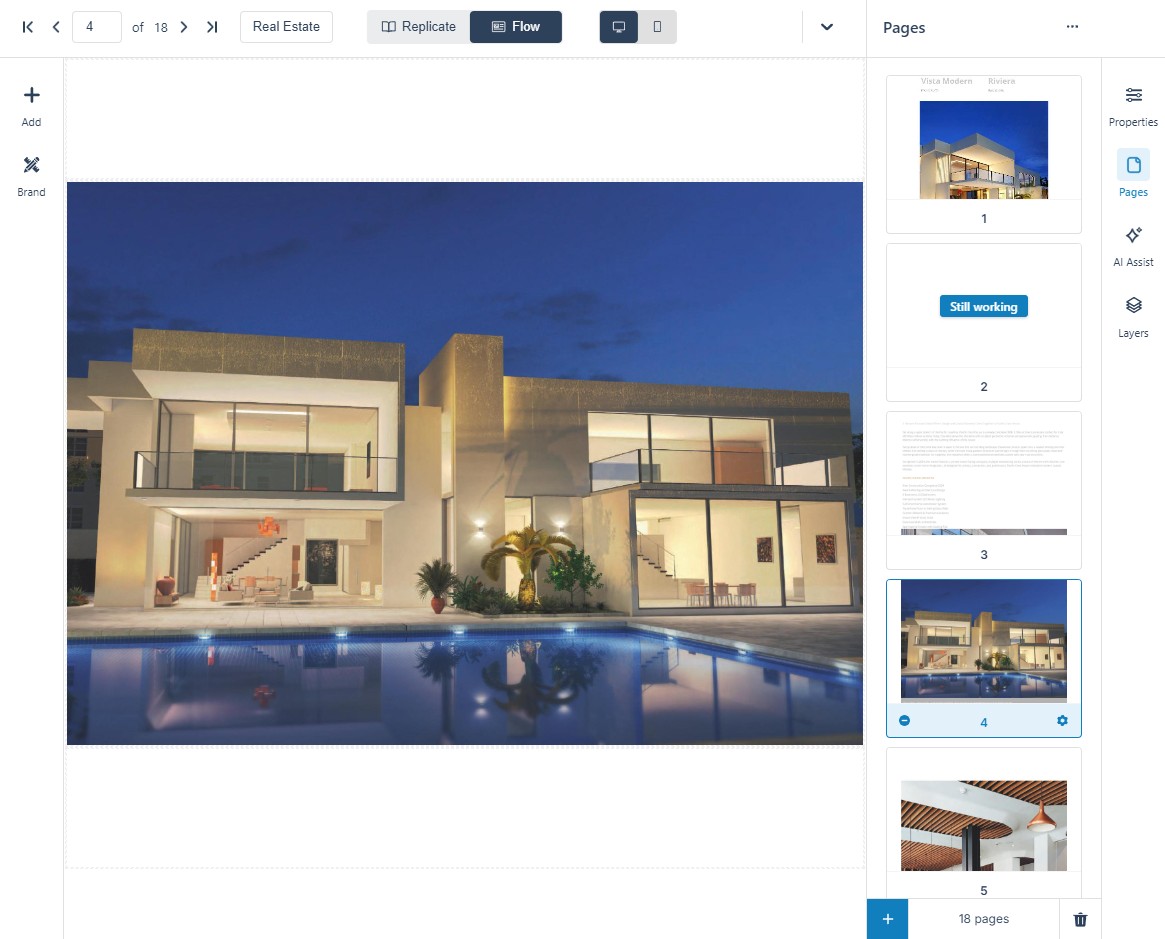
Checkpoint: the two or three pages that need the most attention are named.
Getting the Most from Flow: Conversion Quality and What Affects It explains what converts well; Why does my Flow look different from the flipbook? explains why the result is not a replica.
4. Fix the order before anything else
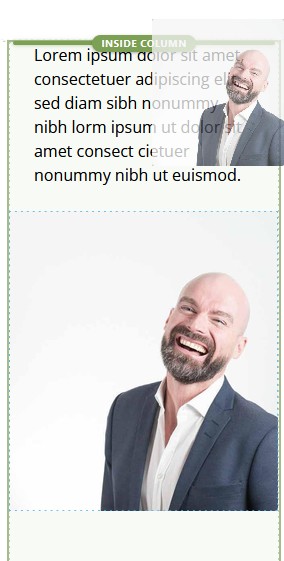
Grab the label of a misplaced element on the canvas and drag it up or down the page. Settle order first: every later decision — where an image sits, which line becomes a heading — depends on the sequence being right.
5. Then the text and the images
- Break up long paragraphs, correct the slips the conversion made, and promote the lines that should be headings.
- Resize or reframe images, and remove the purely decorative ones that add scroll depth without adding meaning.
- Where text was baked into an image in the source PDF, read it with OCR rather than retyping it.

A Recommended Cleanup Workflow for Flow Publications sets the order of the whole pass, Working with Images in Flow covers images, and Text from Images: OCR in Flow recovers text from images.
6. Check it at phone size
Use the Desktop/Mobile toggle above the canvas. Phones open on the Flow edition by default, so that width is the one that matters.
Checkpoint: nothing is cut off, nothing needs a hover, and the reading order still makes sense one column wide.
Testing your publication on mobile devices
7. Run the accessibility check
Click Check accessibility status and work the findings — each one selects the element it describes. Add alt text to images and labels to controls as you go. Every publish also produces the accessible version alongside the standard one.
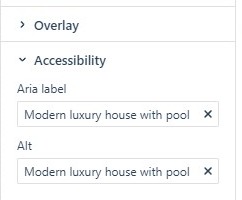
Improving Accessibility and Making Your Publication More Accessible
8. Publish once, and check both views
Publish as usual. There is no separate Flow publish: both editions ship at the same link. Open it, use the switcher at the bottom-left, then open it on a phone to confirm which view it lands on.

Checkpoint: both views open from the one link, the flipbook looks untouched, and a phone opens on the responsive edition.
Publishing a Flow Publication describes what publishing produces; Do Flow edits affect my flipbook? (e-109) confirms that Flow edits leave the flipbook alone.
If it doesn’t work
- The editor is locked. Activating Flow View locks it by design; switch back to the flipbook side to keep working there — Why is the editor locked when I activate Flow View? (e-110).
- The Flow side only offers Convert. That is the step, not a block: click Convert and the edition starts preparing — nothing is generated until you do.
- Readers only ever see pages. The article mode setting is in Flipbook Settings under Appearance; Your first Flow edition walks through it.
- The Flow edition looks nothing like the flipbook. That is the conversion working as intended. Polish it in the Flow editor rather than trying to reproduce the spread — Why does my Flow look different from the flipbook?.
- Text is missing or garbled. It was probably never text: check whether it is selectable in the PDF, then re-upload or use OCR — Text from Images: OCR in Flow.
- The publish stalls at 90%. Give it a few minutes before concluding it is stuck: the same hold has cleared on its own once every page had processed. If it has not moved, report it with the project id and timestamp.
- Something else. Common Flow Problems, and the Fix for Each pairs the common Flow problems with their fixes.