

You’ll end up with a single project that publishes two editions at one link — the page-turning Flipbook and the responsive Flow version — with readers free to choose how they read.
You’ll need
- A PDF to build from, or an existing Replicate project to add Flow to.
- The project’s PDF still in it, if you are adding the edition to an existing Replicate project.
- Patience while the pages process: Edit stays disabled on the dashboard tile until Flow has finished.
Create the publication
- From the dashboard, click Flow in the What would you like to create? section.
- The Create Flow dialog opens a file chooser — a PDF is required to continue.
- Set the Project Name, Brand, and Publication, then click Create Flow.
To add Flow to something you have already built, open the Replicate project and select the Flow side of the Replicate | Flow switch above the canvas instead. That opens a Convert to Flow panel; click Convert and it builds the responsive edition, with a progress panel naming the page count and percentage. You can keep working on the Flipbook edition while it prepares its own.
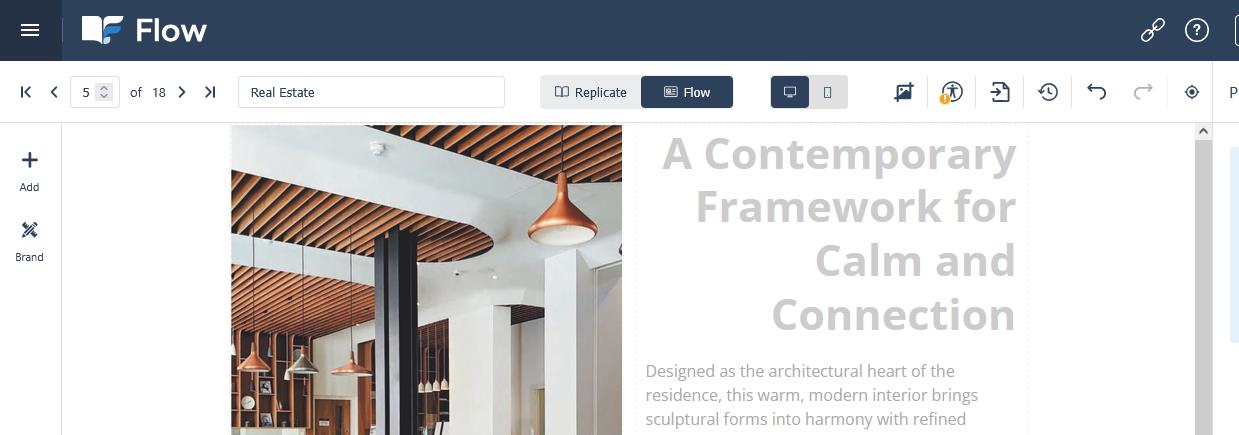
Checkpoint: the dashboard tile has stopped saying “Preparing…” and now offers Publish and Edit. Until then, Flow is still working through the PDF.
Look at what Flow made
Open the project and use the Replicate | Flow switch at the top of the canvas. Replicate is the page-turning edition; Flow is the responsive one, rebuilt from your PDF as a single-column layout.
The first output is a best guess to refine, not a replica. Restructuring for readability is the whole point, so the Flow edition will look different from the Flipbook by design.
The Flow editor is an embedded, simplified Studio: the same canvas, styles panel, elements and control columns. The Pages Control Column adds, duplicates, and reorders pages, and Structure shows the element tree for the current page (see Using Flow).
Refine it
- Read each page top to bottom as a first-time reader: is the order logical, do the images support the text, are the key messages easy to find? Order is fixable with Fixing Content Order in Flow.
- Apply your Brand to the whole document from the styles panel, or restyle an element type document-wide in one place (see Brand styling (Flow)).
- Check the edition at phone size with the editor’s Mobile view toggle and the Preview button.
- If the conversion needs more than a light pass, work through A Recommended Cleanup Workflow for Flow Publications.
Checkpoint: every page reads in a sensible order at phone size, and nothing important is missing or stranded.
Publish both editions
- Click Publish as usual — there is no separate Flow publishing step.
- Both editions ship together at the same link, with Flipbook View and Flow View switchable from the bottom-left of the reader.
- Open the link and try both views. On a phone, the publication opens in Flow View automatically.

Publishing captures the current state of both editions, so publish again after further edits (see Publishing a Flow Publication).
If it doesn’t work
- Clicking Flow opens a Convert to Flow panel. That is the step, not a block: click Convert to build the edition — nothing is prepared until you do.
- The tile stays on “Preparing…” and Edit is disabled. Flow is still processing the PDF, and the time depends on the size and complexity of the document. Work on the Flipbook edition in the meantime.
- The Flow edition looks nothing like the Flipbook. That is by design — each page is restructured into a single column for readability rather than reproducing the print spread.
- Readers only see the page-turning version. Open Flipbook Settings → Appearance and confirm Article Mode Enabled is selected.
- Something else is wrong. Common Flow Problems, and the Fix for Each works through some known cases.