

You’ll end up with a generated image saved to your Media Library, in the aspect ratio and style you chose, ready to place on the canvas.
You’ll need
- A Studio project open in the editor.
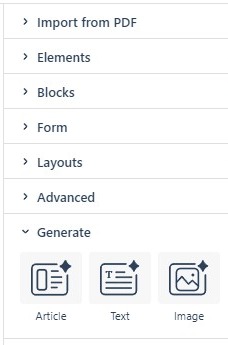
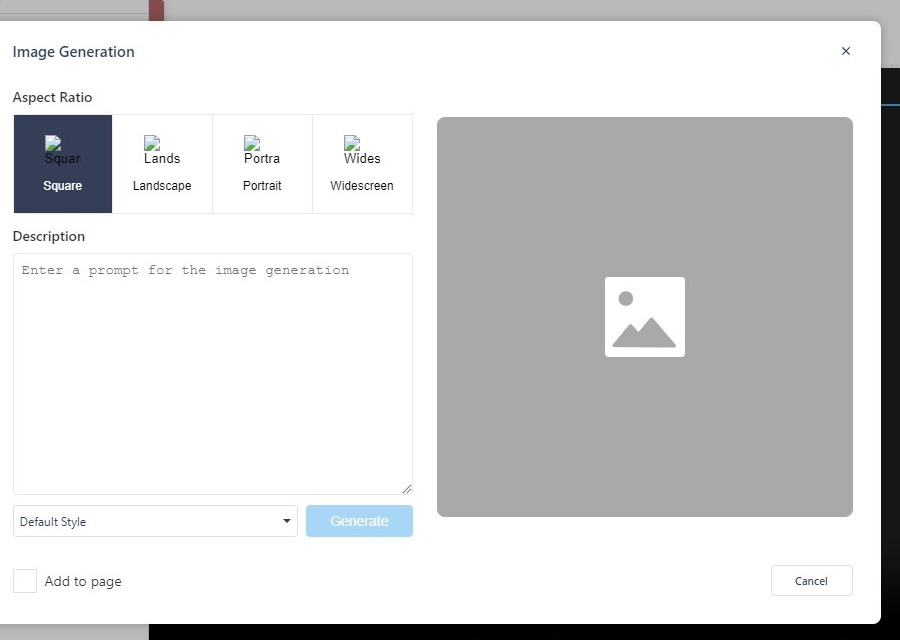
Studio users can create and use images in their publications with the Image Generator tool. Open it from the Add panel: under the Generate section, click the Image icon.
Choosing an image
The Image Generation Tool gives you a space for your prompt plus controls for the style and shape of the generated image:
- Aspect Ratio: Select Square (1:1), Landscape (7:4), Portrait (4:7), or Widescreen (12:5).
- Style: Choose from Default, 3D Model, Analog Film, Anime, Cinematic, Comic Book, Digital Art, Enhance, Fantasy Art, Isometric, Line Art, Low Poly, Modeling Compound, Neon Punk, Origami, Photographic, Pixel Art, or Tile Texture.
- Prompt: Describe the image you want. When ready, click Generate — doing so replaces the placeholder image with the AI-generated result.
Iterating and saving
If you generate multiple images, navigation arrows appear above the image frame so you can move between them and pick the best one. Click Save to add your chosen image to your Media Library. If none of them quite hit the mark, click Try Again to generate a new image.
Once saved, the image behaves like any other image asset in Studio — you can place it, resize it, and edit it on the Canvas.
For the full catalog of style options and a look at how different aspect ratios and styles turn out on the same prompt, see the gallery in the old “Are there any specifications for adding graphics / images to 3D Issue?” guide.
If it doesn’t work
- None of the images hit the mark. Click Try Again to generate a fresh one rather than settling for the closest.
- You generated several and want to compare. Navigation arrows appear above the image frame so you can move between them and pick one.
- The image is not in the Media Library. Generating does not save — click Save on the one you want.