

You’ll end up with generated text either inserted straight into a text element or ready to paste, after as many regenerations as the wording needs.
You’ll need
- A Studio project open in the editor.
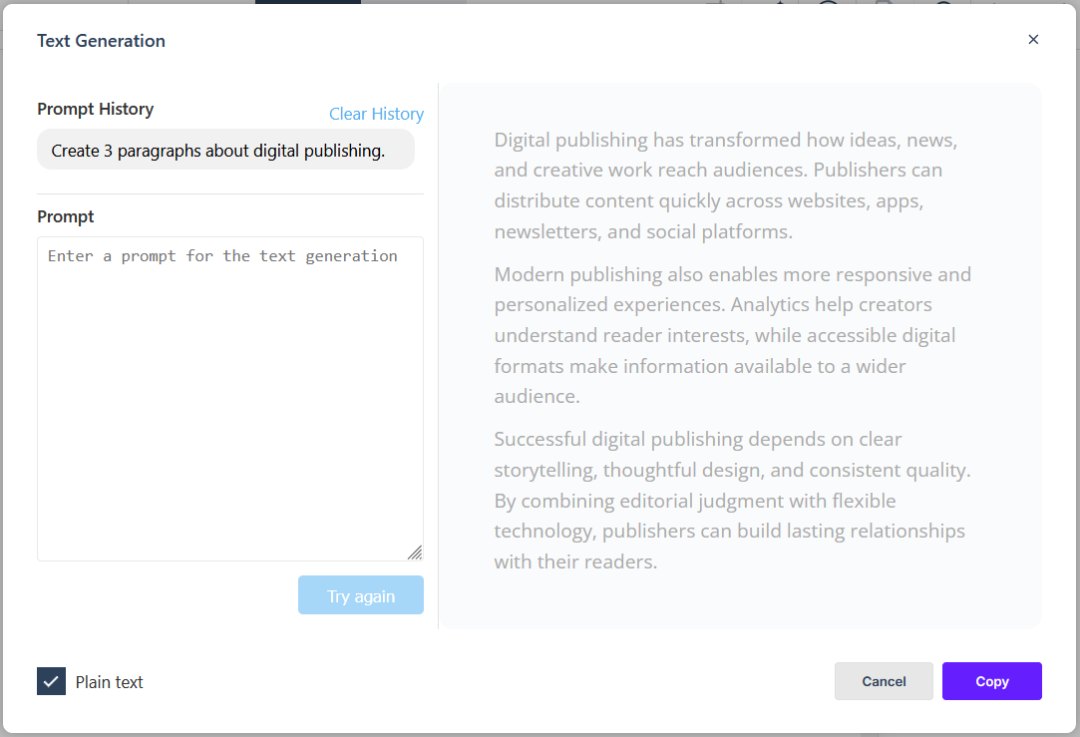
Studio includes a Text Generation Tool for quickly creating placeholder, draft, or permanent content for your publications. You can launch it in either of two ways:
From the Add panel
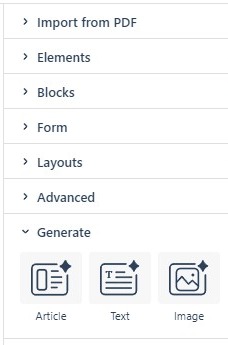
The Text Generation Tool is in the Generate section of the Add panel. Click the Text icon to launch it. Generated text can be copied and pasted into any text-based element in the publication.
From a Text Element tab
To add generated text directly to a text element, select the element and click the AI icon on the element’s tab. The result is inserted into that element — no copying and pasting needed.
Either way, type a prompt describing the text you want, generate, and apply the result to your element or the page. You’re not limited to a first take: refine the prompt and regenerate until the wording fits your publication.
The Text Generator shares the Generate menu with the Image Generator and the Article Generator — all three sit together in the same Generate section of the Add panel.
If it doesn’t work
- You want the text in a specific element. Skip the Add panel: select the element and click the AI icon on its tab, and the result is inserted there.
- The wording misses. Refine the prompt and regenerate — Prompt History keeps the earlier attempts.
- You cannot find the tool. It shares the Generate section of the Add panel with the Image and Article generators.