

You’ll end up with a drafted article — text and the images you asked for — sitting on the page as ordinary elements you can edit like any other.
You’ll need
- A Studio project open in the editor.
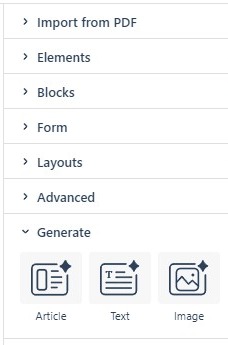
As part of Studio’s suite of AI Generation tools, the Article Generator helps you create blog-style articles — complete with imagery. Open it from the Generate section of the Add panel: click the Article icon there.
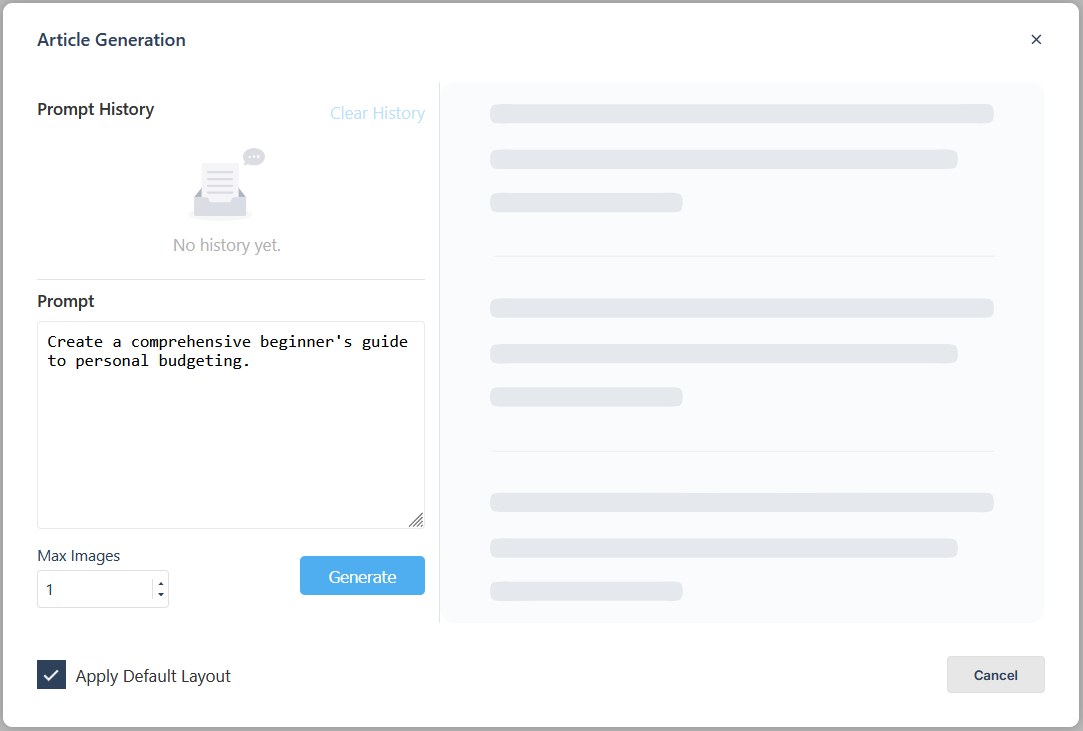
The Article Generator works much like the Text Generation Tool, with the addition of a control for the maximum number of images to create alongside the article.
The Article Generation dialog
You can create articles using a default layout — this generates a header image at the top of the article and adds margins and padding to the article’s elements. Deselect the Apply Default Layout checkbox and the generator outputs unformatted text and images instead.
Whichever option you pick, the generated elements are normal page elements: you can edit and format them in the same way as any other elements on the Canvas.
Once your article is generated, refine the text and images just as you would with any other content on the page.
If it doesn’t work
- The article arrives formatted and you wanted plain blocks. Deselect Apply Default Layout and generate again; you get unformatted text and images.
- The text or images need work. Generated elements are normal page elements — edit and format them exactly as you would any other content.
- Too many images. The only control is the maximum number to create, so set it before you generate rather than deleting afterwards.