

The viewer around your pages can be built from the default graphics, or graphics you supply: the space behind the pages, the loader readers see while the flipbook loads, the intro image shown when the flipbook opens, and the banner strip at the top of the viewer. There is no single “correct” pixel size for any of them — but these are the sizes to start from.
Background
There is no fixed size for the background image, but for best practice use 1680 × 1050 pixels in JPEG format. You set it in the settings panel’s Appearance section under Background → Custom (a custom color or image) — the built-in Canvas, Wooden Floor, and Concrete options are the no-upload route (see Appearance settings).

Preloader
Recommend PNG — it supports the transparency you usually want — but JPEG is also acceptable. You can use any size: the software resizes it to fit the width of the preloader bar below the image. Set it in Appearance under Preloader: keep the default 3D Issue loader, or supply a custom color and image (plus an optional URL the preloader links to when clicked).

Intro
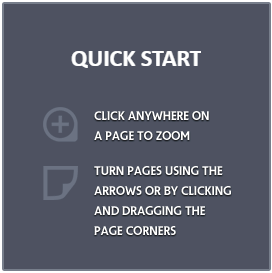
Aim for something in the region of 270 × 270 pixels — that figure is a guideline, not a limit — in either JPEG or PNG. Set it in Appearance under Intro: the default intro contains navigation instructions for readers; choose Custom to show any image you want, with an optional URL for it to link to.
Banner
Use a JPEG, sized 2500 pixels wide × 60 pixels high.
- The banner shows only when the magazine type is Normal — it does not show when Magazine Type is Skinless. Both settings live in the Viewer section of the settings panel (Top Banner is off by default; see Viewer settings).
- To see the entire content of the banner on the vast majority of devices and displays, left-align the content on the banner image rather than stretching it out across the whole 2500-pixel width.

Every other lookup page in this knowledge base is listed in the Reference index.