

The settings panel’s Zoom section sets the zoom defaults the reader starts with. Open the panel from the icon rail on the right edge of the Replicate canvas (see The reader experience: what readers see & how they navigate for the rail and the full settings tour).
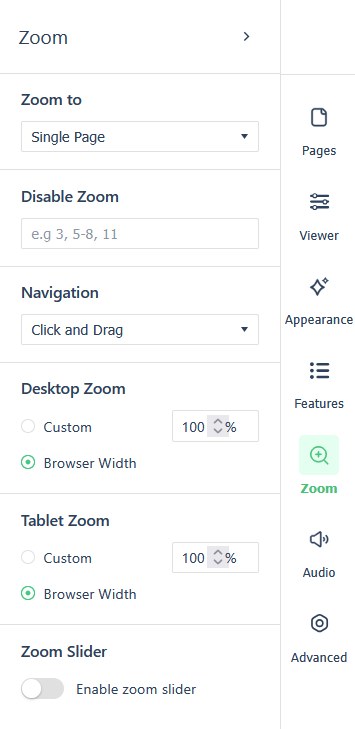
Zoom defaults
Where a cell is blank, the setting has no fixed default.
| Field | Default | Values | What it changes |
|---|---|---|---|
| Zoom to | Single Page | The dropdown’s zoom targets, Single Page by default | |
| Navigation | Click and Drag | Click and Drag, and the other navigation modes the dropdown offers | |
| Disable Zoom | Empty (zoom everywhere) | A page-range list, e.g. 3, 5-8, 11 |
Removes zoom on the listed spreads. |
| Desktop Zoom | Browser Width | Browser Width, or Custom (a percentage, 100% by default) | |
| Tablet Zoom | Browser Width | Browser Width, or Custom (a percentage, 100% by default) | |
| Enable zoom slider | Off | On, Off |
Readers can change zoom themselves in the reader when the Features list’s Settings toggle is on (see Features settings); the reader-side zoom behaviors are collected in The reader experience: what readers see & how they navigate.