The settings panel’s Features section decides which reader features appear in the reader toolbar, and in what order. Open the panel from the icon rail on the right edge of the Replicate canvas (see The reader experience: what readers see & how they navigate for the rail and the full settings tour).
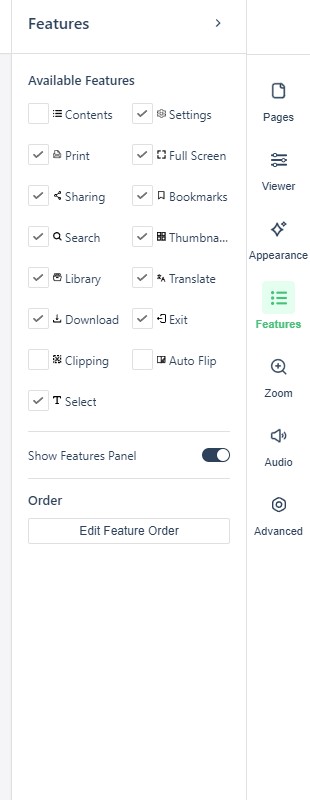
- Available Features — a grid of on/off controls for the reader toolbar: Contents, Settings, Print, Full Screen, Sharing, Bookmarks, Search, Thumbnails, Library, Translate, Download, Exit, Clipping, Auto Flip, and Select.
- Show Features Panel — a toggle that hides or shows the features panel in the reader.
- Edit Feature Order — a control for arranging the features panel. What the reader sees mirrors the order configured here.
Available features
Where a cell is blank, the setting has no fixed default.
| Feature | Default | What readers get |
|---|---|---|
| Contents | Access to the table of contents added through the editor’s Appearance tab. | |
| Settings | Changing zoom behaviors and transition types themselves. | |
| Printing pages, with a range selector (see Printing from a publication for the reader-side dialog). | ||
| Full Screen | Full-screen mode, removing browser menus and maximizing the page. | |
| Sharing | Sharing to social platforms and email. | |
| Bookmarks | Bookmarking pages within the flipbook. | |
| Search | Searching the page text. | |
| Thumbnails | A modal with clickable representations of pages. | |
| Library | Selecting from the flipbooks in your library. | |
| Translate | Google-powered auto-translation of the page text. | |
| Download | Downloading the flipbook’s source PDF. | |
| Exit | A button that closes the flipbook. | |
| Clipping | Capturing snippets that can be saved or shared online. | |
| Auto Flip | Pausing or starting auto flip. | |
| Select | On | The selection tool (see The reader experience: what readers see & how they navigate for its toolbar position). |