

You’ll end up seeing the change you published, instead of the copy your browser kept.
You’ll need
- The browser you read the publication in.
- Its shortcut for the clear-data page: CTRL SHIFT DELETE on Windows, CMD SHIFT BACKSPACE on Mac.
Why do I need to clear my browser cache?
Your browser saves certain files and settings after downloading them for later use. This makes websites and pages load much faster and reduces the amount of data that you use while you browse the web. The browser might save these files for days or even weeks depending on the settings sent by your webserver.
Cache times for 3D Issue. Hubs and 3D Issue cloud store different settings depending on the file. For data, such as settings or text content the process uses shorter times, sometimes as low as 1 minute. For larger files like images (like Flipbook pages) or videos the process uses 7 days. Settings on your hosting may vary.
Sometimes when you make a change to a website or web app such as a Hub or Flipbook, your browser might not check online and use the old data it has. So clearing this data helps refresh your browser so you can see the changes.
Google Chrome (Windows and MacOS)
- For Google Chrome you can use the keyboard shortcut to open the Clear browsing data page.
- CTRL SHIFT DELETE on Windows
- CMD SHIFT BACKSPACE on Mac
- Check the box beside Cached images and files.
Optionally you can check Cookies and other site data, this occasionally helps other issues you may experience.
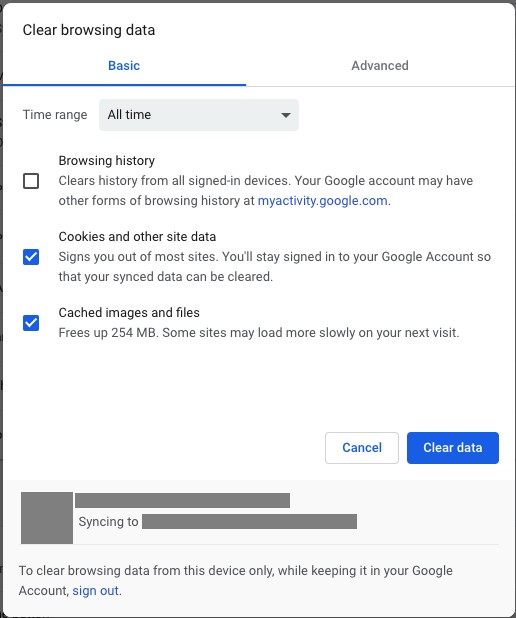
- Then click Clear data

Apple Safari (MacOS)
- For Safari on MacOS you can use the Clear History option from the Application menu.
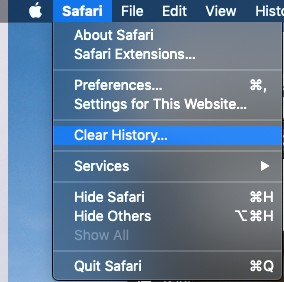
- In the dialog that opens, click Clear history.

Microsoft Edge (Windows)
- For Edge you can use the shortcut CTRL SHIFT DELETE. This will open the Clear browsing data page.
- On the page that opens you can then check the box beside Cached data and files.

- Then click Clear

Chrome Mobile
- Open Chrome on your Mobile or Tablet.
- Tap More
 > Settings
- Under advanced, click Privacy > Clear browsing data
- Check the box beside Cached images and files
- Tap Clear data
Safari Mobile
- For Safari on mobile open the Settings app
- Select Safari
- Scroll down and select Clear History and Website Data
- Then confirm your action
If it doesn’t work
- The change still does not appear. Cache times differ by file: settings and text content can clear in as little as a minute, while images such as page renders and video are held for up to 7 days — and your hosting may vary.
- Other things are behaving oddly too. Clearing cookies and other site data alongside cached images and files occasionally helps other issues you may experience.