

You’ll end up with an empty queue, and nothing further picked up for processing.
You’ll need
- The 3D Issue icon in your system tray — the menu bar on a Mac, the notification area on a PC.
- The issue still waiting in the Queue Manager.
If you wish to cancel issues from being processed follow the below steps for Mac and PC.
Mac
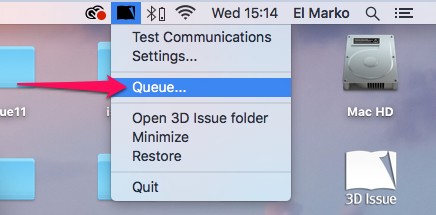
- Right-click the 3D Issue icon in your menu bar and click Queue.
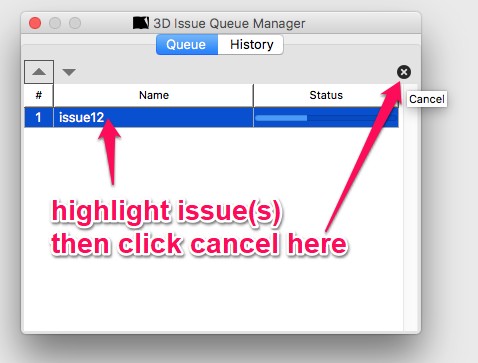
- Select the issue, then click the × in the top right corner so that your queue is empty.
PC
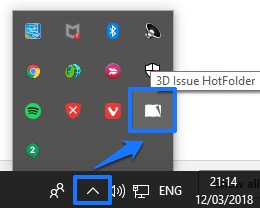
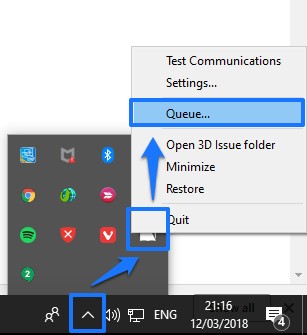
- Open the Queue Manager from your notification area: right-click 3D Issue HotFolder and select Queue.
- Select the issue, then click the X in the top right corner so that your queue is empty.
If it doesn’t work
- You cannot see the X. Select the issue first: the X in the top-right corner of the Queue Manager acts on the highlighted entry.
- You cannot find the tray icon at all. On a PC the entry is named 3D Issue HotFolder — right-click it and choose Queue. On a Mac, right-click the 3D Issue icon in the menu bar.