

You’ll end up with the 3D Issue viewer app on your Facebook page, showing the publication you chose.
You’ll need
- A Facebook Company or Fan Page you can add a tab to.
- The links to that page and to the online publication, and the page’s Page ID.
Within the Output tab of the Desktop Software, ensure that the Facebook App is checked before clicking Build.
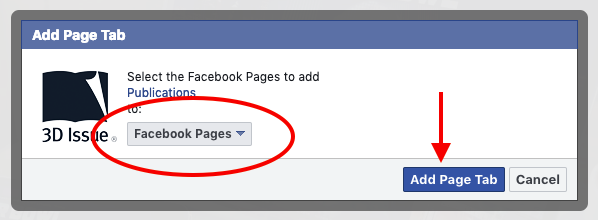
You can add the 3D Issue viewer app to your Facebook Company or Fan Page by visiting here: https://www.facebook.com/dialog/pagetab?app_id=449283325123417&redirect_uri=https://www.3dissue.com
Then select the Facebook Page you wish to add the Flipbooks to. Then click on Add Page Tab.
Once you’ve done that, send support@3dissue.com the following information:
- A link to the Facebook page where you added the 3D Issue app
- A link to your online publication that you wish to display there
- Your Facebook Page ID. This can be found within the About section on your Facebook page.
Once the above information is received, the process of enabling your Facebook App can be completed.
If it doesn’t work
- The app is not showing yet. Adding the page tab is only half of it — send support the page link, the publication link and the Page ID so the app can be enabled.
- You cannot find the Page ID. It is in the About section of your Facebook page.