

You’ll end up with the new flipbook live at the same location as the previous one, replacing it.
You’ll need
- The previous project open in the software, or its name if you are starting a fresh project.
- The new PDF to build from.
If you wish to upload your new Flipbook to the same location, open the 3D Issue software.
- Open your previous project within the software and then choose the Remove All button. This will remove your existing pages.
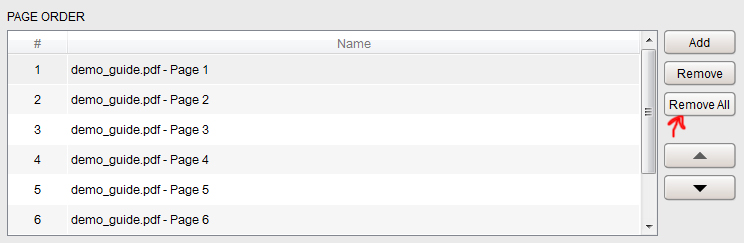
- You can then add your new PDF(s) by clicking the Add button.
- Once this has been done, if you click Build, this will upload the new flipbook to the same location as before.
- You will have to clear your browser cache; How to clear your browser cache shows how

If you cannot locate your project folder on your machine (perhaps you have deleted it or moved it to another location), not too worry. You can launch the software and create a new project. Add your PDF(s) and when you click Build, you will be asked to give your project a name and save it. If you name your project the same name as the previous Issue, it will upload it to the same location.
Keeping the previous flipbook live alongside the new one is a copy rather than a replacement: How can I create a copy of my flipbook?.
Swapping one page rather than the whole publication is Can I replace a page without re-importing the PDF?.
If it doesn’t work
- Readers still see the old flipbook. Clear your browser cache — the files on the server have already been replaced.
- You cannot find the project folder. Create a new project, add the PDF, and give it the same name as the previous issue; Build will then upload to the same location.