

You’ll end up with the tooltip gone from your flipbook’s reader, with the button it was attached to left in place.
You’ll need
- Your flipbook open in the Flipbooks Desktop software.
Clear the translation
- Click Options > Translations from the top menu within the Flipbook software.
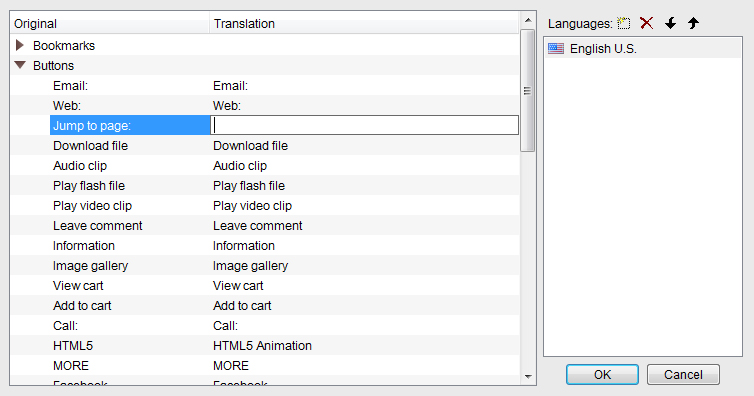
- Expand the section that contains the tooltip you wish to remove. For the Jump to page tooltip, that is the Buttons section.
- Double-click the translation on the right-hand side and remove the text.
- Click OK to save your changes.
Creating a language of your own, rather than emptying a label, is Adding Custom Translations to my Flipbook.
If it doesn’t work
- You cannot find the label. Every tooltip sits in the section it belongs to — expand each section of the Translations dialog in turn.
- The tooltip is still there in the published flipbook. Build and upload again: the change is saved in the software, and the live version only changes on a build.