

The solution allows you to automate the process of converting PDFs to HTML5 digital publications with the auto-create and publish (HotFolder) feature. This allows you to drag and drop a PDF or multiple PDFs into a specified folder on your computer, HotFolder then automatically converts it and uploads it with all of your settings on your profile. If you have not yet installed the software and built a single flipbook by hand, Install Flipbooks Desktop and publish once walks that first run through.
How to create your digital publications using the HotFolder feature:
HotFolder is installed as part of the 3D Issue process. Once the user has installed and registered the main 3D Issue software the HotFolder will also be registered for use and will appear in the systems tray. You can see this in the image below.

HotFolder allows the user to change the settings used for creating digital publications by clicking on the Icon shown in the system tray. Once the user has set the Template, Profile and Upload options required to create the digital publications all they have to do is drag and drop a PDF into the ‘Input Folder’ or have this folder designated as the location for their PDFs to be saved when created through the likes of Adobe InDesign. What a template and a profile each hold is Setting up templates and profiles.
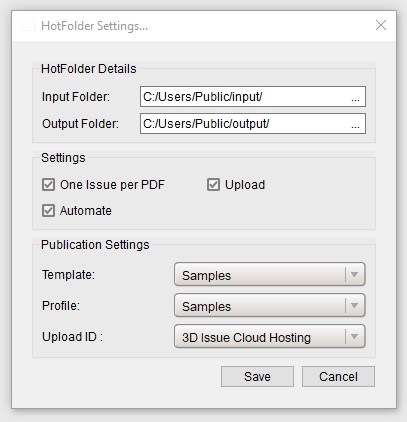
• Input Folder – Any PDFs placed in the input folder will be converted into flipbooks.
• Output Folder – Completed flipbooks are then stored in the output folder.
• One Issue per PDF – Allows you to determine whether a flipbook is created for each individual PDF or if multiple PDFs will be converted into one flipbook.
• Upload – Whether the flipbook will be uploaded to a server or not.
• Automate – If enabled, the flipbook will be named after the PDF converted. If disabled, the hotfolder will prompt you for the flipbook’s name after each conversion.
• Template – Select your company’s template.
• Profile – Select your publication’s profile.
• Upload ID – Select the server where you want to upload the flipbook.
This way you can automate the process of building your digital publications through the software, many of the customers make use of this feature to build and upload their archive of publications through the software or when they are converting many publications through the software daily/weekly.
For a problem with a flipbook you have already built rather than a question before you set HotFolder up, contact support@3dissue.com. If there is anything you or your team are unsure about with regards to the auto-create and publish feature, the HotFolder can be discussed in depth if you want to call the office at the number below or email sales@3dissue.com.
US: +1 914 336 4017
Opening Hours: 4:00 AM – 4:30 PM (EST)