

On the final tab (Output) within the software, there are options called Image Quality and Zoom Level. White lines that appear between pages at high zoom are a separate question: Why are there white lines appearing on my flipbook when I zoom in? They are not visible within my PDF..
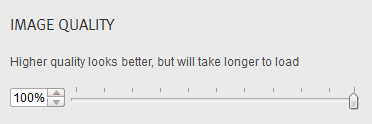
Image Quality
By default, the software displays the image quality at 100%. This ensures that the imagery and text on your Flipbook appears at the maximum quality. You can decrease this if you wish the Flipbook to load quicker, however keeping it at 100% preserves image quality for readers.
Zoom level
The zoom level is set to browser width by default. This means that when a reader zooms into the Flipbook, it will span to the width of their browser. You can change this however by selecting the Custom options. It all depends on the size of your actual PDF. Sometimes allowing the reader to zoom into the Flipbook at 100% will cause the publication to actually zoom in too far, which can make it very difficult to read, as the user would have to pan around the publication to read it. Sometimes 100% will actually only zoom in slightly, as your PDF might be quite small. However you can change the percentage if this is the case. If you are using the custom setting, adjust the percentages until the zoom setting suits the publication. If a phone reader sees blur when they zoom, My flipbook is appearing blurry when I zoom in on an iPhone covers that case.
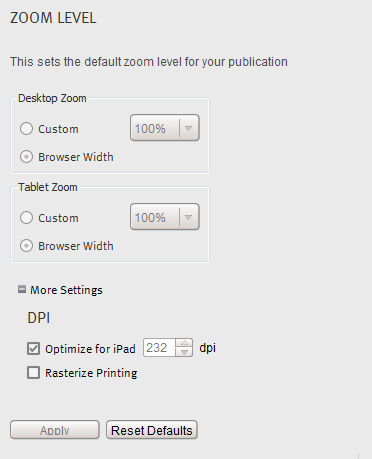
There is a More Settings option at the bottom of the Output screen. If you click on the text, it will drop down some DPI options. The first option (Optimize for iPad) is checked by default. Keep this checked: it improves quality for readers on iPads. You can uncheck this if you like and play around with the DPI settings until you are satisfied with the result.
Below this is an option called Rasterize Printing. This option is only necessary if you experience problem when printing page(s) of you Flipbook. For example, if you send a page to your printer and there are missing images or text, then check this option. However it is not a commonly used option and is only needed in rare cases.
If you have made changes to any part of this section, you can add the settings by clicking the Apply button. You can also revert back to the original settings by clicking the Reset Defaults button.